Você está no 3DFinder
Buscamos em Thingiverse, MakerWorld e Printables ao mesmo tempo para te dar o melhor de cada uma.
Descrição
Customizable LEGO compatible Text Bricks
This is a customizer for creating LEGO® compatible rectangular bricks with text engraved on the sides (all 4 sides). You can of course also use it to create bricks without any text. It can create bricks as small as 1x1x1 (plate height) or as large as 48x48x18 (6 normal bricks high).
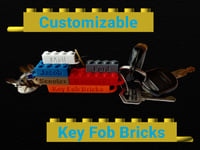
There is also a key fob remix of this thing:
Getting A Good Fit
All dimensions are accurate, but the customizer has a tolerance parameter so the dimensions can be adjusted to your printer/filament so that they have a perfect fit with one another and with real LEGO® blocks. Real LEGO® blocks have a horizontal play of 0.2 mm so that they can be connected to one another. So a 4x2 brick is 31.8x15.8 mm and a 6x2 brick is 47.8x15.8 mm, for example. The tolerance is in addition to the required 0.2 mm play and is subtracted from both sides of all walls so that a tolerance of 0.05 would make the previously mentioned bricks 31.7x15.7 mm and 47.7x15.7 mm. If your printed bricks are too tight you'll probably want to set this to a non-zero value to loosen the fit. For complete control over the fit, the customizer also has a section that allows you to override each of the LEGO dimensions individually.
The customizer, by default, creates LEGO-sized bricks only. The large nameplate brick in the photos was scaled up in the slicer to 200% and then printed. I had adjusted the text depth parameter in the customizer to half the default so that when it was scaled up it was at the desired depth of 0.8 mm. This depth is recommended so that there are no extreme overhangs.
Note that since creating the bricks in the photographs I have added a parameter to specify the spacing between letters and by default they will be spaced a little farther apart than on the bricks in the photos.
Using the Customizer
Thingiverse hadn't run their customizer queue from Jul 10, 2020 to Aug 4, 2022 and may stop running it at any time again, so if they don't process your customized job, you will have to install and run OpenSCAD (free software) on your own computer to process the code to create your own customized models. See DrLex's instructions linked below for further details.
How to Run Customizer on Your Own Computer
If you are running the code on your own machine using OpenSCAD, you will need to install the font(s) on your system. The fonts are available to download from the Google Fonts repository. The default font for this thing is available at:
https://fonts.google.com/specimen/Roboto
To make a font available to OpenSCAD you have three options:
- Install the font to the system. The procedure for installing system fonts is dependant on what operating system and what version you are using (Ubuntu Linux 16.01, Ubuntu Linux 20.04, Windows 7, Windows 10, Mac OS 9, Mac OS X, etc. ). If you don't know how to install a font on your system then search the web for instructions.
- Add the font file to your fonts folder, creating the folder if it doesn't already exist. On Linux this would be something like "/home/YOURUSERNAME/.fonts" and on Windows 10 it would be something like "C:/Users/YOURUSERNAME/.fonts".
- Add the font to the folder that contains the OpenSCAD file that you want to use the fonts. You will also have to add to the OpenSCAD file the 'use
