Você está no 3DFinder
Buscamos em Thingiverse, MakerWorld e Printables ao mesmo tempo para te dar o melhor de cada uma.
Descrição
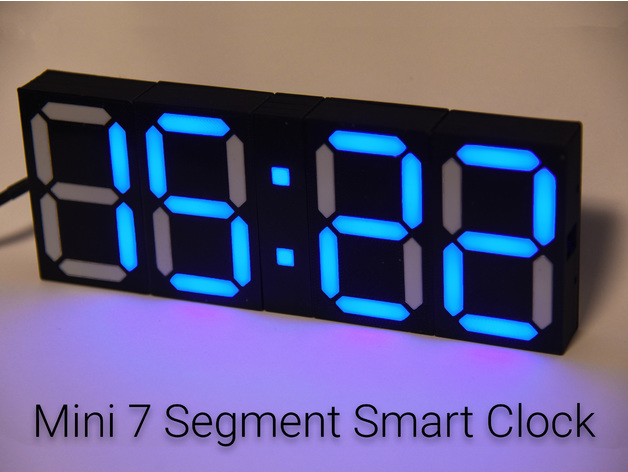
This is a fully 3D printed clock that was designed in Fusion 360. The project is based on Ivan Miranda's Big Digital Clock and was completely re-designed.
If you have any questions or issues feel free contact me
Mini version of the clock here:
[https://www.thingiverse.com/thing:3117494](https://www.thingiverse.com/thing:3117494)
Changelog:
Hotfix 23.10.2018
- Uploaded the correct step file for the diffuser
Hotfix 25.09.2018
- Uploaded the correct flows file for node-red
Major Software Update: 24.09.2018
Make sure to update all your libraries (3 dashes → manage palette → update)
- LOTS OF BUG FIXES
- Clock does no longer light up every 6 hours even when turned of
- Fixed a bug when clock mode was selected at 00:00 - 00:59 that it would made it show e.g. 24:15
- Fixed random reboots
- Fixed that alarm wouldn't trigger at the correct time
- Fixed a bug that occured when the API-key of openweathermap wasn't set
- Fixed error spamming in debug console of Node-red
- Fixed that timer would skip 1 second every minute
- Fixed bugs that would result in a crash of the clock
- and much more...
- Removed unnecessary buttons in the UI
- Added a settings tab to the UI, the settings section in the ui got moved over there
- Clock is now more precise
- Timer is now capable of displaying HH:MM and MM:SS format, depending on the remaining time
- SOURCE CODE OVERHAUL
- Functions are now modular
- Added tons of comments
- Made the code readable
- New functions
- Clock/Timer works now more precise (the clock shouldn't be off time more than 2 secs)
- Functions utilize much less global variables making the code easier to modify
- Weather algorithm got fixed
- Fade works more stable now and shouldn't cause a crash anymore
- Time is now set in HH:MM:SS before it was HH:MM
- Clock now request the time on startup and after connection loss
- Custom values now allow to disable digits
- Fixed fade-speed levels
- Node-red flows are now much more modular, this allows controlling additional clocks
- Debug Serial mode for the clock -> debugging can be disabled -> more stability
- Brightness slider is now logarithmic
- Fixed some typos
- Easy way to control more clocks implemented
- Time offset should now be persistent
- Added Settings page
- Improved Alarm Creation
- Fixed tons of bugs
- Added alternative input formats
- Added input check → the user gets informed if the values aren't correct
- Adapted the form to the new dashboard plugin update
- The alarm triggers now at the correct time :D
- and more...
Hotfix: 14.07.2018
- Fixed a bug in the arduino code that would cause the shutdown of the clock if the weather gets displayed
- Due to an update of the dashboard library some code had to be changed for the timer
Hotfix: 05.07.2018
- Updated diffuser_white_28x, fixed the tiny hole on the bottom
All files and photos can be found at: Github
Tested devices
- Raspberry Pi 3B
- Raspberry Pi B+
- Wemos D1 mini
- Generic ESP8266 (Led Strip Pin must be changed)
Features
- Responsive webinterface

- Create alarms
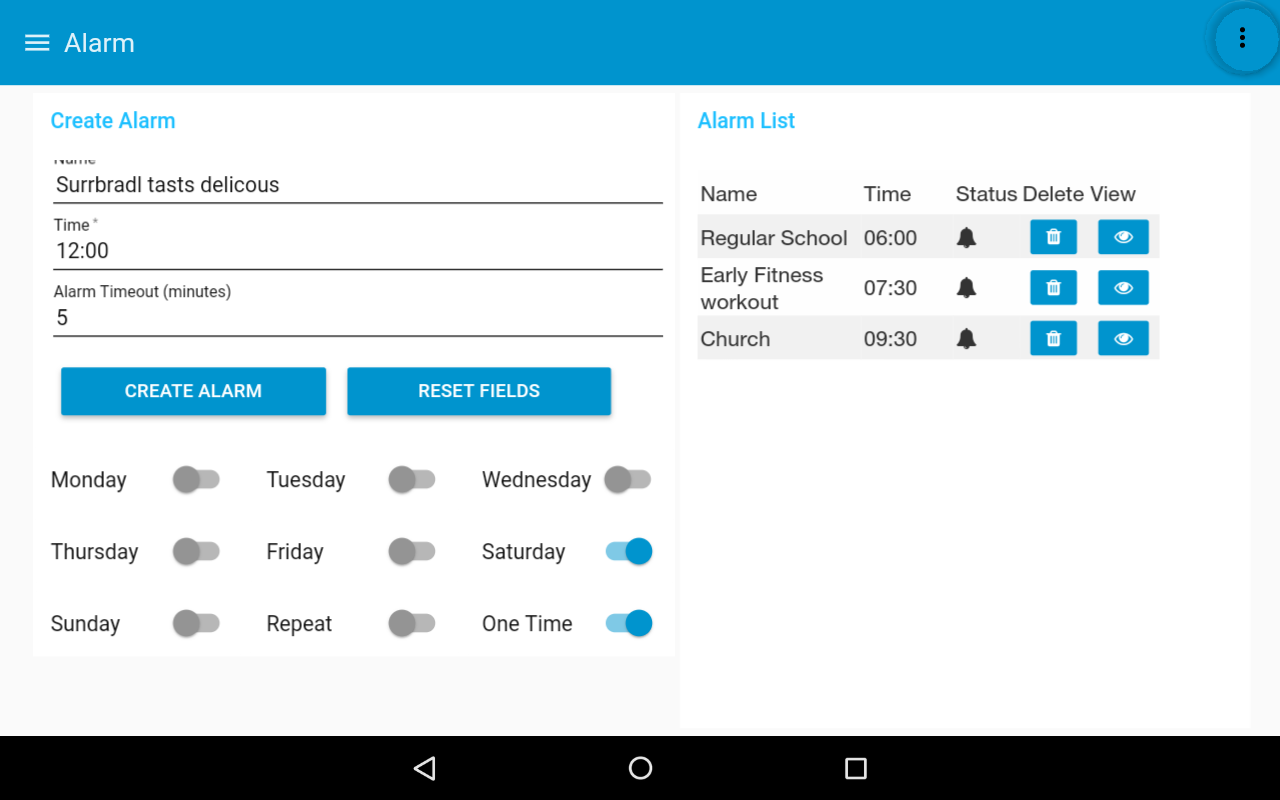
- Show current temperature in your region

- Configure settings

- Display local time
- Set individual colors of each digit
- Custom scoreboard mode
- Control brightness
- Save custom colors
- Fade colors
Bill of materials
- 1x Raspberry Pi or any linux machine
- 1x Wemos D1 mini
- 1x 1m of WS2812 LED strip with 60 LED's
- 1x Power supply 5V, 4A
- 16x M3 * 10-16mm
- 16x M3 Nuts
- 1x Power jack adapter
- 2m Wire
- 4x Dupont connectors
-
Estimated total price: 25€ not including the raspberry pi
Tools
- Soldering iron
- 3D Printer
- Pliers
- Hot glue gun
How to build it
1. 3D-Print
Print Settings
Attention: diffuser and dot_diffuser must be printed at 100% infill!
| Part | frame | dot_frame | back_cover | dot_back_cover | diffuser | dot_diffuser |
|---|---|---|---|---|---|---|
| Speed | 45mm/s | 45mm/s | 45mm/s | 45mm/s | 25mm/s | 25mm/s |
| Infill | 15% | 15% | 15% | 15% | 100% | 100% |
| Layer | 0.2mm | 0.2mm | 0.2mm | 0.2mm | 0.2mm | 0.2mm |
| Color | Black | Black | Black | Black | White | White |
| Amount | 4 | 1 | 4 | 1 | 28 | 2 |
2. Soldering of the LED-Strips
First the LED strips have to be cut into pieces of 2 LEDs each, then the ends have to be bent until the solder pads are exposed. It is recommended to tape the strips onto a soldering mat or a table and solder the wires afterwards.
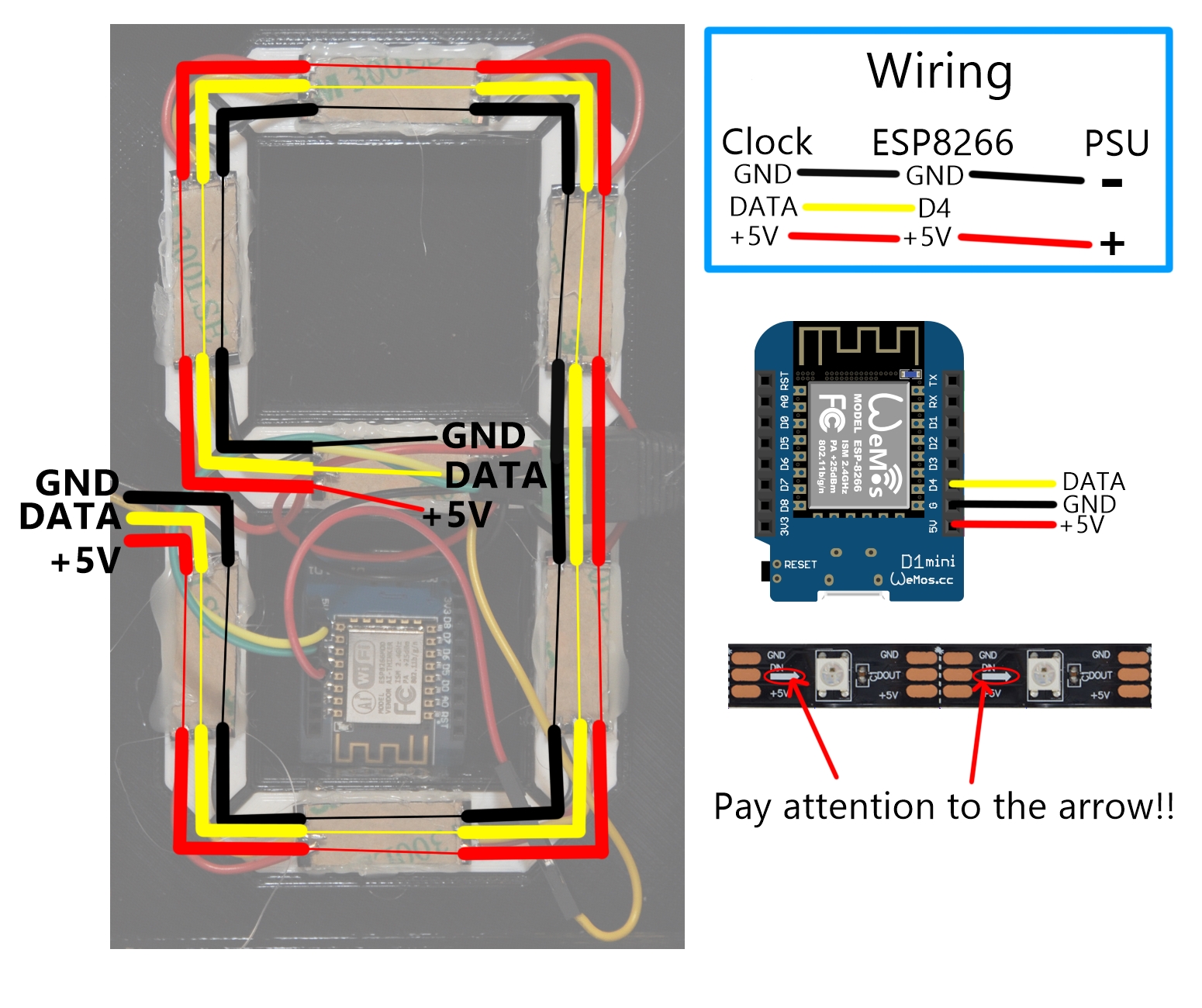

Be careful when wiring the dots, only one LED was used for these pieces.
3. Testing the LEDs
Upload the clock_mqtt.ino sketch onto the ESP8266, if the leds don't show 0:0:0:1 after one minute, then you made a mistake or have loose wires somewhere.
4. Assembling the frame
Push in all 30 diffusers, use the 16 M3 screws and nuts to assemble the frame. This step should be self explainatory.
5. Glue in the LEDs
A hot glue gun needs to be used to glue on all LED strips. The start of the LED strip and the ESP8266 must be located on the left when looking at the clock from the front. Afterwards also glue on the microcontroller and the power jack once everything works the way it should. Finally attach the back covers.
Setup
1. Raspberry Pi
- You could also install this on any linux machine
In case help with Raspberry Pi is needed, click here.
1. Install Node-RED
```bash <(curl -sL https://raw.githubusercontent.com/node-red/raspbian-deb-package/master/resources/update-nodejs-and-nodered)```
2. Install npm - this might be already installed
`sudo apt-get install nodejs npm -y`
3. Install dashboard, openweathermap and mysql
`cd $HOME/.node-red` `npm install node-red-dashboard`
- if you get an error try: `npm install --unsafe-perm node-red-dashboard`
`npm install node-red-node-openweathermap` `npm install node-red-node-mysql`
4. Install mosquitto
`sudo apt-get install mosquitto -y` (optional) Setup mosquitto authentication
5. Install mysql
`sudo apt-get install mysql-server -y`
- Just hit OK or RETURN during installation
6. Setup a static ip for your raspberry pi
- (recommended) Setup a static ip on your router
- or on your Raspberry Pi
7. Create Database clock and account
You will have to create a database named clock to be able to save alarms. Just type into your shell:
`mysql -uroot`
`create database clock;`
`CREATE USER 'admin'@'localhost' IDENTIFIED BY 'raspberry';`
`GRANT ALL PRIVILEGES ON clock.* TO 'admin'@'localhost';`
`FLUSH PRIVILEGES;`
`quit`
2. Node-RED
1. Start node-red
- `sudo node-red-start`
