Você está no 3DFinder
Buscamos em Thingiverse, MakerWorld e Printables ao mesmo tempo para te dar o melhor de cada uma.
Descrição
I created this model because I wanted to make a remote power button for my PC (No, my computer can be booted with pressing any key on my keyboard). I really liked the user experience with IKEA's Tradfii remote light switches, so I wanted to emulate it without spending a ton on a ZigBee microcontroller. The Espnow protocol seemed like a quicker and more secure option than using Wi-Fi, that's what guided me to the ESP32. The deep sleep function of this microcontroller also makes it easier for having powered with a small battery.
After many iterations, I arrived to this design, which surpassed all my clicking expectations, and works without jamming. Also, you can press anywhere on the button cap, and it will register the click. Many of my prototypes were jamming when I was pressing them not quite in the centre. I figured that I had to publish my model since there aren't many similar designs on here.
BILL OF MATERIALS
- Lolin C3 Pico
- 500mah 40x20x6MM 3.7v Battery (I used this exact one, plus a JST XH 2 pins header)
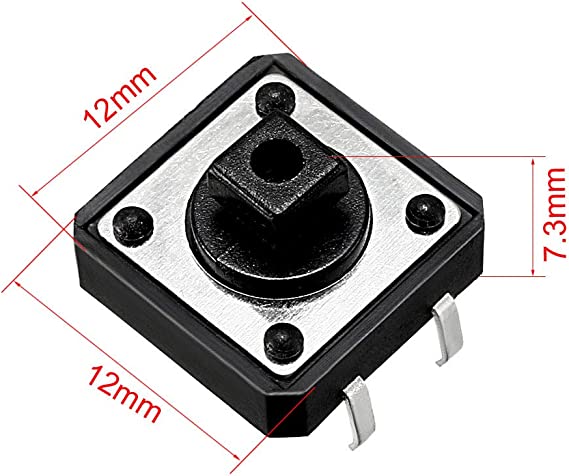
- 12X12X7.2mm clicky temporary switch with a square head like this one
PRINT INSTRUCTIONS
Nozzle size: optimized for 4 mm nozzle
Layer height: Any (it might be better to have smaller layers where the top and bottom part meet, so they slide a bit better)
Infill: As you so wish
Supports: I recommend you use support for the USB type-c hole.
Material: Any, but I feel like PETG (and maybe ABS) would be better for that application
ASSEMBLY
- Test fit the Lolin 32 C3 pico and the battery connected together in the case. The Pico should be inserted with the usb type-c end first, and then pressed in place with the other end. The battery's jumper wire might interfere with the fit, if it does:
- For skilled tinkerers, shorten the wires so that there's no slack between the battery and the C3 Pico when they are in place.
- For unskilled tinkerers (Like me), you'll have to pull the wires up through the groove I made for the jumper wire. Later when it's time to assemble everything, you'll be able to tuck them in the little hook on the mid-layer.
- Time to fix the button to the mid-layer. In order to prevent short-circuits, the wires that go to the button will have to pass through the mid-layer's big round hole and connect on top. Being mindful of that, I gave you some options. You can either use the plastic registration pins and clip the button in the mid-layer and bend its pins, or break the plastic pins and solder any 2 to 4 pins of the button into the plastic. Of course, if you use the through holes, you're gonna have to flush cut the pins at the bottom of the mid-layer. (if you only wanted to have a fidget toy, you can end here)
- Solder your wires to the Lolin 32 C3 Pico. Take out the C3 Pico from the case and be sure to disconnect it from the battery. Using thin wires, I used cheap 30 AWG silicon aluminum stuff, measure the distance to go from the C3 Pico, through the round hole of the mid-layer, and to the button and add a little bit of excess. Thin one end of each wire and solder them through the holes of the microcontroller's pins you chose for your project (In my case it was EN and GND, but you can use other pins for more functionality). In the meantime, look at the bottom of the C3 PICO and decide if you want to solder the jumpers for the battery LED and voltage.
- Thin the pins on the button with solder.
- Now It's time to solder the wires to the button. If you want to be a perfect student, clip in the C3 in place without the battery, and clip in the mid-layer. Slobs like me prefer to just have the mid-layer over the C3 on their work table. Pass your wires through the round hole of the mid-layer and cut them to length. Thin the ends of the wire you just created and solder them to the button pins. In the type of switch I chose for this project, the pins directly across from one another are always connected together. When you press the button, it connects the two sides together.
- Time test everything. Connect the battery, upload your code, and press the button. Is it doing what it should do? Is the button soldered correctly?
- When everything is good, it's time for the big plastic sandwich. Re-assemble the battery and the C3 Pico like in step 1. Then, you can clip-in the mid-layer, starting with one side's pins already in their holes. Last step is the button cap. Start with one of the short sides and a tab on one of the long sides to make a corner. Usually, from there, it's pretty easy to go tab by tab.
- Press the button a few times so that everything settles in place. After some clicks, everything should work flawlessly!
EXAMPLE CODE
Here's a link to some example code I wrote if you want a start :
DISASSEMBLY
Insert a credit card or similar object between the button cap and the case. Gently remove tabs from the grooves using a lever action with the credit card. Then, it's pretty easy to remove the cap. For the mid-layer, pull a little bit on the sides of the case and pull the mid-layer from the USB side.
I felt this section was necessary since you might have some bugs that require you to open everything. (ask me how I know)
Troubleshooting:
My button is not clicking at all! It's kind of stuck!
Solution 1 : Something, usually a wire, or the pins of your switch might be creating extra volume inside the case. Open the button, make sure that the battery wire is as short as possible or the extra-lenght is going out of the bottom compartment through the battery connector channel. There should be no cable hanging out in the battery compartment. Make sure nothing hangs out at the bottom of the mid-layer, like the pins of the switch. Also make sure that the wires are attached to the switch at the top of the mid-layer.
Solution 2: Your printer might have left some defects in the tabs of the button cap and inside the groove of the case, make sure you clean them well. Also, if you printed with large layer heights, you button might get stuck more often.
Everything is plugged together, but my battery doesn't seem to work.
Solution 1: Make sure that your battery has at least a little charge.
Solution 2: Make sure that the positive and negative wires on your battery correspond to the ones on the C3 Pico. It doesn't seem like there's a standard for that. Mine came on the wrong side. The solution to this is to lift the tab under each wire under the connector and invert the position of the red and the black wire.
My house is on fire!
Why are you still reading this? Run!