Você está no 3DFinder
Buscamos em Thingiverse, MakerWorld e Printables ao mesmo tempo para te dar o melhor de cada uma.
Descrição
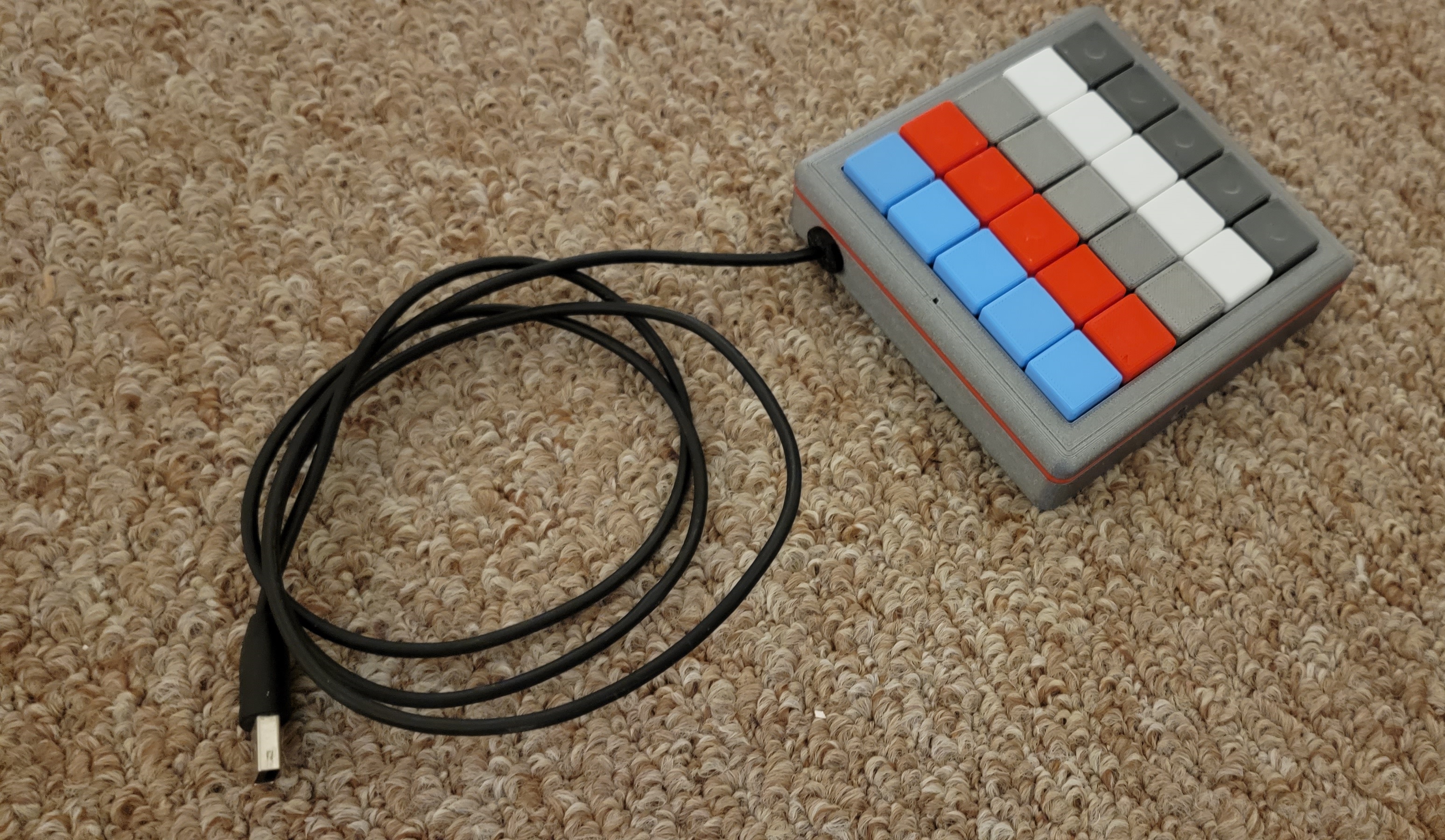
25 Button MACRO Keypad - controller with an Arduino Pro Micro. Uses keyboard switches, a reset button, and a LED.
Summary:
I designed this to be able to assign keyboard shortcuts for different software that I use on a regular basis. This MACRO keypad; in conjunction with JoyToKey will allow a great number of options for different software, batchfiles, shortcuts etc. Currently using it primarily for fusion 360.
Lists for Macro Keyboard V2 – as of 11/19/2022
Materials List:
- PLA filament
- TPU filament
- 25 Keyswitches (I used Akko switches)
- 25 diodes (1N4001 or similar)
- 1 LED (standard 5x9mm LED - any color)
- 220 ohm resistor (or whatever mates to your LED)
- 6x6x3.5 tactile button (1mm button height)
- Hookup wire (or cat5 solid core)
- HiLetGo Arudino Pro Micro
- X4 – M3 x 16mm screws (I used Phillips head)
- Soldering Iron
- Solder
- Micro USB to USB Cable (recommend at least 3’)
- Small Zip Ties
*** Some models May need to be oriented before slicing.
PLA Print List:
- X1 - 2mm Spacer (can choose a different color from base and top for flair)
- X1 – MacroPadBase
- X1 – MacroPadTop
- X1 – Reset Button (will be visible, can choose different color than base so it stands out)
- X1 – Reset Button2 (not visible) *Update 07-06-23 - shoutout to @iComputerFreak
- X1 – Reset Holder SlipOn (not visible)
- X25 – KeyCap1 (can choose different colors)
TPU Print List:
- x1 - Grommet
Optional TEST PLA Print:
- X1 – KeyCapPlate TEST1_TEST (to test keycap locking ability and spacing)
PLA Print Settings (Prusa Slicer):
- 0.20 mm Quality - Layer Height
- 2 Perimeters
- Generic PLA
- Supports: None
- Infill 15% - Gyriod
- First layer speed 15mm/s
TPU Print Settings (Prusa Slicer):
- 0.20 mm Quality - Layer Height
- Generic FLEX settings
The KeyCapPlate prints quick and will let you know if your switches will fit (14mmx14mm)
Build:
I have not done a full write up yet, but plan on doing that when I have the time. Photos should provide enough to go by for now.
When pressing the 3D printed Keycaps onto the switches, there is a notch on the switch which correlates to the “dot” on the 3D printed key cap; line those up and then press firmly. All key caps should pressure fit into place. You can remove them a few times without too much risk of them becoming loose.
Wiring:
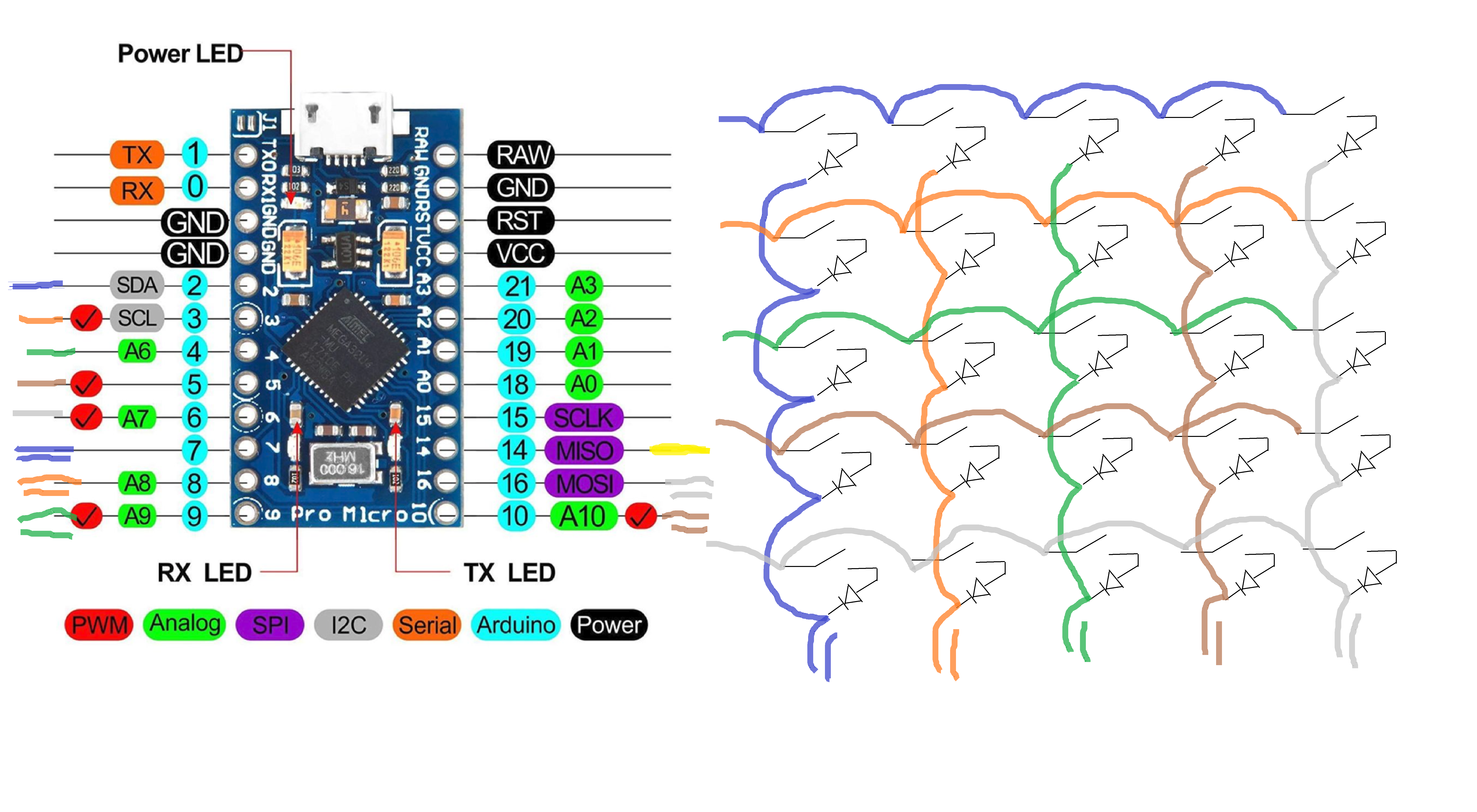
The key switches are wired into a 5x5 matrix.
Single color lines are for rows: Blue, Orange, Green, Brown, Grey
Double color lines are for columns: 2Blue, 2Orange, 2Green, 2Brown, 2Grey
The Yellow line is for the LED Output.
In the final wiring, I wired the columns backwards - so if you are following along the scripts below will work as I had to accommodate for this… Otherwise you may need to reverse the keys for the two test scripts. (In the final script, I flipped the colpins around so it reads more naturally in the script.)
Scripts:
Here are x2 Test scripts (.ino) and the final script that is currently being used.
* Serial Test Arduino Script:
Test Script to output only to serial monitor
#include <Keyboard.h> #include <KeyboardLayout.h> #include <Keyboard_da_DK.h> #include <Keyboard_de_DE.h> #include <Keyboard_es_ES.h> #include <Keyboard_fr_FR.h> #include <Keyboard_it_IT.h> #include <Keyboard_sv_SE.h>#include <Keypad.h>
const int ledPin = 14;// led Pin# const byte rows = 5; //five rows const byte cols = 5; //five columns char keys[rows][cols] = { {'E','D','C','B','A'}, {'J','I','H','G','F'}, {'O','N','M','L','K'}, {'T','S','R','Q','P'}, {'Y','X','W','V','U'} }; byte rowPins[rows] = {2, 3, 4, 5, 6}; //connect to the row pinouts of the keypad byte colPins[cols] = {7, 8, 9, 10, 16}; //connect to the column pinouts of the keypad Keypad keypad = Keypad( makeKeymap(keys), rowPins, colPins, rows, cols );
void setup() { // put your setup code here, to run once: Serial.begin(9600); pinMode(ledPin, OUTPUT); Keyboard.begin(); }
void loop() { // put your main code here, to run repeatedly: char key = keypad.getKey();
if(key != NO_KEY){ Serial.println(key); Keyboard.write(key); digitalWrite(ledPin, HIGH); delay(100); digitalWrite(ledPin, LOW); } }
** Serial and Keyboard Strokes Test Arduino Script:
Test script to output to serial monitor and input keyboard strokes. Test in notepad.
#include <Keyboard.h> #include <KeyboardLayout.h> #include <Keyboard_da_DK.h> #include <Keyboard_de_DE.h> #include <Keyboard_es_ES.h> #include <Keyboard_fr_FR.h> #include <Keyboard_it_IT.h> #include <Keyboard_sv_SE.h> #include <Keypad.h> //-Below is where we will define the keys //-Variables are defined as following: //-[keyA] [keyB] [keyC] [keyD] [keyE] //-[keyF] [keyG] [keyH] [keyI] [keyJ] //-[keyK] [keyL] [keyM] [keyN] [keyO] //-[keyP] [keyQ] [keyR] [keyS] [keyT] //-[keyU] [keyV] [keyW] [keyX] [keyY]//------------Define 1st Row------------ //Ex: [keyA] [keyB] [keyC] [keyD] [keyE] //-------------------------------------- char keyA = 'A'; char keyB = 'B'; char keyC = 'C'; char keyD = 'D'; char keyE = 'E'; //-Define 2nd Row----------------------- //Ex: [keyF] [keyG] [keyH] [keyI] [keyJ] //-------------------------------------- char keyF = 'F'; char keyG = 'G'; char keyH = 'H'; char keyI = 'I'; char keyJ = 'J'; //-Define 3rd Row----------------------- //Ex: [keyK] [keyL] [keyM] [keyN] [keyO] //-------------------------------------- char keyK = 'K'; char keyL = 'L'; char keyM = 'M'; char keyN = 'N'; char keyO = 'O'; //-Define 4th Row----------------------- //Ex: [keyP] [keyQ] [keyR] [keyS] [keyT] //-------------------------------------- char keyP = 'P'; char keyQ = 'Q'; char keyR = 'R'; char keyS = 'S'; char keyT = 'T'; //-Define 5th Row----------------------- //Ex: [keyU] [keyV] [keyW] [keyX] [keyY] //-------------------------------------- char keyU = 'U'; char keyV = 'V'; char keyW = 'W'; char keyX = 'X'; char keyY = 'Y'; //-------------------------------------- //-End of Defining Keys----------------- //--------------------------------------
const int ledPin = 14;// led Pin# const byte rows = 5; //five rows const byte cols = 5; //five columns char keys[rows][cols] = { {keyE,keyD,keyC,keyB,keyA}, {keyJ,keyI,keyH,keyG,keyF}, {keyO,keyN,keyM,keyL,keyK}, {keyT,keyS,keyR,keyQ,keyP}, {keyY,keyX,keyW,keyV,keyU} }; byte rowPins[rows] = {2, 3, 4, 5, 6}; //connect to the row pinouts of the keypad byte colPins[cols] = {7, 8, 9, 10, 16}; //connect to the column pinouts of the keypad Keypad keypad = Keypad( makeKeymap(keys), rowPins, colPins, rows, cols );
void setup() { // put your setup code here, to run once: Serial.begin(9600); pinMode(ledPin, OUTPUT); Keyboard.begin(); keypad.setDebounceTime(50); }
void loop() { // put your main code here, to run repeatedly: char key = keypad.getKey();
if(key != NO_KEY){ Serial.println(key); Keyboard.write(key); digitalWrite(ledPin, HIGH); delay(100); digitalWrite(ledPin, LOW); } }
*** MACRO KeyPad_Keypad-Joystick Script:
FINAL as built Working Script.
Hit win key > type “Set up USB game controllers” > click controller > Properties > Test. Will display a page and allow you to test the Joystick inputs.
#include <Joystick.h> #include <Keypad.h>#define NUMBUTTONS 25 #define NUMROWS 5 #define NUMCOLS 5 #define statLED 14
//-Define the buttons for the macropad byte buttons[NUMROWS][NUMCOLS] = { {0,1,2,3,4}, {5,6,7,8,9}, {10,11,12,13,14}, {15,16,17,18,19}, {20,21,22,23,24}, };
byte rowPins[NUMROWS] = {2,3,4,5,6}; //-Connect to the row pinouts of the macropad byte colPins[NUMCOLS] = {16,10,9,8,7}; //-Connect to the column pinouts of the macropad
//-Initialize an instance of class NewKeypad Keypad macroPad = Keypad( makeKeymap(buttons),rowPins, colPins, NUMROWS, NUMCOLS);
Joystick_ Joystick(JOYSTICK_DEFAULT_REPORT_ID,JOYSTICK_TYPE_GAMEPAD, 25, 0, // Button Count, Hat Switch Count false, false, false, // no X and Y, no Z Axis false, false, false, // No Rx, Ry, or Rz false, false, // No rudder or throttle false, false, false); // No accelerator, brake, or steering
void setup() {
// put your setup code here, to run once:
// Initialize Joystick Library Joystick.begin(); pinMode(statLED, OUTPUT);
}
void loop() { // put your main code here, to run repeatedly: CheckAllButtons(); delay(0); }
void CheckAllButtons(void) { if (macroPad.getKeys()) { for (int i=0; i<LIST_MAX; i++) { if (macroPad.key[i].stateChanged) { switch (macroPad.key[i].kstate) { case PRESSED: case HOLD: Joystick.setButton(macroPad.key[i].kchar, 1); digitalWrite(statLED, HIGH); break; case RELEASED: case IDLE: Joystick.setButton(macroPad.key[i].kchar, 0); digitalWrite(statLED, LOW); break; } }
} }
}
***Note: Photos are of prototype model so uploaded models may differ a bit in appearance.