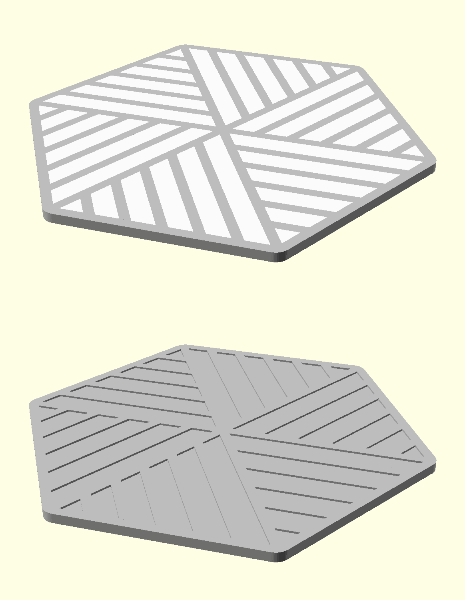
Use some of the pre-exported STL files or customize your own!
The STL files are all optimized for 0.2mm layer height & 0.4mm line width.
Keep reading for a quick guide on how to customize in OpenSCAD. You can easily change the shape/size, add text, a logo, change the patterns, etc. without needing any 3d modeling or coding skills. It only takes a few minutes.
I'm also planning on releasing a OpenSCAD pattern module to here/github using a lot of this code, so follow me if that's something you'd find useful.
Let me know if you have any suggestions/feedback & please post a make if you print one!
Features
Features:
Mutli-color export options (inlay or change @ layer/height)
Download and open the .SCAD file that you want to customize
Click Window, then untick Hide Customizer Optional: Click Window, then tick Hide Editor
Customize the settings. After changing a setting, you may need to click outside the text box to apply the change.
Click Design > Render and wait for the design to render
Click File > Export > Export to STL
Save the file
Presets
You will need to export the container, and each coaster seperately as OpenSCAD can only export one STL at a time. To make this easier, I suggest saving presets.
Click the + to save a new preset
Select the name from the list to load a preset
Click Save Preset to update a selected preset
How to work out the size
You have 3 options for settings the size. You can enable a preview cup (with a custom diameter) in the settings.
Cup Size Diameter(This is the apothem (or inside radius) of the shape)
Measure a cup, add a bit of extra space around the egde and type that number into the customizer - the shape size will be worked out automatically
Coaster size diameter
The outer diameter of the shape
Coaster side length(Diameter will be worked out from side length and number of sides)
Useful if you already have some coasters or a holder. Measure the diameter or the side length (and set the number of sides)
How to add text
Adding text is easy, just type what you want and set the font. You can choose to invert the text to create an outline.
In OpenSCAD, you can install any fonts This can be used to easily add logos with icon fonts. A good place to start looking is here
Once you've downloaded one you want:
Go to C:\Users\YOUR-USERNAME\
Make a folder call .fonts If the folder doesn't exist, create it (there is a fullstop in front of the word font, don't miss it)
Copy the font file into that folder
If you have OpenSCAD open, close it and re-open the file.
Change the Text Font setting in the customizer and type the character for the logo you want.
Make sure the text/logo is all connected - you can enable a base on the coaster if you want to use a non-stencil font!
Import an SVG file
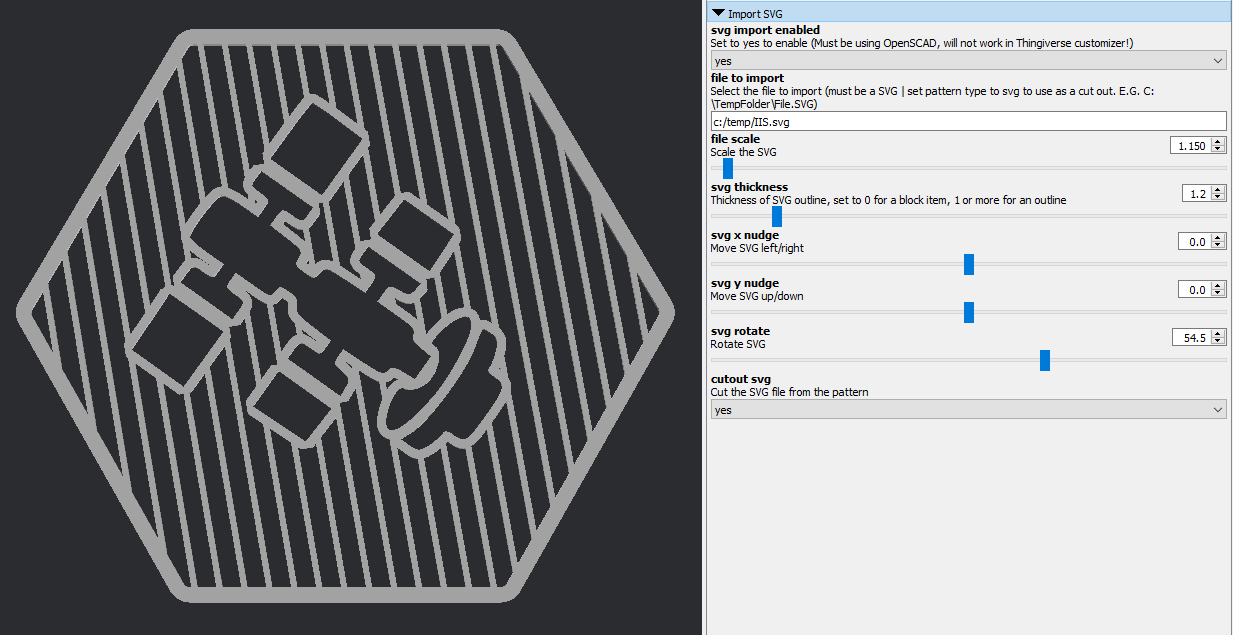
You can also import an SVG file (only if using OpenSCAD!). Just type the file path and enable SVG import in the customizer settings.