Você está no 3DFinder
Buscamos em Thingiverse, MakerWorld e Printables ao mesmo tempo para te dar o melhor de cada uma.
Descrição
Warning: This tool requires the user to interact with the printer extruder while printer is running and the user does so at their own risk. Precautions have been taken but the risk is never zero.
Warning: Failing to follow instructions as outlined can lead to damage to the printer.
I have not tested this with the Core One + and I would appreciate if someone with a core one + could let me know if this attachment interferes with the vent opener.
I designed a pen plotter attachment for the prusa core one that attaches to the extruder assembly with minor impacts to the printing function of the printer. This project is very WIP and I'm open to as much feedback as possible. I'd love for this accessory to be less intrusive on printer functionality but I haven't figured out how to get there yet.
I'll go through the complete hardware and software setup for basic use but I strongly recommend checking out other resources for pen plotting.
Teaching Tech - 2D Printing on a 3D printer ← made this project possible/borrowed heavily from this
Andrew Sink - pltr v2 Pen Plotter Toolheadpltr
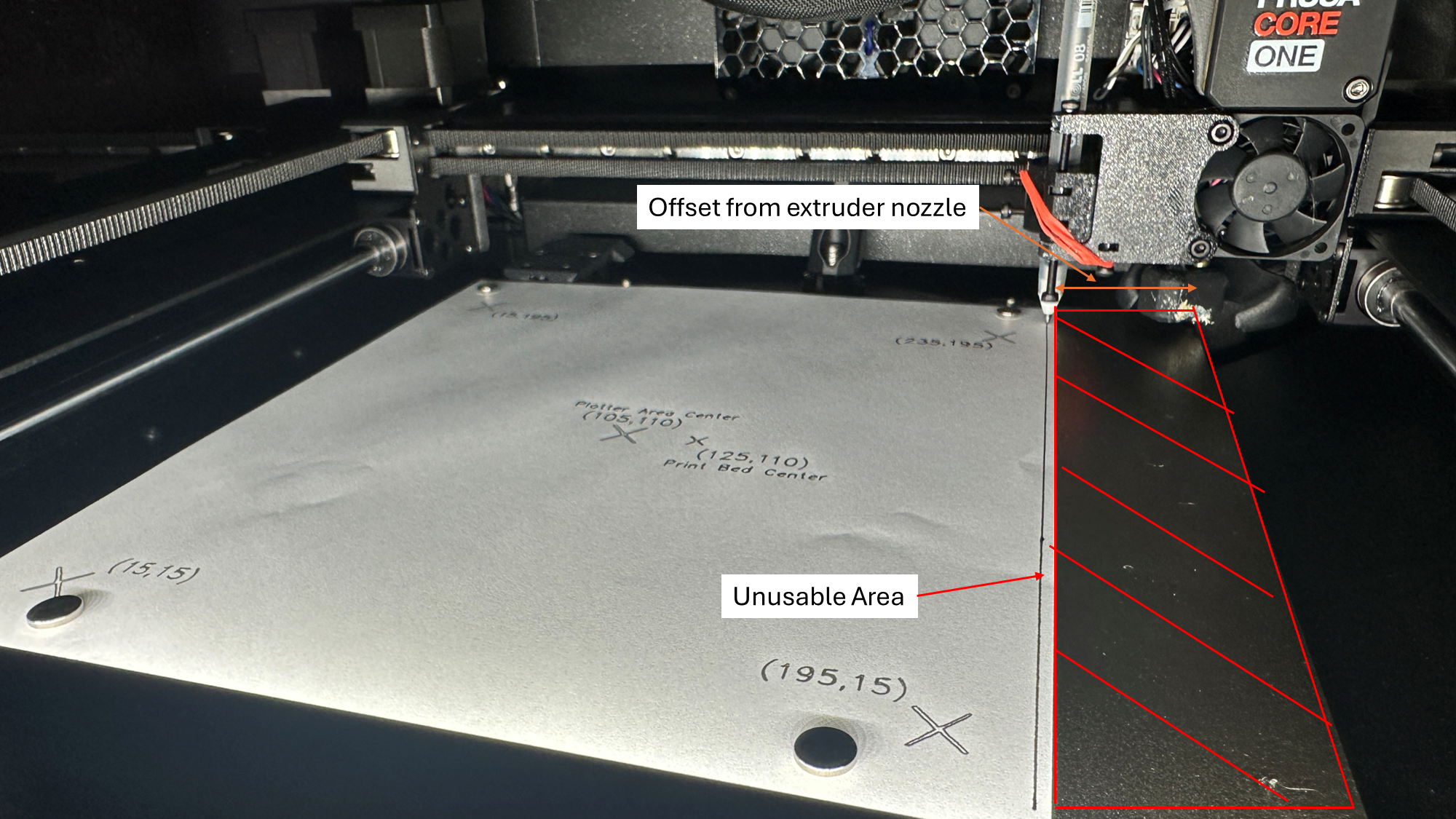
NOTE: The printer loses ~20mm of travel on the X-axis when the plotter is attached to the extruder. I'd recommend removing the plotter attachment unless it's being used regularly
Updates
V1.1: Added ability to remove assembly more easily from the extruder head.
Hardware Assembly
1x Pen Bracket
1x Pen Holder
1x Pen Spacer
6x M3x25mm Socket Head Screws
4x M3x10mm Socket Head Screws
2x M3 x16 Socket Head Screws (Added in V1.1)
8 M3 Nuts
1 9mm Diameter Pen. I have been using the Sakura gelly roll pens but there are many good options
1 Rubber band (Hopefully 2 springs in future). Just needs to be strong enough to apply firm pressure when the printer is printing
Minimum 4 disc magnets for holding the paper in place
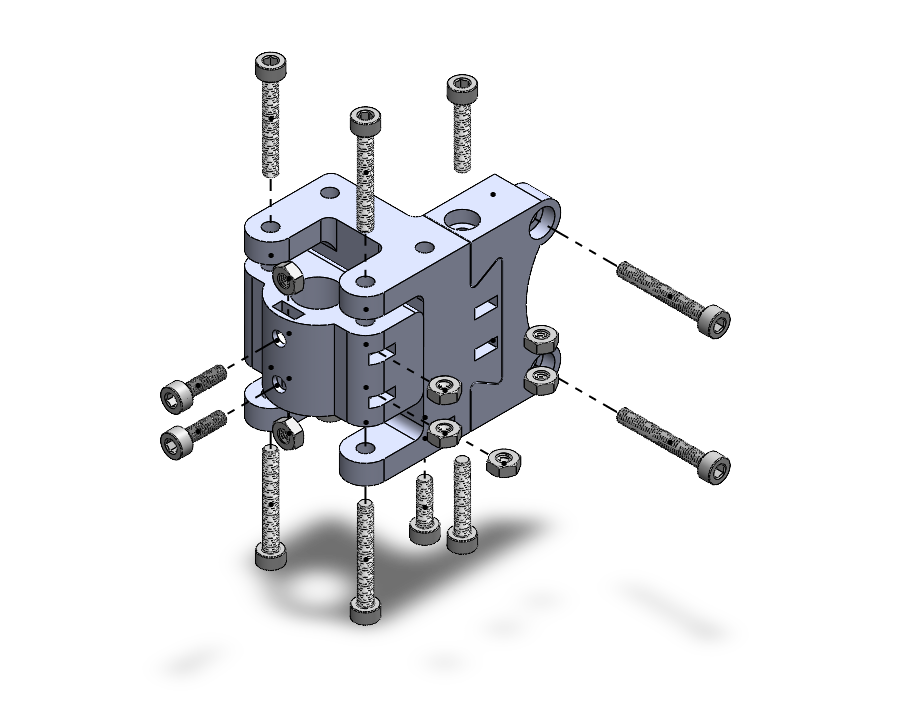
1. Assemble bracket as shown
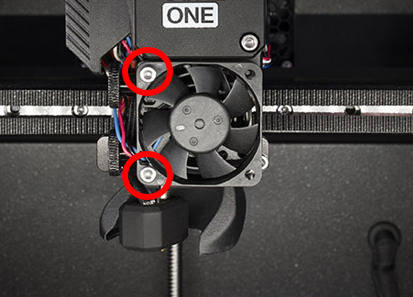
2. Remove M3 screws holding cooling fan
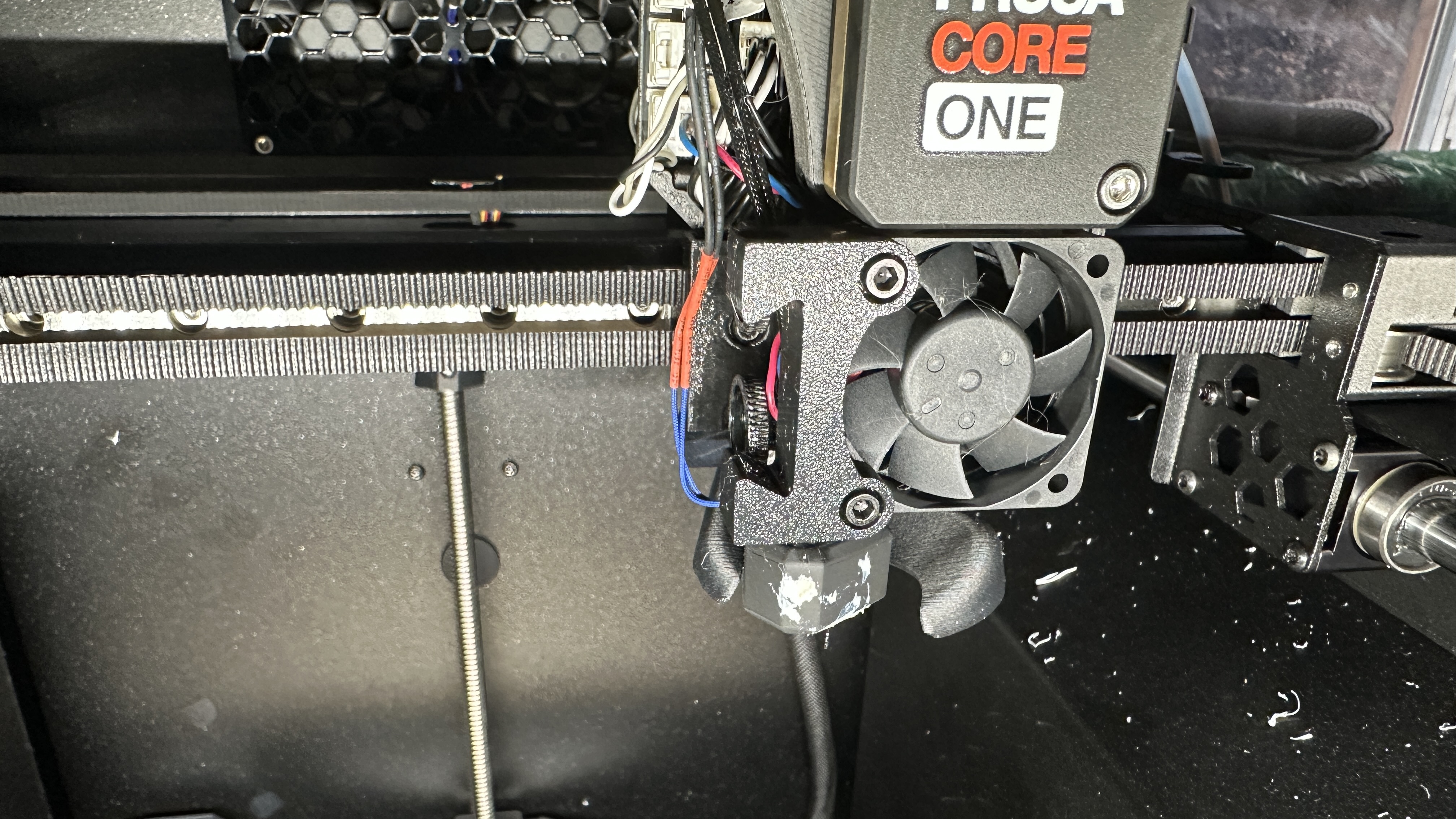
3. Install assembled bracket using M3x25mm Screws
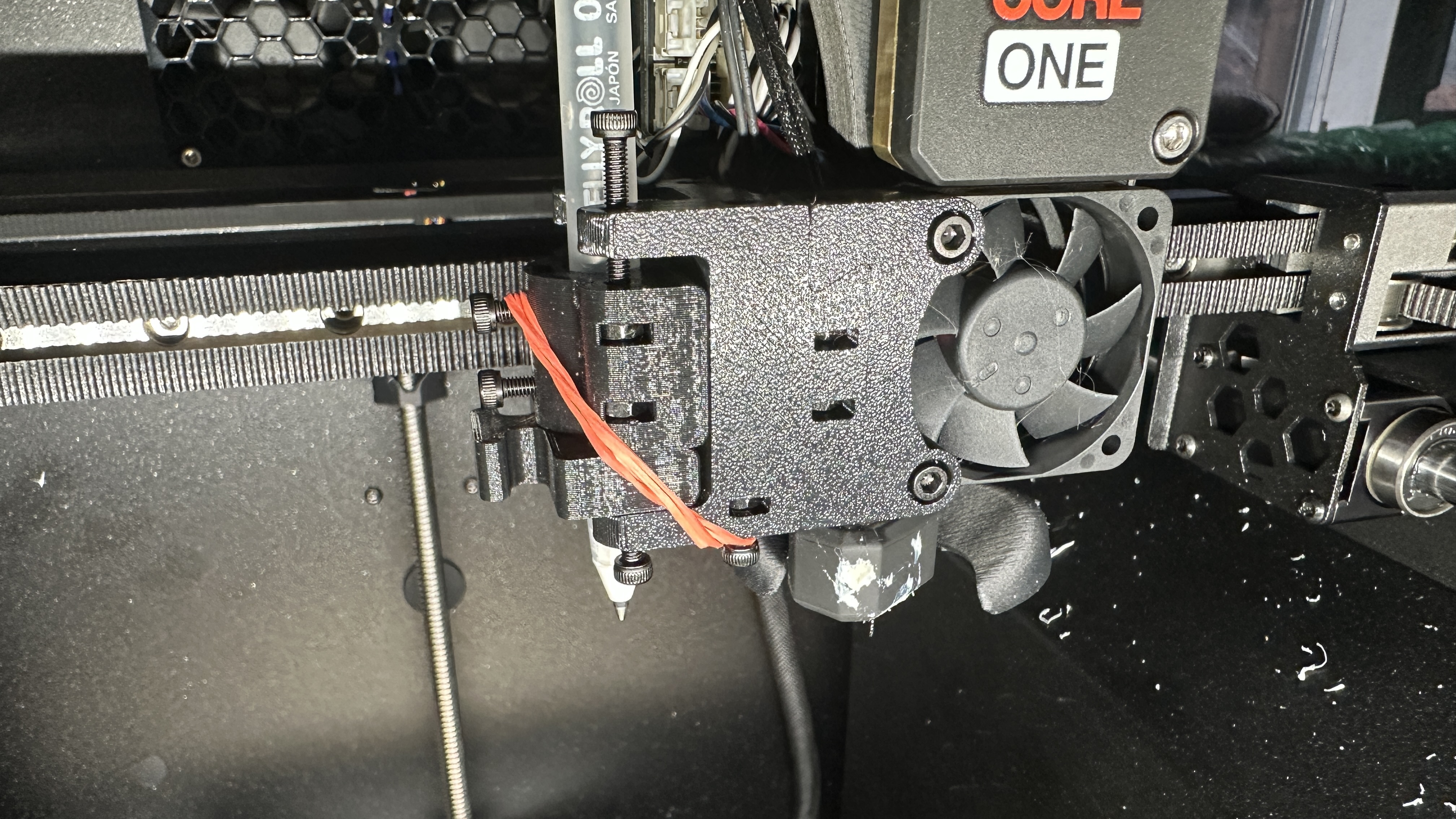
4. Install pen in bracket such that it sits ~2mm below the bottom of the extruder nozzle. Tighten clamping screws to finalize pen location.
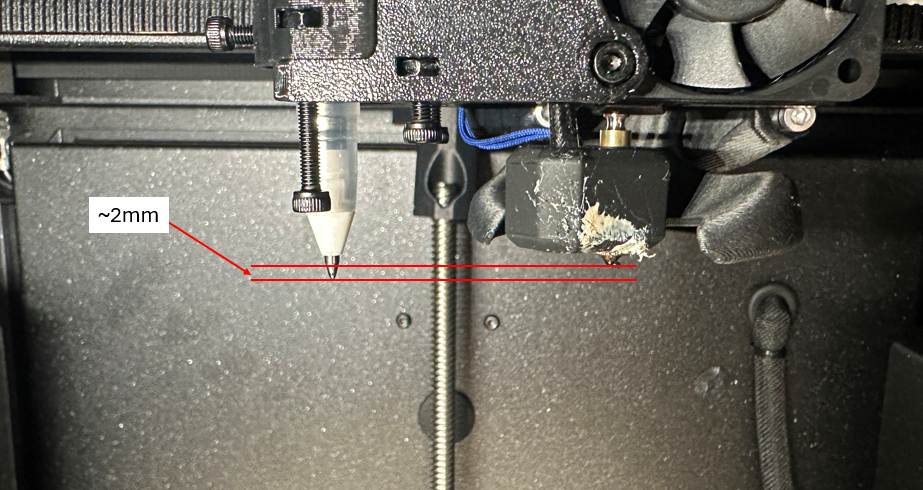
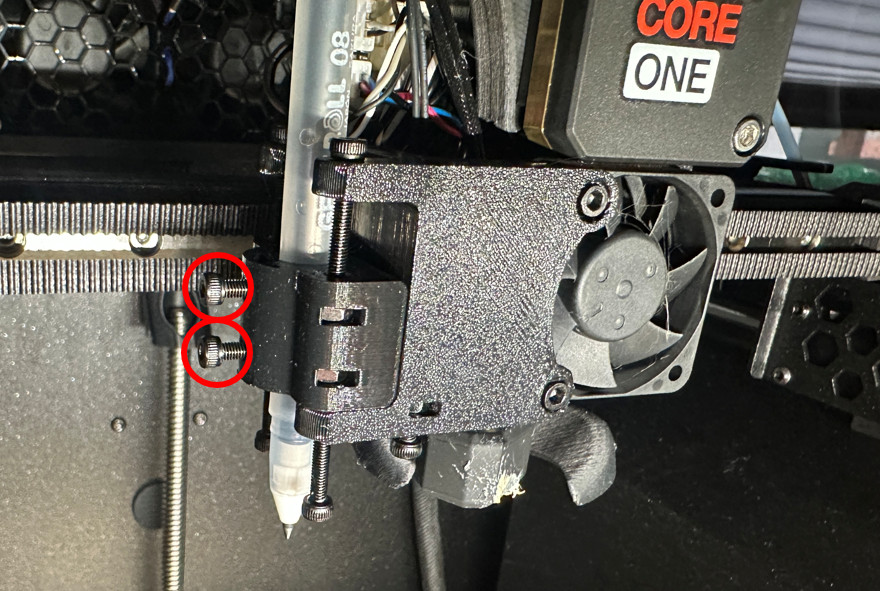
5. Wrap rubberband around clamping screws and use lower screws for each end. Place pen spacer between pen holder and pen bracket
NOTE: You want to avoid the rubber bands being pinched by the pen bracket so position rubber band as shown in image below.
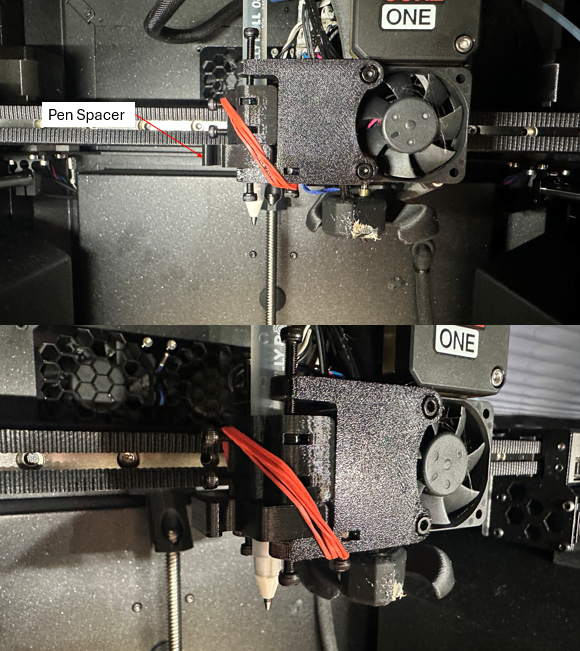
NOTE: With pen spacer installed, ensure that pen tip now sits HIGHER than extruder nozzle. It is critical that the nozzle is able to make contact with the bed before the pen.
Assembly Complete!
Software Setup
I followed the youtube video by Teaching Tech as closely as possible but there are key differences in both hardware and software that make setup different. I would still recommend watching that video so you have a better understanding of what we are doing in this next section. We are effectively treating the plotter like a lasercutter but with G code the Core One likes.
Inkscape will take images or text on the canvas and convert them to vectors. J Tech Community Laser Tool (JTCLT) will take those vectors and convert them to G code the printer will use.
1. Install Inkscape (I'm using Version 1.4.2)
2. Install J Tech Community Laser Tool Extension (I'm using Version 2.5.1)
Note: you will need to unzip the content of the extension and place the contents in the extensions folder: C:\Users\[USERNAME]\AppData\Roaming\inkscape\extensions
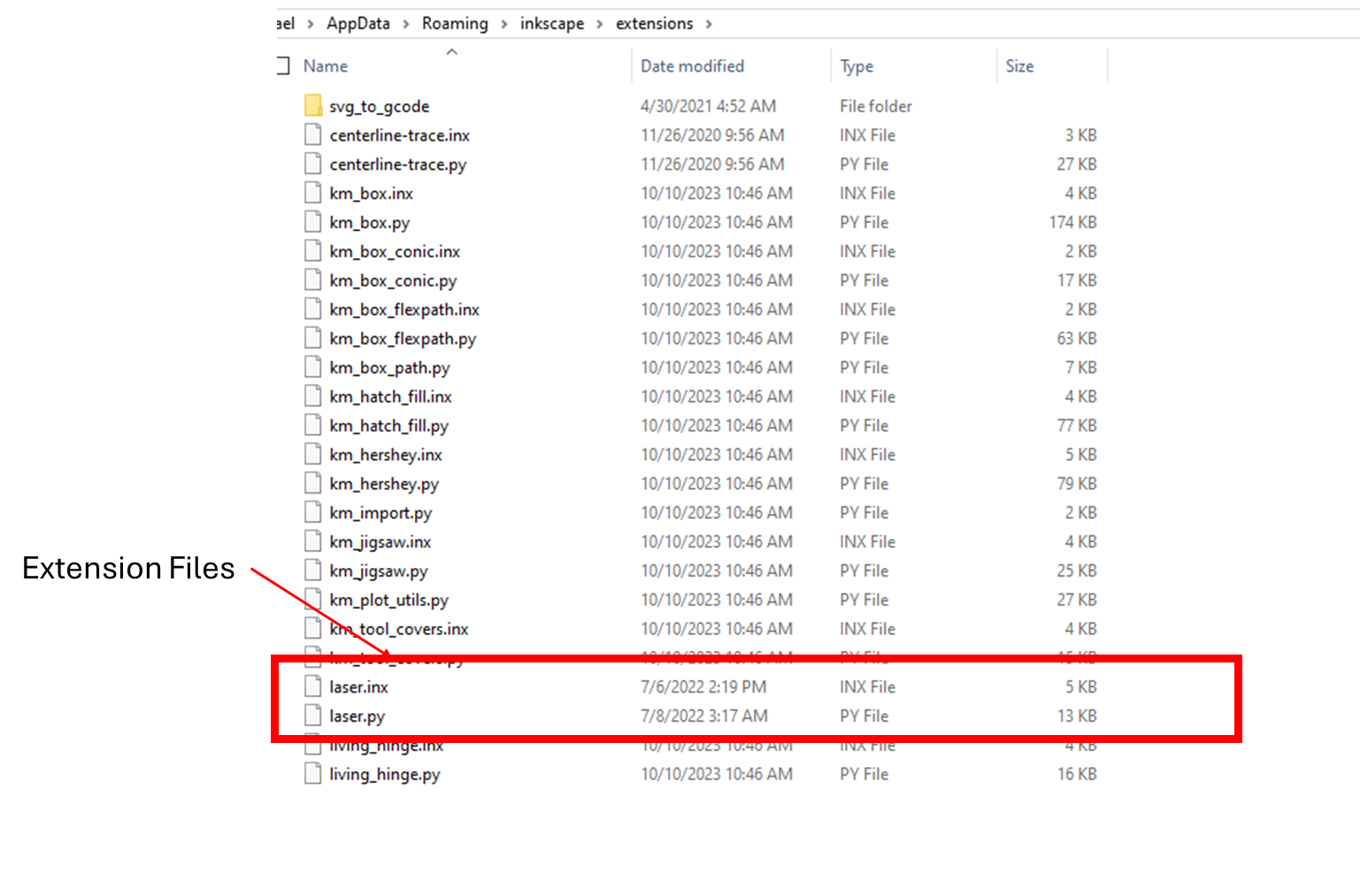
3. Open Inkscape and navigate to the laser tool extension
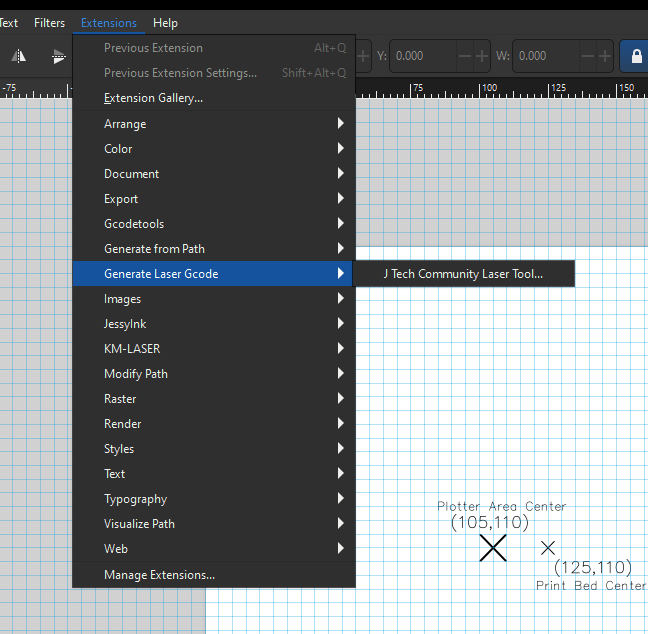
4. Set up the laser plugin. It is paramount that the plugin is configured correctly. Errors in the part could damage the printer.
NOTE: Do not use setting values that you see in images, they may be outdated or incorrect. The correct values will be written in these steps
4.1 Important Settings:
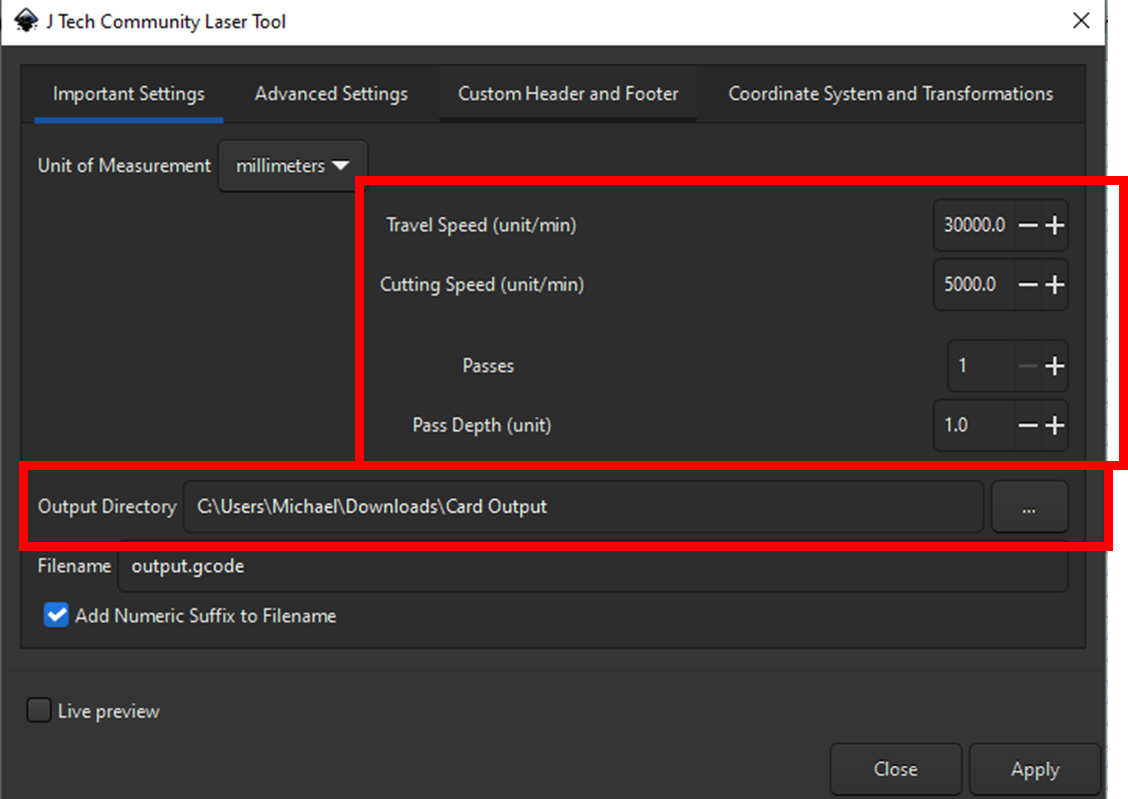
Travel Speed: 30,000 mm/min
Cutting Speed: 5,000 mm/min
Passes: 1
Pass Depth: 1.0
Output Directory ← this is where the G Code file will be output, make sure you set this somewhere you can find.
4.1 Advanced Settings
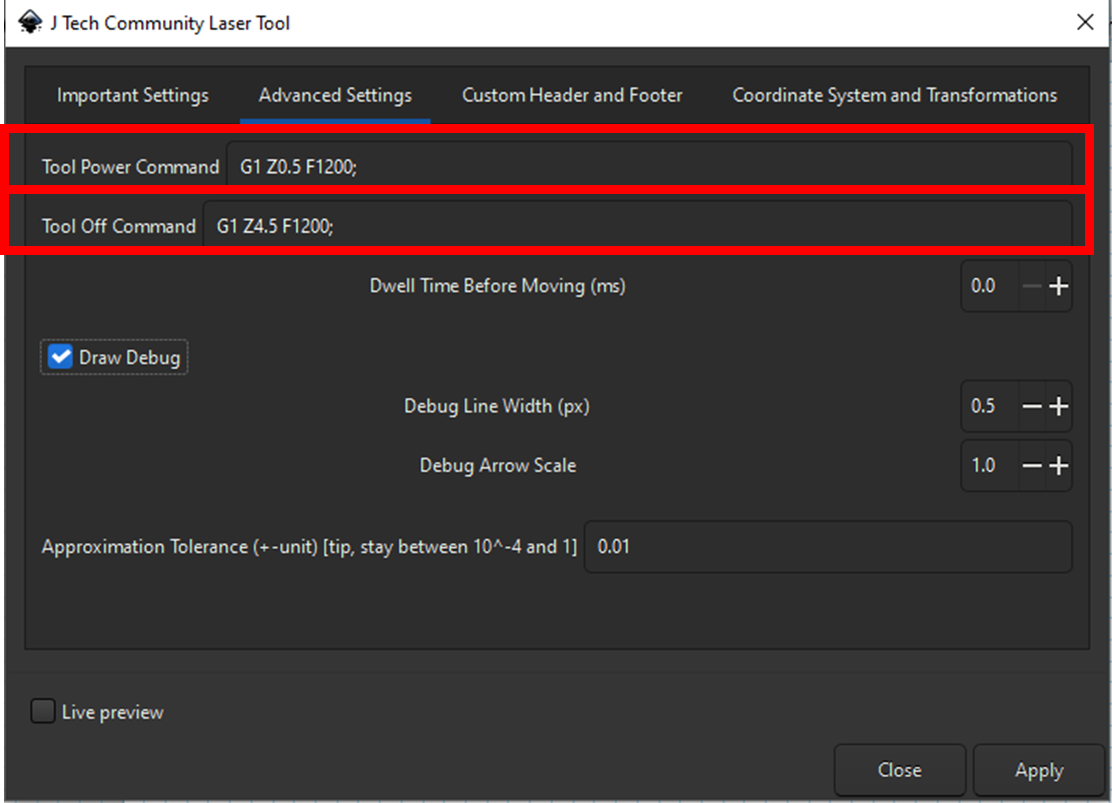
Tool Power Command ← Instead of turning on a laser, this will instead lower the tool head to start writing with the pen
G1 Z0.5 F1200;Tool Off Command ← instead of turning off the laser, this will instead raise the tool head
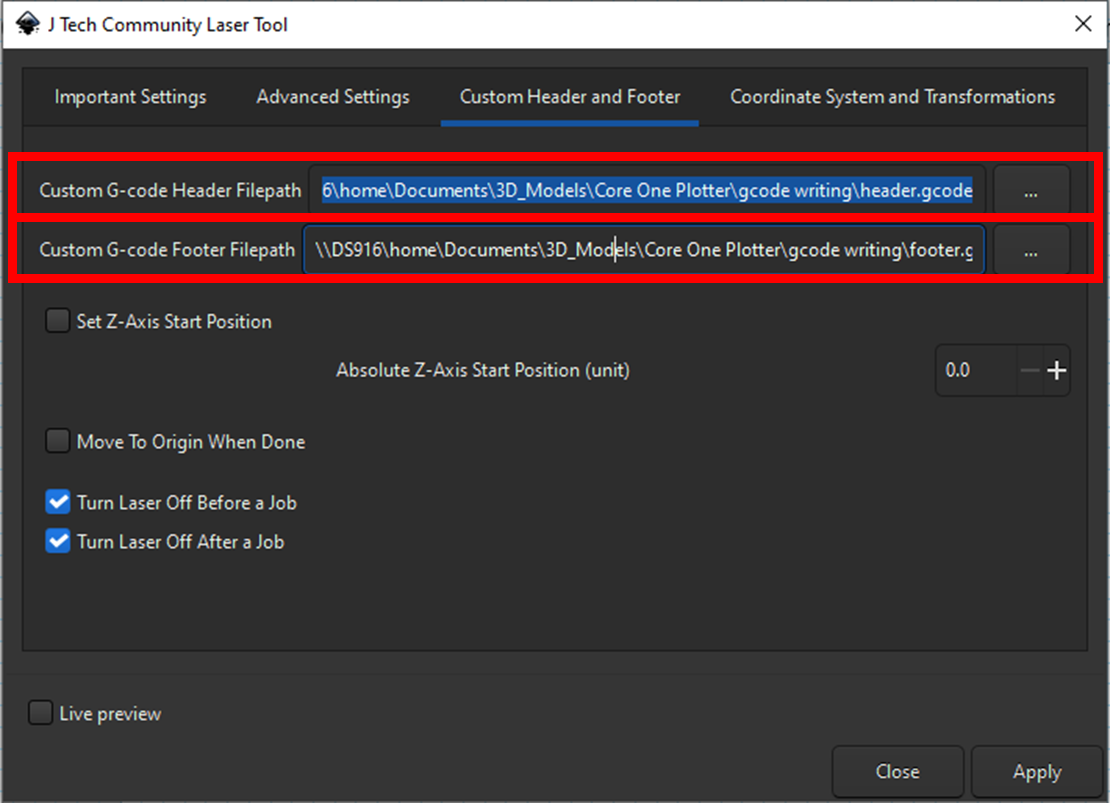
G1 Z4.5 F1200;G1 Z4.5 F1200;4.3 Custom Header and Footer
Like standard slicing software, this extension will insert G code at the start and end of the file to run custom commands we want. I've included a basic header and footer file which you will need to download and point to. You are free to modify this code to make it do what you want but you must have a homing function and I strongly recommend you keep the pause at the start of the file, this will make operating the plotter head much easier and safer.
4.4 Coordinate Systems and Transforms
This is where we define the physical properties of the printer and tool head. Because of how the pen attaches to the extruder head we lose some usable writing space on the bed. We will give the printer an offset value to avoid the print head crashing on either end of the x-axis (bad) or having the pen slip off the bed (very bad).
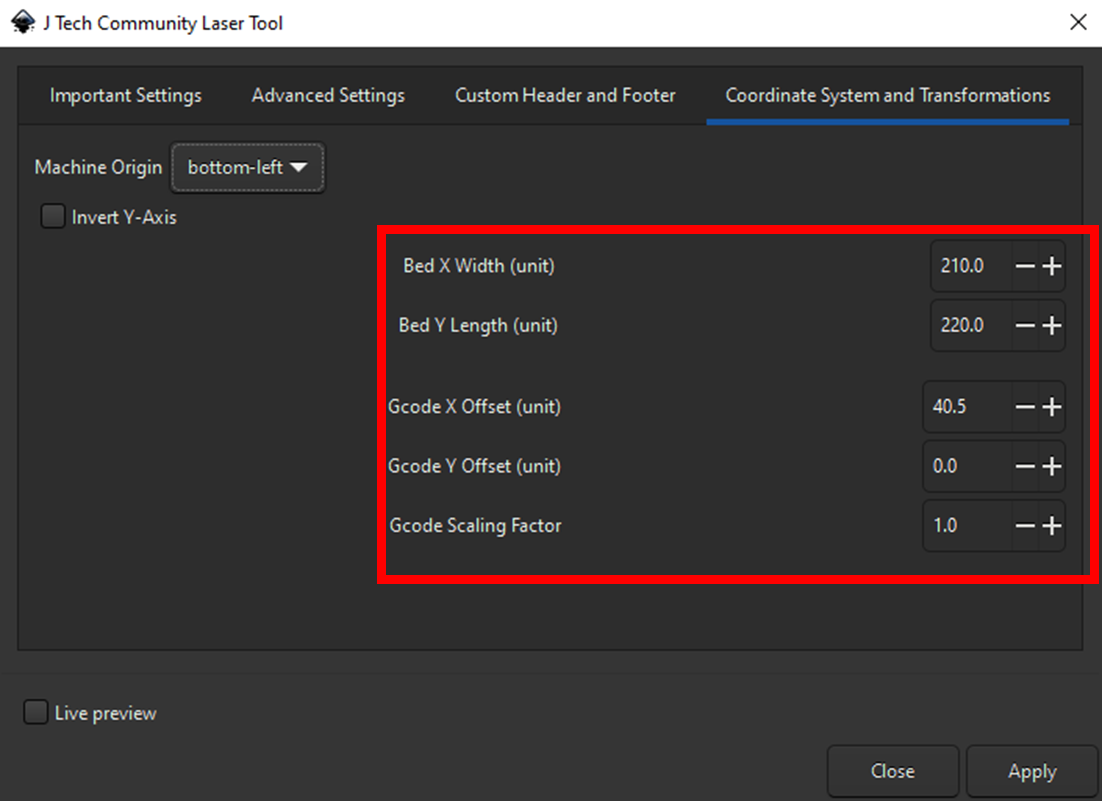
Bed X Width: 210.0mm
Bed Y Length: 220.0mm
Gcode X Offset: 40.5mm ← this will probably change in future but I need to run more tests
Gcode Y Offset: 0mm
Gcode Scaling Factor: 1.0
Calibration
1. Open provided calibration file (position_map(vectorized).svg). You should see the following. The furthest corners are shown for reference from the extension and will never appear on the plotter. The Xs and coordinates on the canvas will be drawn out.
The purpose of this document is to confirm the parameters we've provided to the extension. The printer should draw these Xs in thier approximate locations on the print bed.
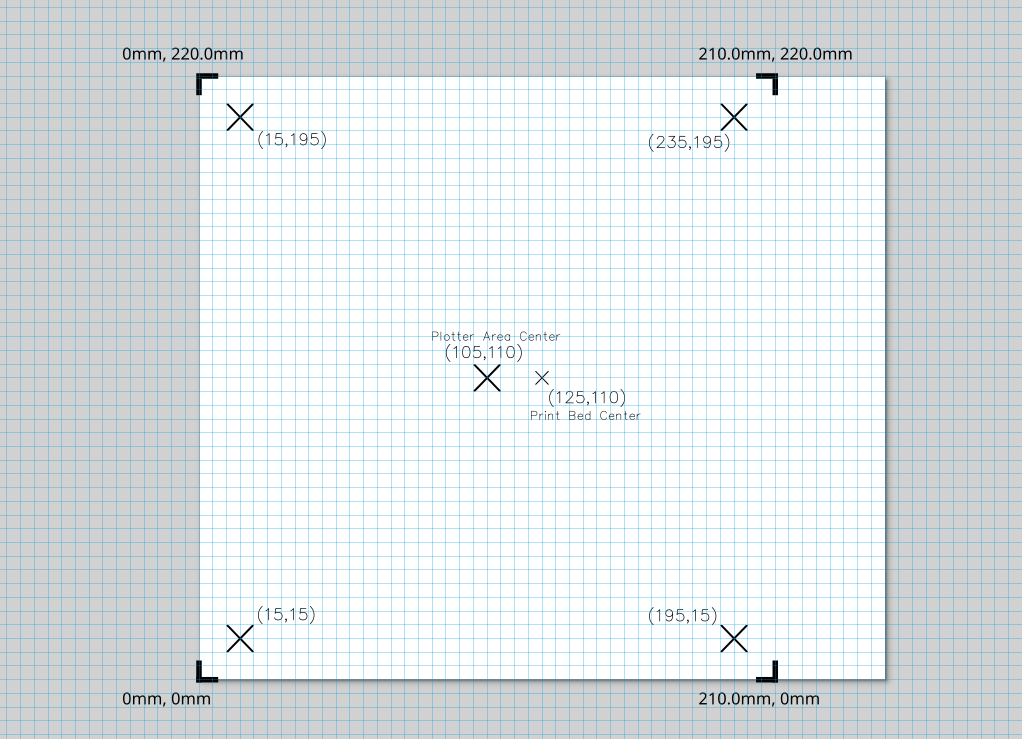
2. Open JTCLT extension and select Apply
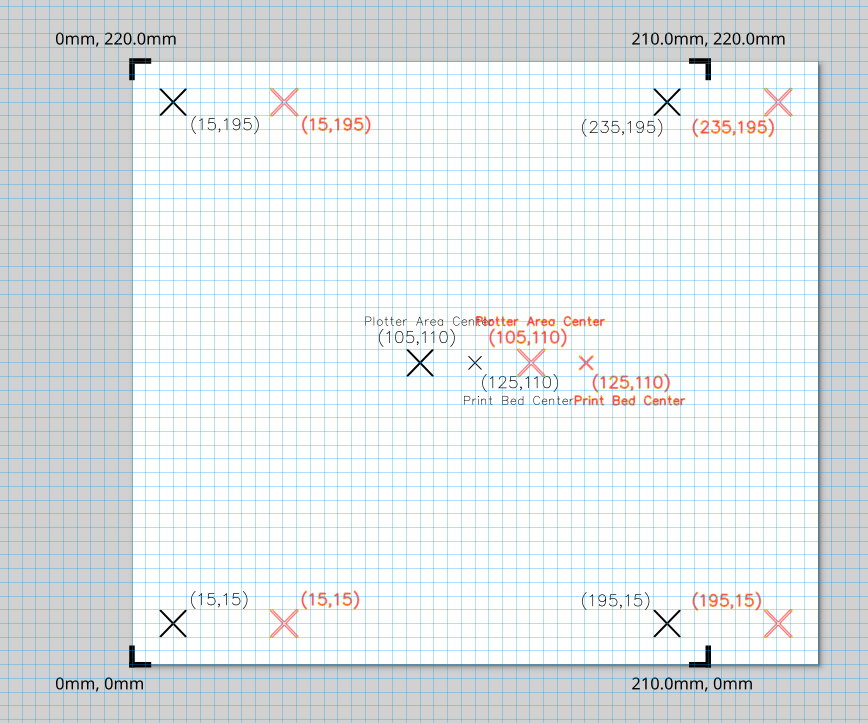
2.1 You should now see a preview of the gcode on the canvas in RED. You should see an offset of 40.5mm.
NOTE: The output preview may be confusing because it appears to be outside of the plotter area but we only need to worry about the preview having the correct offset.
2.2 After hitting Apply the gcode file will be output in the location we specified above.
3. Upload this GCode to your printer.
4. Place a piece of paper on top of your print bed sheet and hold it with at least 4 disc magnets. I personally don't mind a pen running over my bed but you may want to get a cheap sacrificial bed to draw on.
WARNING: BEFORE STARTING THE PLOT THE PEN SPACER MUST BE INSTALLED
Failing to do this will cause the z-axis home to fail as the printer detects the pen before the extruder nozzle (we don't want this).
5. Start plot
5.1 The printer should home itself and then pause. If the printer does not pause before it attempts to start writing then your header.gcode is missing a pause command.
6. Once the printer has paused, remove the pen spacer.
WARNING: STICKING YOUR HANDS INTO AN ACTIVE MACHINE CAN LEAD TO SERIOUS INJURY, DO SO AT YOUR OWN RISK.
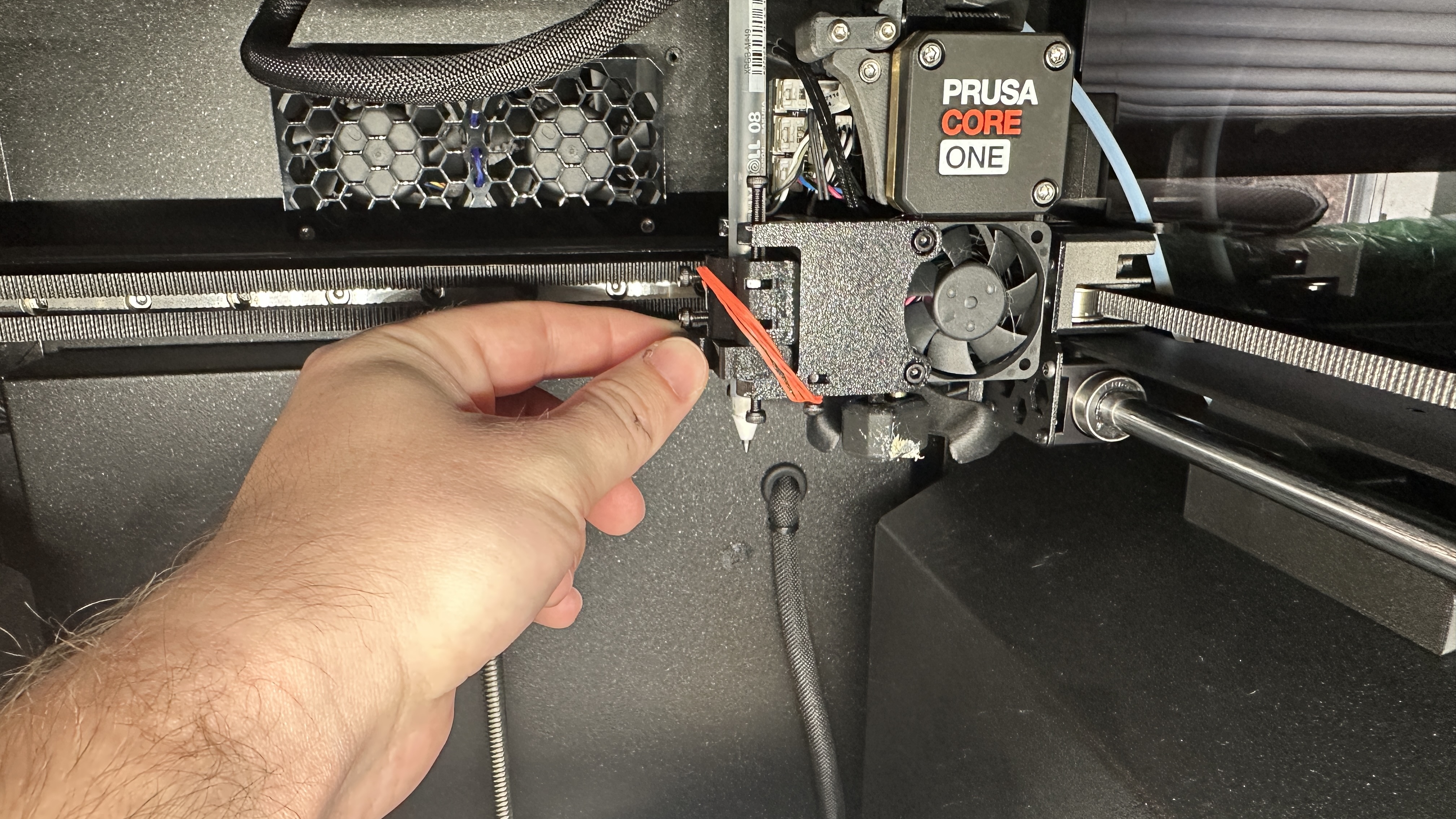
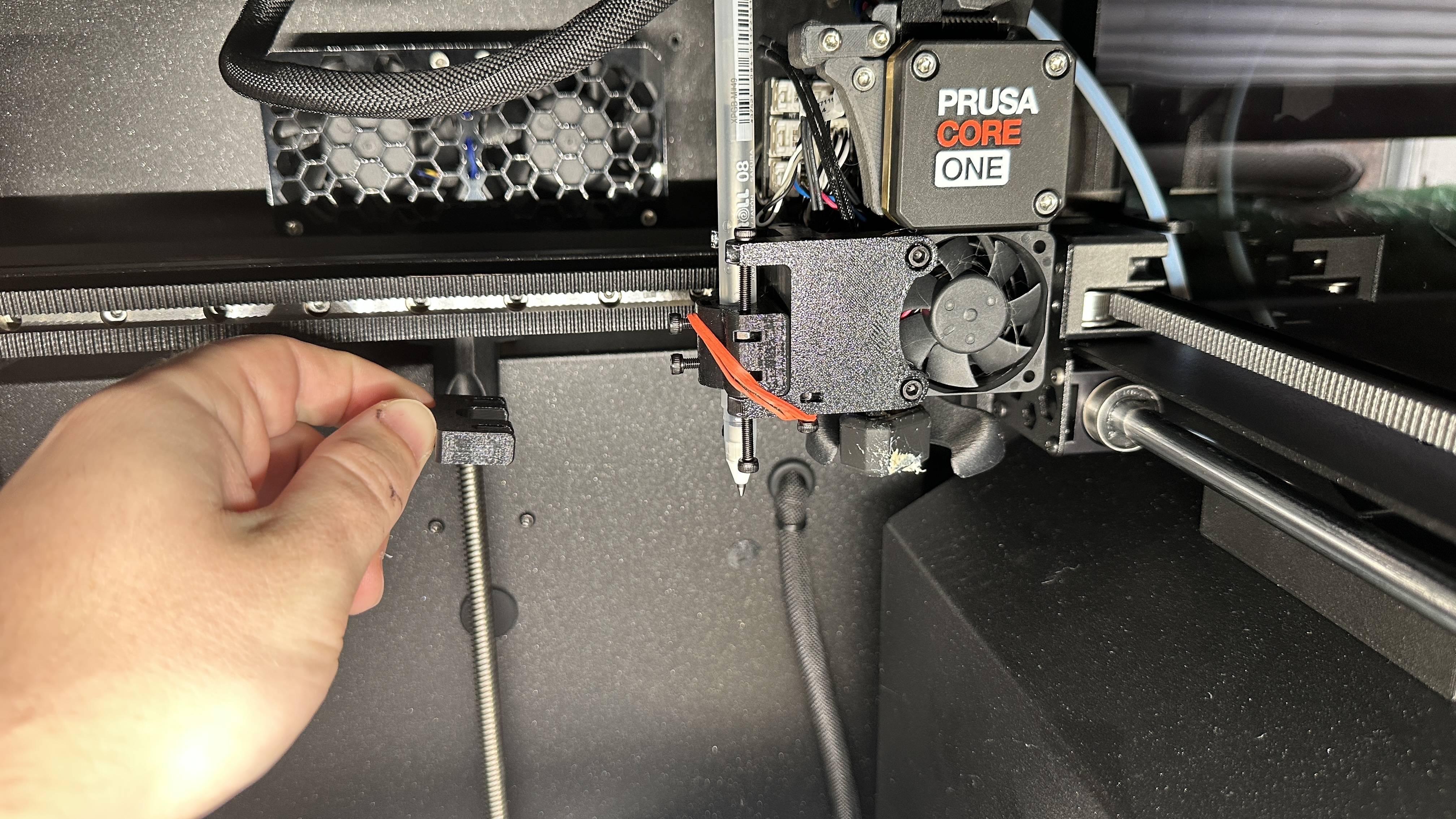
6. Close printer door and resume plot.
NOTE: Pay close attention to this initial plot, if the offset is wrong the pen may go off the bed and lead to the machine crashing. This could seriously damage the printer if you don't quickly cancel the plot.
7. Review final product. Your print should look like the sheet below. You can adjust the offset of the head in JTCLT and rerun this process until you're plotting in the correct location.
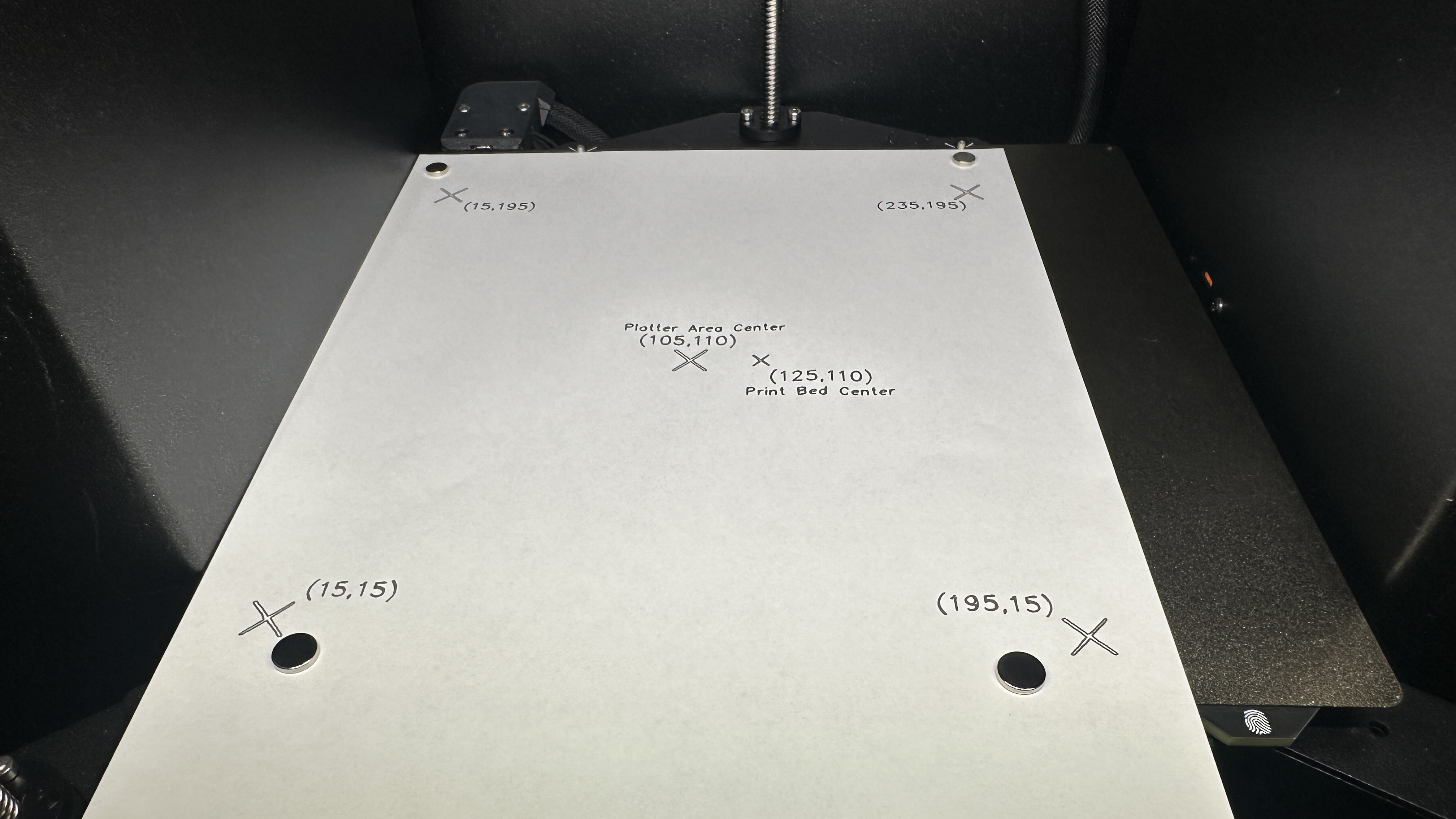
Calibration complete!
Miscellaneous
In order to get text or images to plot you must convert them to vectors using Path → Object to Path.
For future updates:
Add springs to replace the rubber band
Add the ability to cap the pen while it's still installed on the printer
Add a way to hotswap pen colors for multicolor support.
Add further example files for people to work off of
Explain why I designed this the way that I did, there were some intentional choices made to reduce the impact on the 3d printer being able to 3d print with the attachment still on the toolhead.
Core One Pen Plotter (V1.1)

Publicado em 10 de dez de 2025