Você está no 3DFinder
Buscamos em Thingiverse, MakerWorld e Printables ao mesmo tempo para te dar o melhor de cada uma.
Descrição
Introduction
This project is a reimagining of the tremendous work done by Scottbez in their Splitflap project (V2). None of this would be remotely possible without their efforts, so be sure to give them some love (including Scott's Etsy shop, which is how I sourced all my electronics for my display!) :)
As such, this project uses hardware and software specified in that project for the V2 release. Be sure you understand the hardware/software requirements before considering this 3D printed approach!
Also, when using Scott's firmware, be sure to flip the motor direction using the -DREVERSE_MOTOR_DIRECTION compiler flag in the platformio.ini file
Features
Over the original Splitflap design, there a couple key notable improvements I wanted to focus on:
- No PCB/Hardware/Software changes.
- Scottbez and all the contributors to the original project have made so many fantastic decisions with hardware and software, and I wanted to make migrating to a compact design as easy (and respectful!) as possible. As such, this project uses all the original PCBs, flaps, nuts, bolts, servos, Software, etc. as the inspiration Splitflap (v2) project.
- 3D print-optimized.
- With the exception of the Spool, no supports are needed on any parts, and all parts are designed with the intent of being easy to 3D Print.
- Compact.
- The original design requires characters to be separated by (roughly) the width of the servo motors. I originally undertook this redesign so I could mount the servos within the Spool drum, like folks on the fantastic Splitflap Discord server suggested. This brings the separation between characters from ~28mm to about 9-10mm.
- No Enclosure Needed.
- The original design requires you to make an enclosure to house the units, and mount the PCBs for a good aesthetic without nuts/bolts visible. As such, in this design, characters can attach directly to one another, horizontally AND vertically, and there are even optional attachments for mounting the relevant PCBs.
- ^ NOTE: Work is still ongoing for “end cap” pieces for a fully assembled display.
- Expansion in Mind.
- With the horizontal/vertical mounting and optional PCB attachment points, this opens possibilities for folks wanting to mount their Splitflaps to a shelf, wall, other displays, etc.
Print Settings
I printed my parts in PLA on a Bambu X1C/P1P, 0.4mm nozzle / 0.2 layer height, with standard settings of 3 walls and 15% infill. The Spool is the only part that requires support, all others should print with no special settings required.
Make sure you're printing on a machine with consistent/reliable outputs within tolerances. I don't do a ton of print tuning, but the Spool pieces in particular require some small details, and are likely to be the first cause of any issues you might encounter.
Assembly
- Right now, the assembly of the Spool requires Super/CA Glue. I don't love it, but I did several redesigns of the spool, and just gluing 2 pieces together was by far the most reliable option, as compared to using a ton of supports and having the flap holes require a lot of post-processing cleanup. The Spool and Spool Cap have a small alignment “nub”, make sure to line that up when gluing them together!
Hopefully the assembly should be pretty straightforward, in line with the assembly of the original Splitflap displays.
For each character, you will need:
- One of each printed part, “Mounts” optional
- 2 M4 bolts/nuts for the Servo
- 1 M4 bolt/nut for the Sensor
- 3 M4 bolts/nuts for the Left/Right plate attachment
- (Optional) 1 M4 bolt/nut for the Flap “stop” on the bottom
One clever part of the design (not to toot my own horn) is that the bolts used to attach the Left plate to the Right plate are ALSO used to attach characters to one another. So attaching multiple units together doesn't require any additional nuts/bolts >:)
Assembly Instructions
- Using a small flathead screwdriver or pry tool, carefully pry off the Blue plastic cap that adorns the top of your Servo. This is important, we need every spare mm of clearance inside the Spool!
1. Assemble/glue the spool, making sure the cap sits flush and flat on the end of the spool, and that the small alignment “nub” fits into the corresponding slot.
2. Once the glue is dry, attach the flaps to the spool, making sure the magnet mount is on the left side and the characters aren't upside down. Ask me how I know this can be a problem :)
3. Carefully insert the Magnet into the Spool, making sure the polarity triggers the Sensor when tested. This is a friction fit, and it shouldn't take too much effort to insert/remove. Some soft taps on a magnetic allen key or similar, with a mallet, should do the trick.
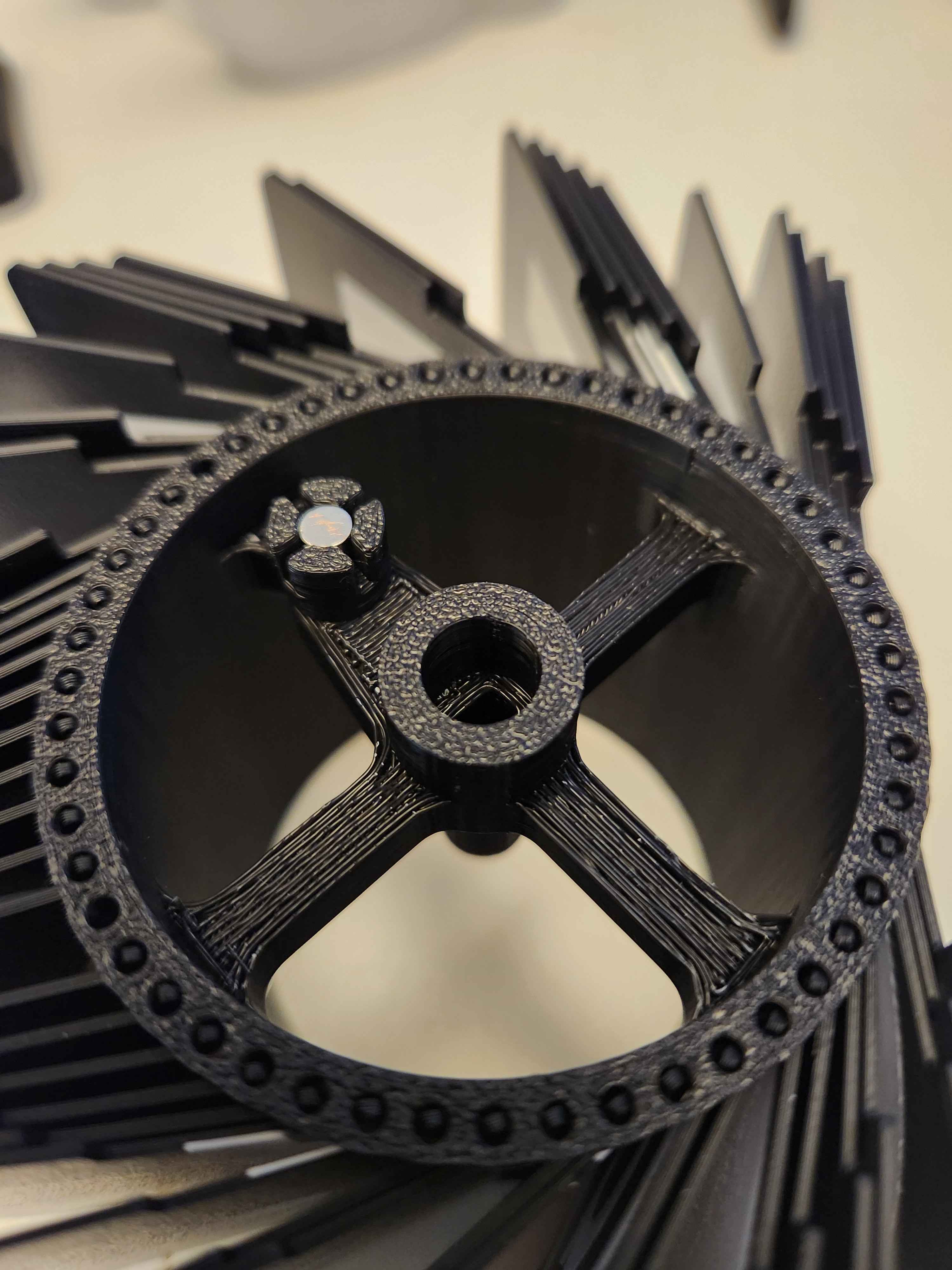
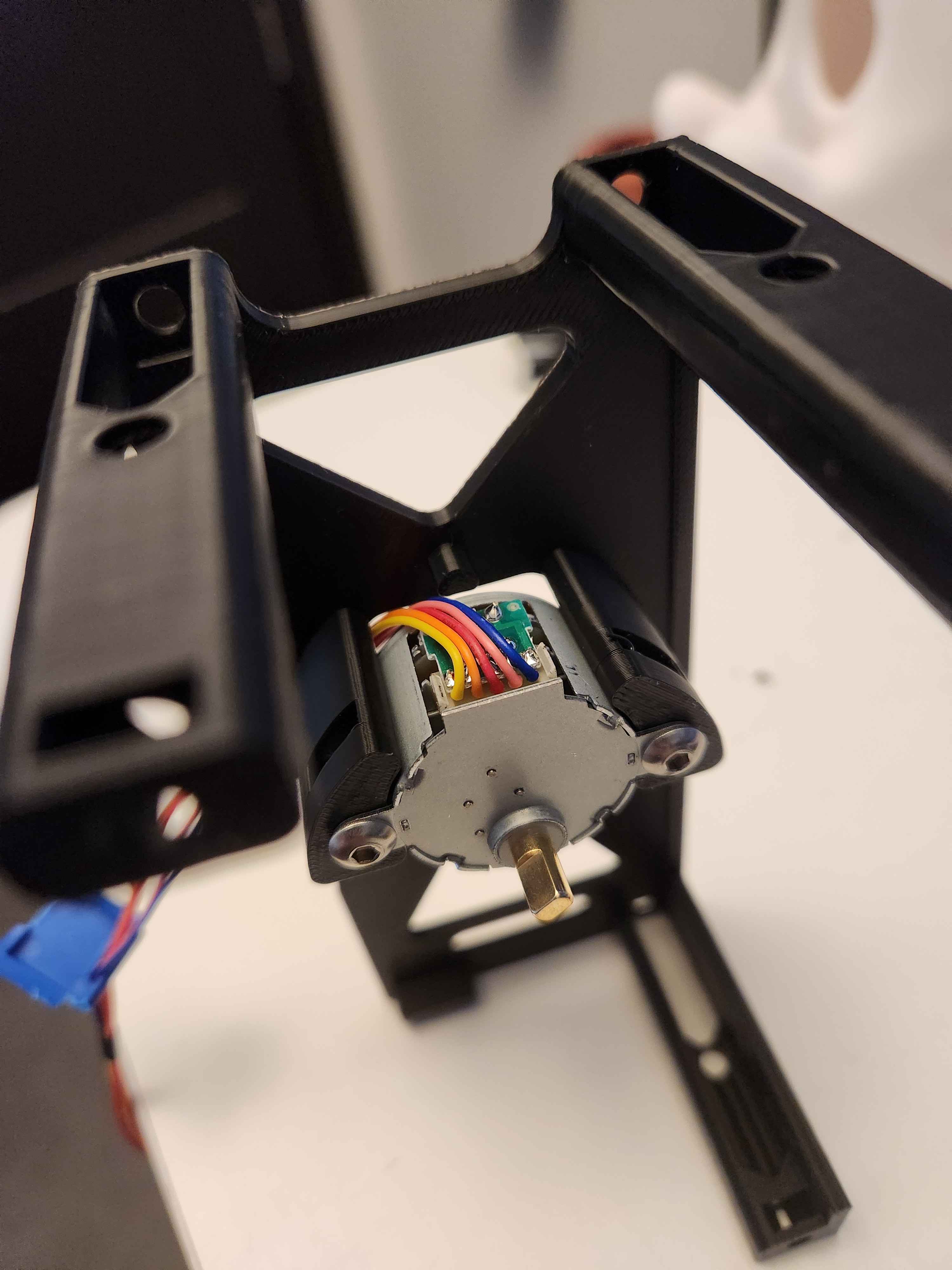
4. Attach the Servo to the Right Plate (M4 nuts slide into their slot, secure with bolts). Refer to the image below for how to route the cables. Tighten enough to secure it, but not so tight as to crack the plastic!
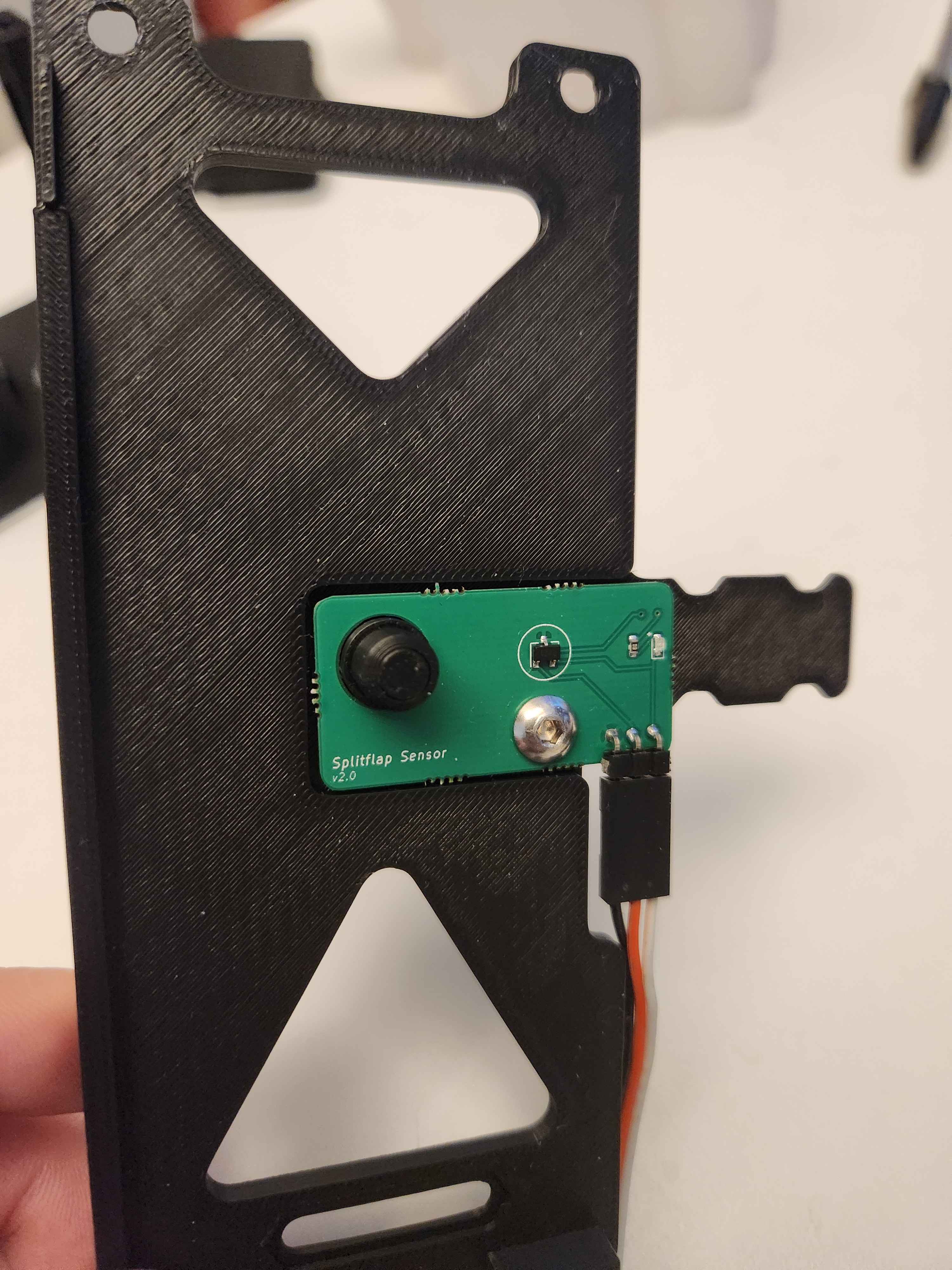
5. Attach the Sensor to the Left Plate. Optionally attach the Flap Stop nut/bolt in the bottom slot if you wish. Note that in the image, the connector comes out of the PCB towards the camera, but, in my experience, it's better to solder your connectors on the other side for better clearance.
6. Carefully slide the Spool onto the Right Plate/Servo (making sure the Spool is actually engaged with the Servo shaft), and preload 3 M4 nuts into the slots on the Right Plate, as indicated below.
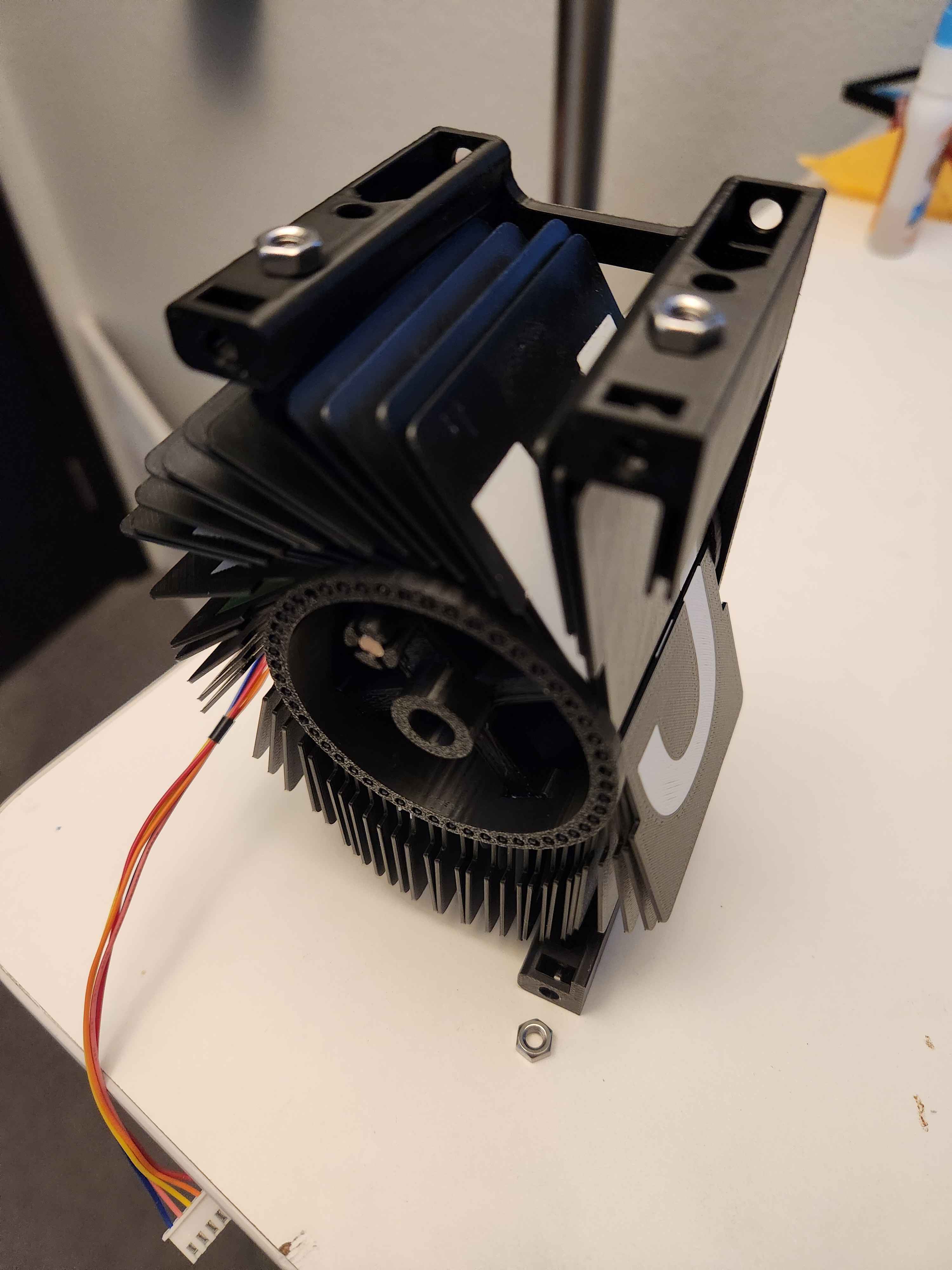
7. Attach the Left Plate, and make sure the Spool sits on the protruding support “nub” of the Left Plate. Secure the plates together using 3 M4 bolts enough to be secure, but do not overtighten (image below is just denoting where the bolts go, not how much to tighten).
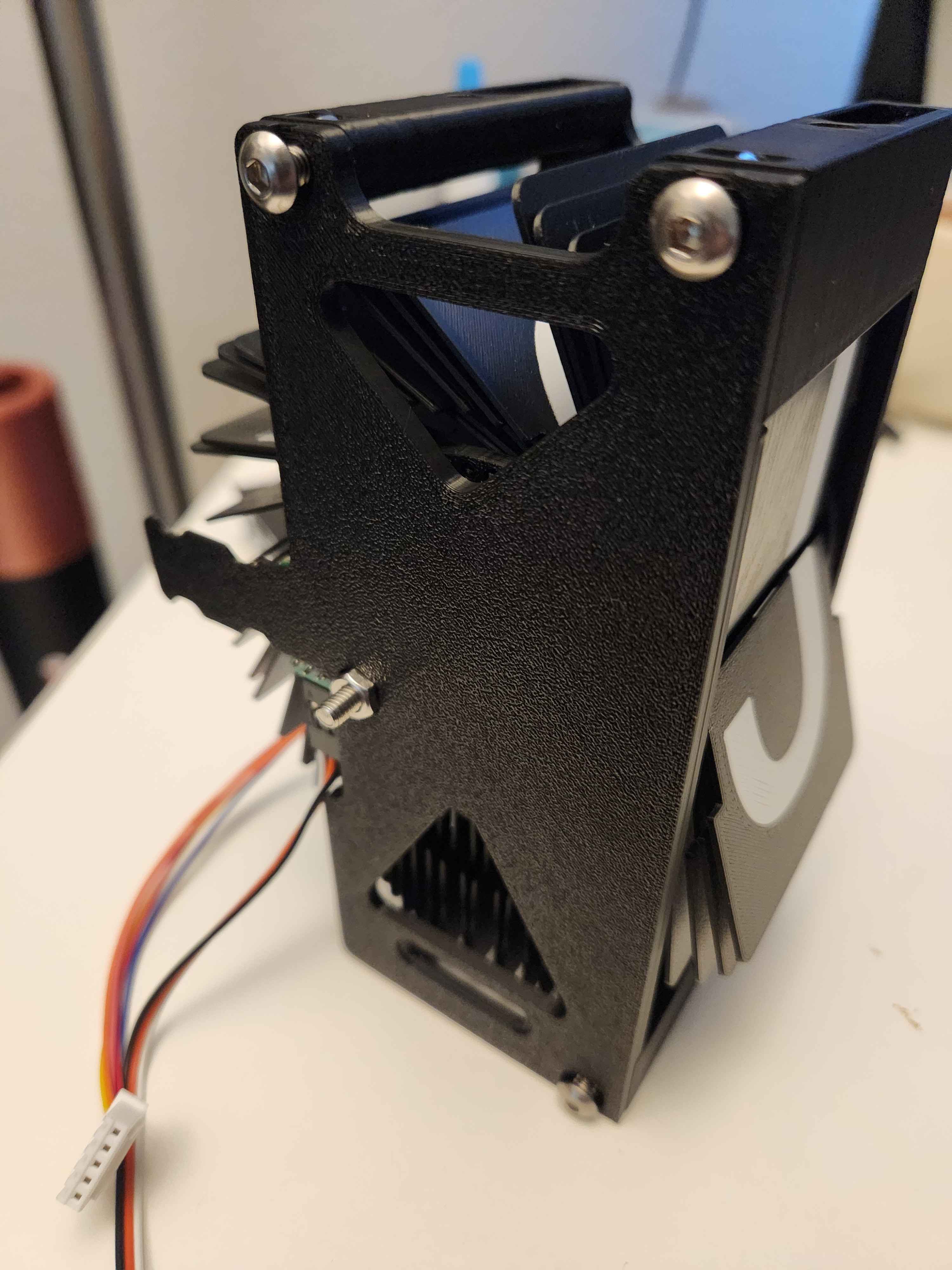
!!!!!!!!!!!!!!!!!!!!!!!!!!!!!!!!!!!!!!!!!
I highly recommend assembling and testing individual characters before mounting them to one another!
!!!!!!!!!!!!!!!!!!!!!!!!!!!!!!!!!!!!!!!!!!!
8. If you want to mount characters together, on step 7, use another Right Plate for your next character to “sandwich” the Left Plate of step 7.

9. (Optional) Between steps 6 and 7, you should sandwich the PCB Mount (for the TTGO board), or, the Driver Mount between the Left/Right plates (no additional bolts/nuts needed).
The PCBs secure to these optional mounts using M3 bolts and heatset inserts, or longer bolts with M3 nuts.
You only need 1 PCB mount for your entire display, and 2 Driver mounts for every 6 characters you have. The Driver mounts should be spaced like so:
_ X _ _ X _
Where X denotes a character with a Driver mount, and _ is without.
Repeat for however many characters you have in your display.
Good Luck!