You're on 3DFinder
We search Thingiverse, MakerWorld, and Printables at once so you get the best of each.
Description
Material test array coupon for xTool laser engravers.
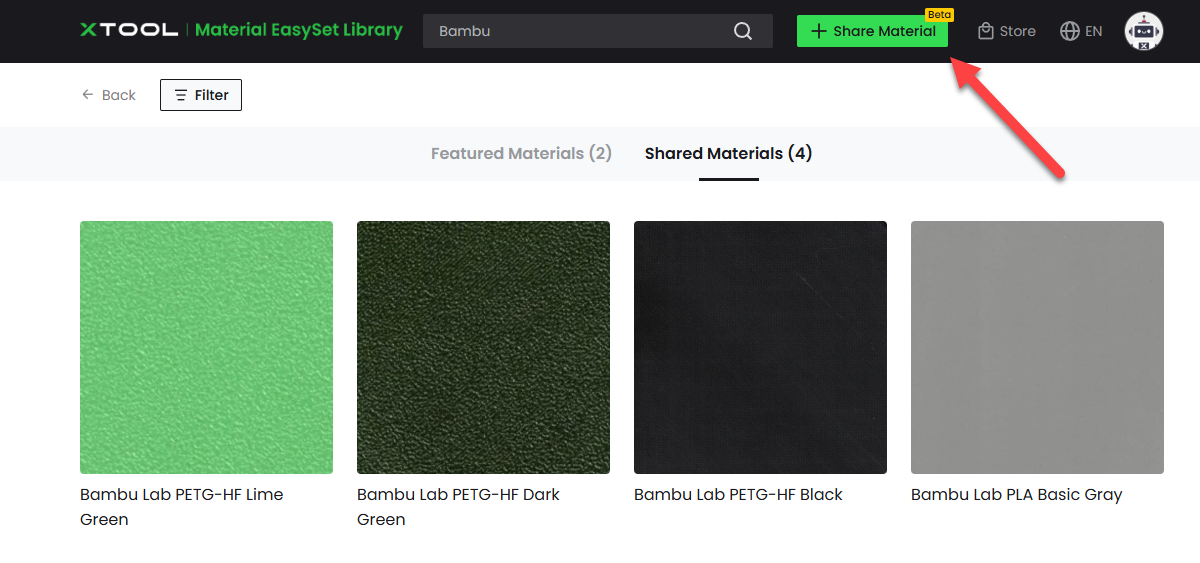
Firstly, search for your material on xTool's site. If you can't find it there and want to use this coupon to do your own test array, kindly consider uploading your results to xTool's Share Material program so others may benefit from it.
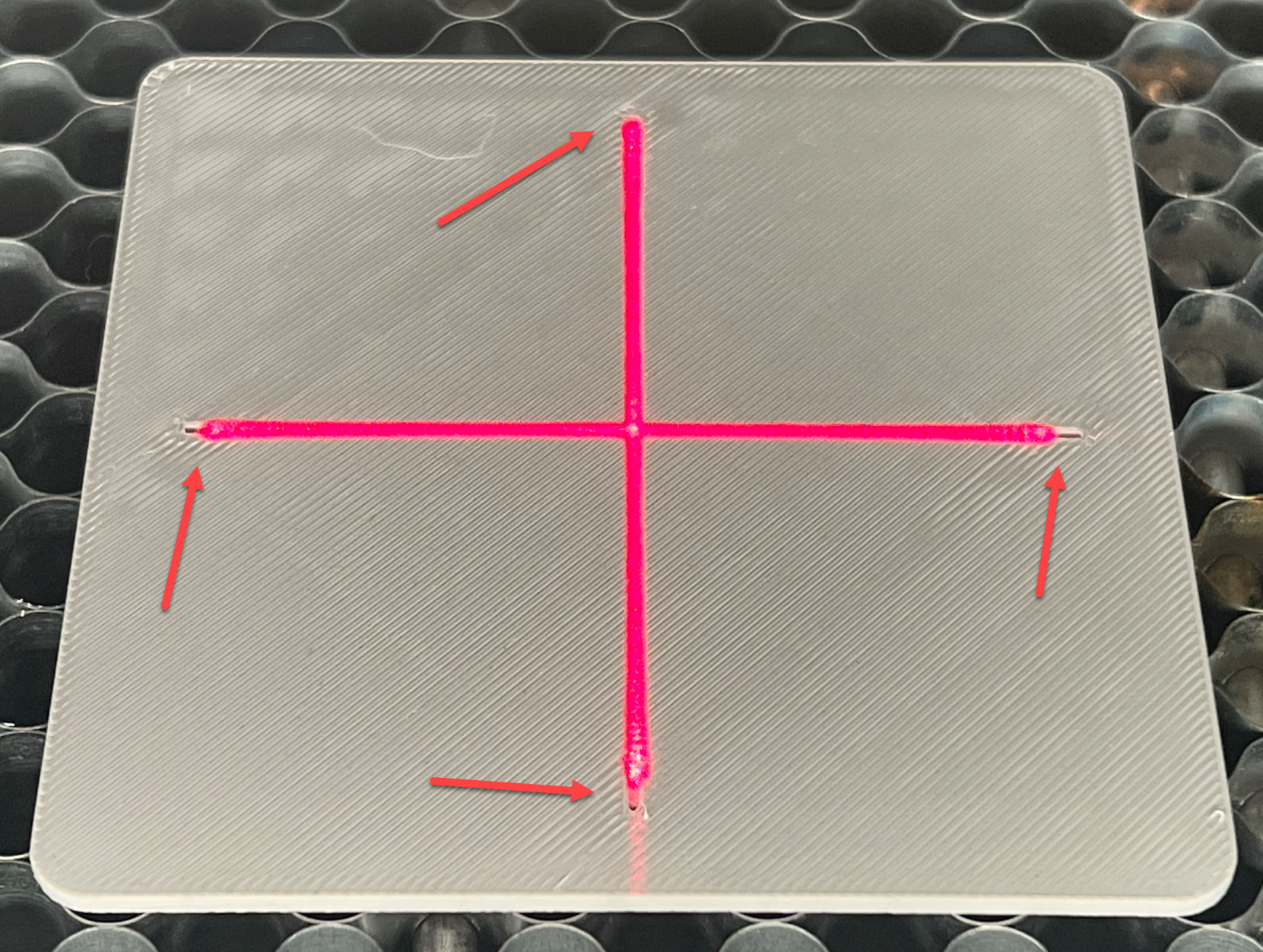
Setup for Engraving:
Print, set the coupon below the positioning laser on your machine, and position the coupon so that each leg of the positioning laser touches each of the marks in the coupon:
How to Create Your Material Test Array
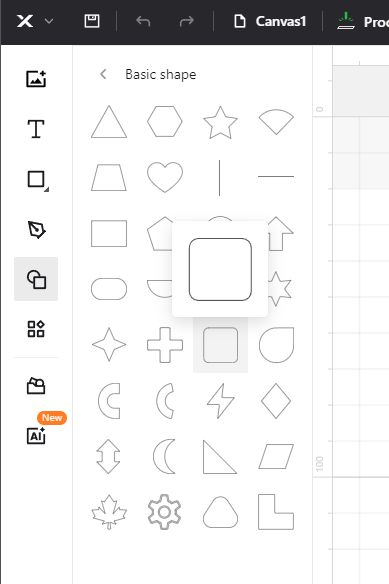
In xTool Creative Space (XCS) start a new project, and insert a letter or shape you want to use in your test array:
Select the letter/shape, and set it to Engrave on the right hand side of the workspace: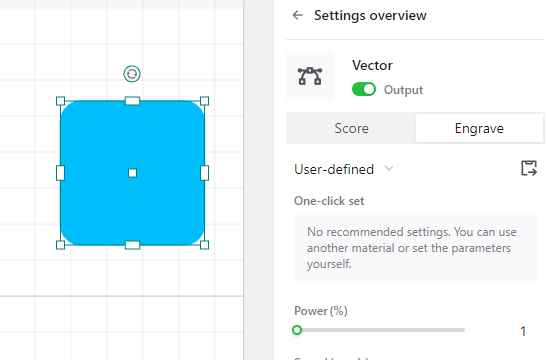
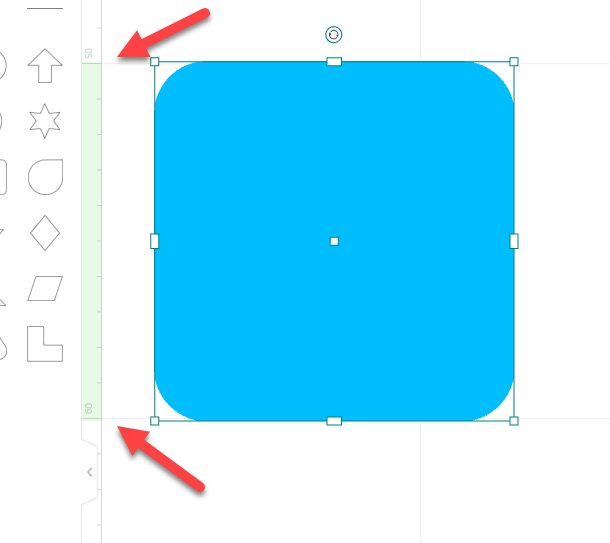
Using the ruler to the left of the workspace, resize the shape to be about 10mm tall
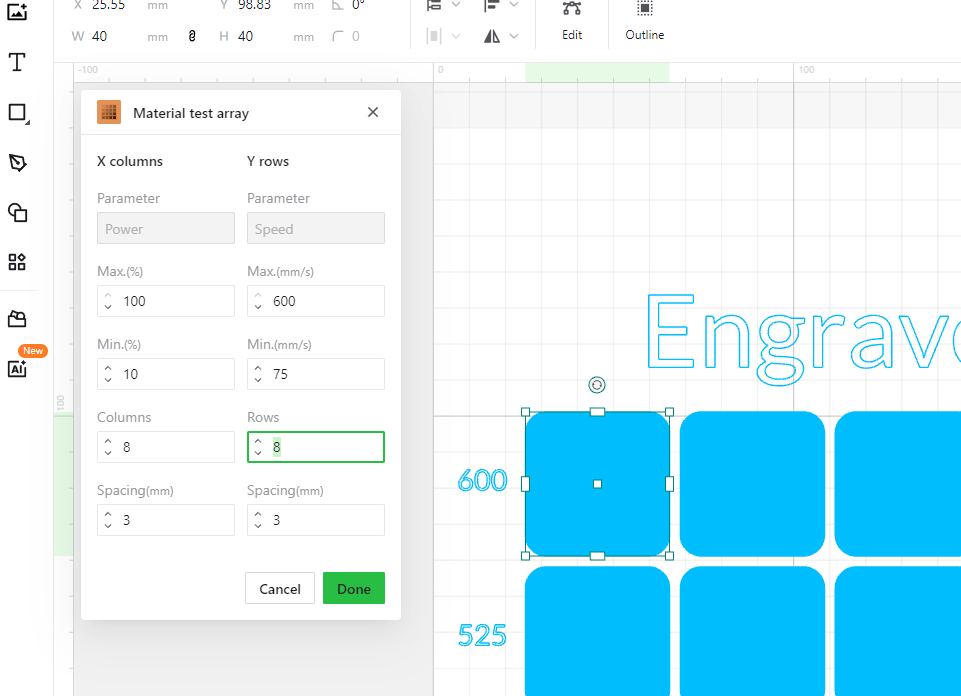
Select Apps → Material Test Array on the left, and configure your settings, then click Done. You may need to redo this entire process several times to find the optimal settings, as the color and material type can have drastic effects on the outcome. Black filament needs relatively low power and fast speed, while gray filament needs higher power and lower speeds:
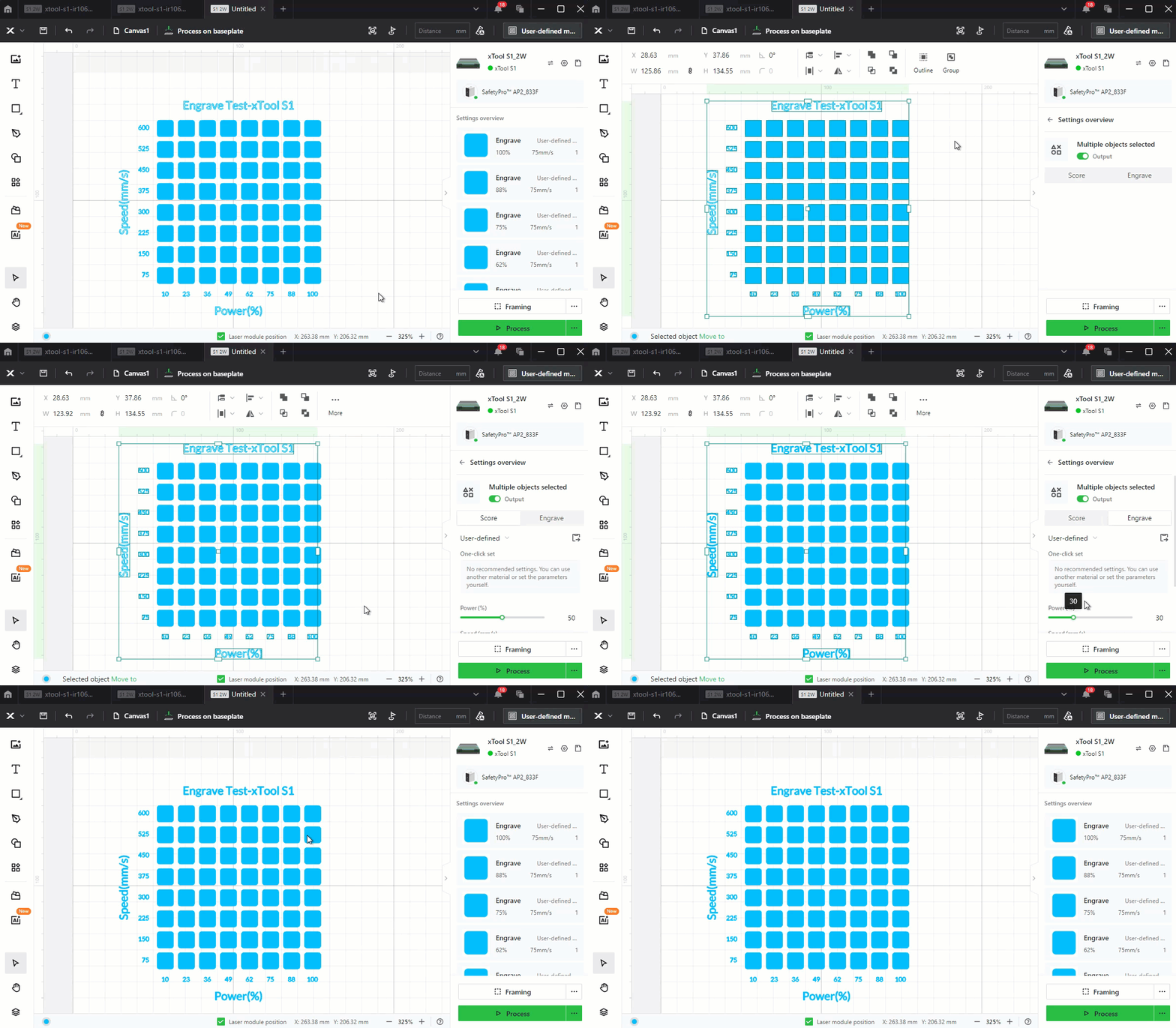
At this point the test array has been created, but Titles and Axis lettering are all set to Score, which is mostly illegible in plastic. Change it by doing the following:
- Select the test array
- Click Ungroup in the top ribbon
- Click off of the test array
- Drag-select everything in the array, release the click
- Hold shift, and drag-select all the shapes in the array, then release the click. This will unselect all of the test array elements, while leaving the title and axis text selected
- Select “Engrave” on the right hand side
- Depending on the color of your filament, you may need to adjust the power and speed settings as well
- Drag-select everything again, and hit the “Group” button to regroup them
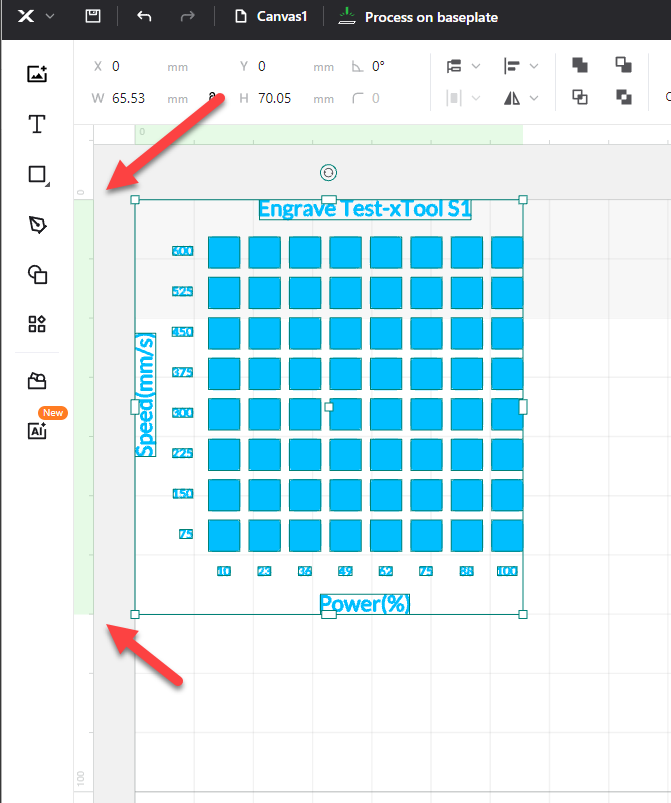
Select the test array, and use the ruler on the left to resize the test array to 70mm
From here you follow your normal engraving procedure.

Like this model? Create a free account to save your favorites and come back to them later.
Create account