Você está no 3DFinder
Buscamos em Thingiverse, MakerWorld e Printables ao mesmo tempo para te dar o melhor de cada uma.
Descrição
Note: I am a pharmacist with weird hobbies, not a software engineer. So I used AI extensively to develop both the python script and the Arduino code. Use at your own risk. The enclosure design was fully developed within fusion360 by myself. If the code can be improved upon or altered feel free to do so. You'd be doing me a favor.
.
.
.
.
Acknowledgments
The button mechanism used in this project is based on the excellent push-button assembly from @MakerEngineer, who remixed Aptimex 's brilliant 6mm Button assembly. The external enclosure, internal layout, electronics integration and overall Kill Switch concept were designed and developed by Ali Alobaidly (ME :D), with the case specifically engineered around this button mechanism to create a functional desktop emergency-stop style device.
The Kill Switch — 3D Printed PC Panic Button
This button should only be pressed when all other options have been exhausted. Once activated, every running process on your PC will be unceremoniously terminated, bringing order to chaos through brute force. To some, it is a panic button. To others, a reset button. To the eternal optimist, it is simply the beginning of a new chapter!!
In plain English, this is a physical desktop “Kill Switch” for your PC, for those moments when you are well and truly done with hundreds of apps, tabs, and windows open purely to taunt you. For when you simply cannot survive another “Are you sure you want to close without saving?” message.
When pressed, the button sends a keyboard shortcut to Windows. A small Python script running in the background detects that shortcut, displays a dramatic warning popup, and then force-closes open user applications, whether they like it or not.
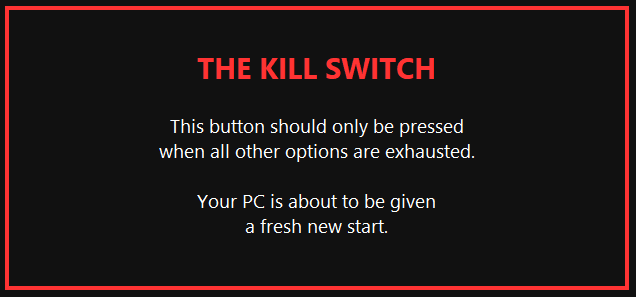
Important Warning
This project force closes applications. Unsaved work may be lost. This is intended for your own PC as a fun desktop utility / panic button. Do not use it on someone else’s computer. Do not use it where forced application closing could cause data loss, work loss, or system problems. The script is designed to avoid critical Windows system processes, but you should still test it carefully before relying on it.
Bill of Materials
1 × Arduino Pro Micro ATmega32U4
1 × 6×6×5 mm tactile push button
1 × USB cable, depending on your Pro Micro port
2 × small hookup wires
4 × M3 × 8 mm screws
1x Super glue
Filament
Black, red and white PLA. Get creative and switch things up if you want.
Wiring
The wiring is very simple. The tactile button connects to GND and D2 on the Arduino Pro Micro. When the button is not pressed, the input reads HIGH. When the button is pressed, D2 is connected to GND and reads LOW.
After wiring things up, just use a glue gun to keep the arduino in place, superglue the side panel to the front of the base and screw in the cover (With the button on top). You can try to superglue the base of the button, but I found that there was enough friction keeping it in place so I didn't bother...
Both the python script and the Arduino code can be found here: Repo
In the readme file you will find all the information you'll need on how to set this thing up!!
Enjoy!!