Você está no 3DFinder
Buscamos em Thingiverse, MakerWorld e Printables ao mesmo tempo para te dar o melhor de cada uma.
Descrição
Hashtags: #Contests, #Hostedbycreator, #parametrichomedecor
To edit the text, open “Objects” under “Process” in the slicer.
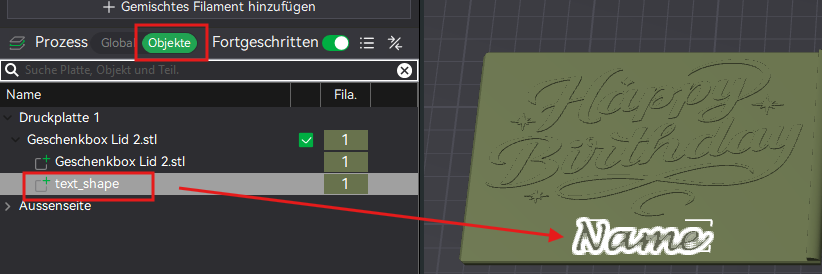
First click on text_shape, then click on the T in the menu bar.
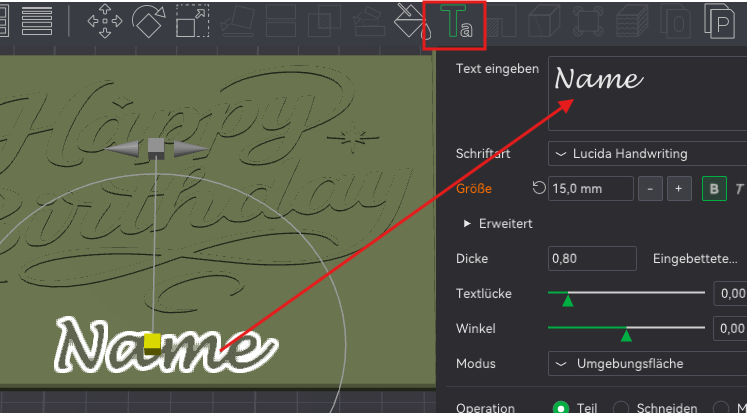
Now you can customize the name, font, and size.
------------------------------------------------------------------------------------------------------------------
Tips for resizing in Bambu Slicer (when scaling doesn't make sense because the tolerances shift):
Load only the object you want to modify into the slicer. Duplicate it onto a second slice.
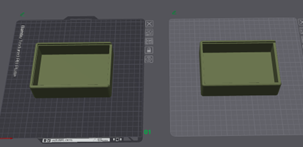
Click “Cut Object.”
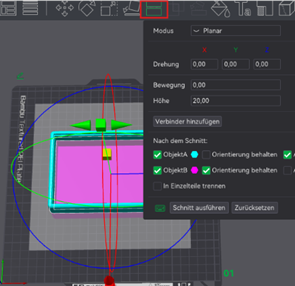
Then move the cut plane upward to enlarge the object.
Execute Cut.
Now delete the upper cut-off part.
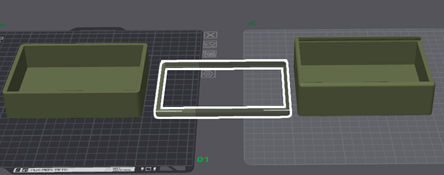
Do the same with the object on the second plate. Here, however, set the cut downward (but above the bottom).
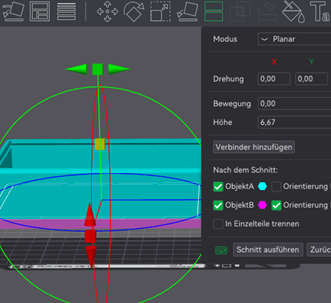
Execute Cut, and now delete the lower part.
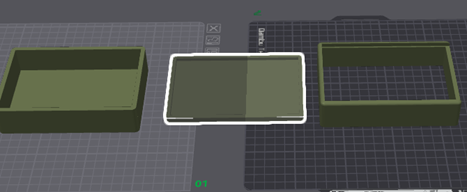
Place both cut parts on the first plate. Right-click on each part and click “Center” in the window that opens.
Both parts are now aligned perfectly on top of each other.
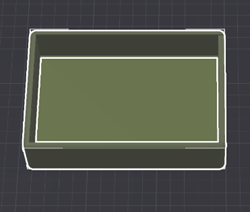
Press Ctrl A on the keyboard. A window will open where you click “Merge.”
Now the two objects are connected, but not yet in the correct position.
Now go in the slicer from “Objects” to “Global".
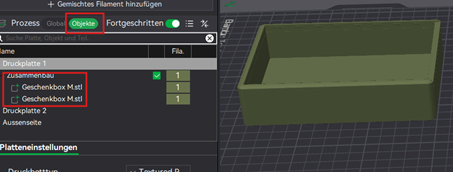
Here, the two parts you merged are listed.
Click on the second object and then on the four arrow icons in the menu bar.
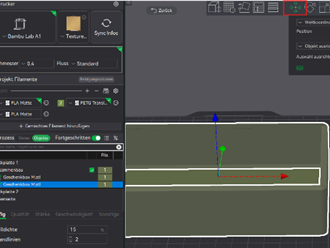
Use the blue arrow to move the object upward to the desired height.
Done and ready to print.
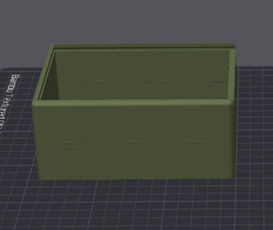
For comparison, I’ve loaded the original object next to it again.
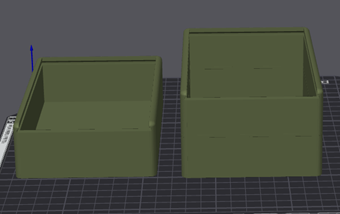
I hope that was clear.
Why not give it a try?
Gostou deste modelo? Crie uma conta grátis para salvar seus favoritos e voltar a eles depois.
Criar conta