Você está no 3DFinder
Buscamos em Thingiverse, MakerWorld e Printables ao mesmo tempo para te dar o melhor de cada uma.
Descrição
English version
How to use
First, click the Customization button to open the parametric tool.
Overview
This tool creates text banners on top of a thin mesh backing.
It makes it easy to create dimensional signs and nameplates with only a few simple adjustments.
Because the text is supported by the mesh, small dots and thin details are less likely to become disconnected.
The thin mesh backing also makes the banner easier to place on curved surfaces, so it can be used not only on flat panels but also on rounded objects.
Features
- Thin mesh backing that keeps the text connected
- Small dots and thin details are less likely to break apart
- Easy creation of dimensional logos, signs, and labels
- Lightweight banner structure that can fit curved surfaces more easily
- Adjustable font, text size, and mesh style
Text settings
You can adjust:
- font size
- text thickness
- character spacing
To display Japanese correctly, please set text lang appropriately.
The currently supported languages are English (en) and Japanese (ja).
You can choose from the built-in font presets, or enter a font name directly to use a custom font.
How to use a custom font
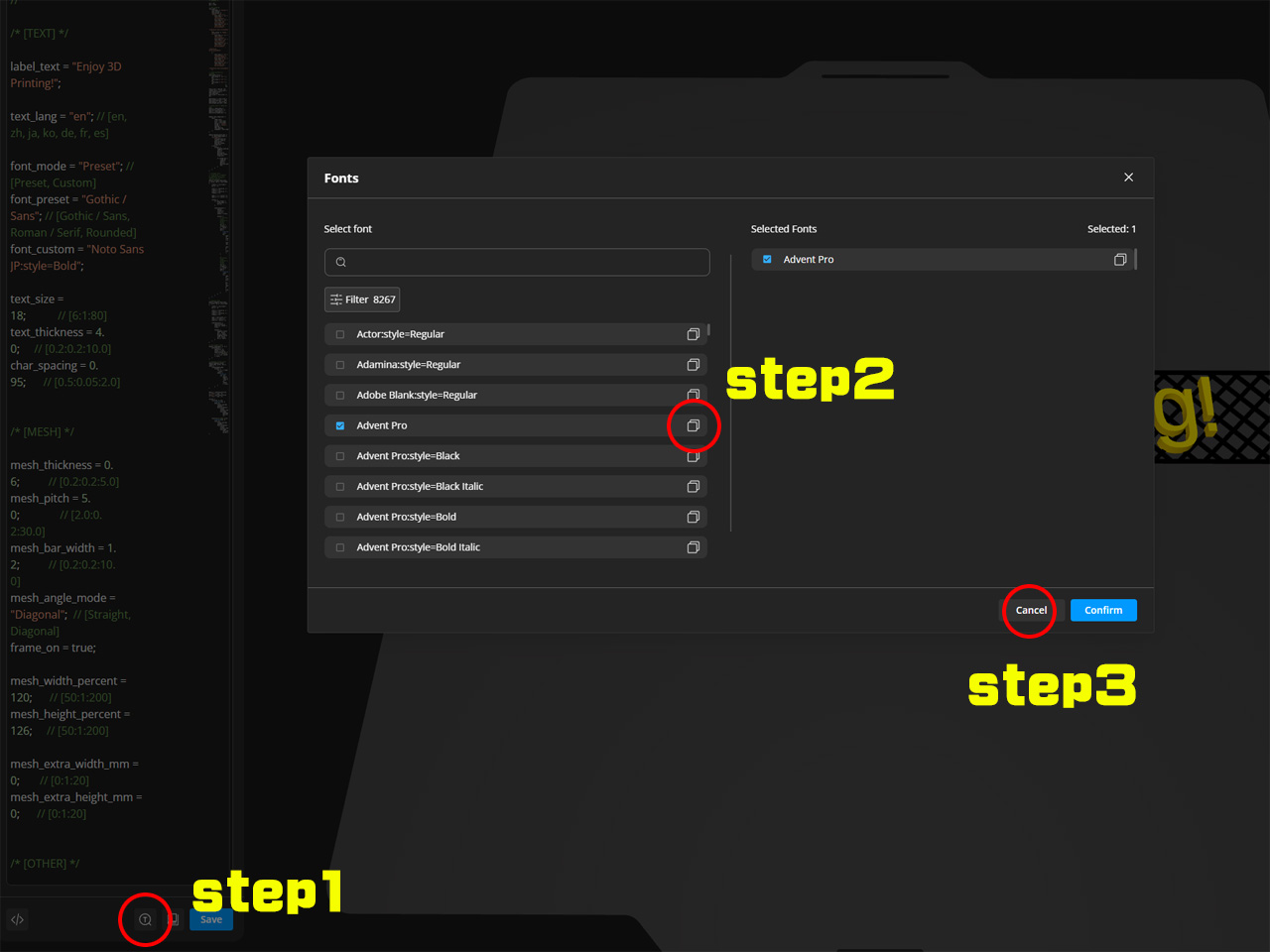
- Click Code to the right of Customize
- Click the T icon in the lower-left corner
- Browse the available fonts and copy the name of the font you want to use
- Click Cancel
- Change font mode to Custom
- Paste the font name into font custom
Click Generate to preview the result
Mesh settings
You can adjust the backing mesh that supports the text.
Main options include:
- mesh thickness
- pitch
- line width
- straight / diagonal mesh style
- how far the mesh extends beyond the banner
Other settings
You can choose which part has priority where the mesh and text overlap.
This changes how the back side looks.
You can also rotate the model.
This helps you align it with your printer’s build area and make the most of the available print size.
Notes
- In the tool preview, the backing mesh is shown in black and the text is shown in yellow. Please change the actual print colors in your slicer.
- Depending on the mesh settings, some parts of the text may become disconnected. Please check the preview and adjust the settings so that no isolated parts remain.
- The rotation setting in the tool is intended for preview and layout checking. Adjust the final print orientation in your slicer if needed.
- If you are using a single-color printer, pause the print after the mesh section has finished and manually change the filament. This allows the text portion to be printed in a different color.
- At this time, the tool has been tested with English and Japanese. Chinese, Korean, and other languages have not yet been fully verified, especially regarding compatible fonts and settings. If you know a working solution, I would really appreciate your advice.
Gostou deste modelo? Crie uma conta grátis para salvar seus favoritos e voltar a eles depois.
Criar conta