Você está no 3DFinder
Buscamos em Thingiverse, MakerWorld e Printables ao mesmo tempo para te dar o melhor de cada uma.
Descrição
Spacerless - Gridfinity Bin Generator
📦 Standard Grid
🧩 Crazy Grid Custom Shapes (up to 10×10)
🧱 Custom Dividers
✂️ Remove Any Bin Wall
🏷️ Custom Labels (add your own text)
📏 Spacerless Extensions (1–41 mm) - Straight or Angled
🧲 Custom Magnets (adjust magnet size)
🖖 Finger Scoops
🧱 Solid Mode
This parametric generator creates Gridfinity-compatible bins ranging from simple rectangles to fully custom, non-rectangular shapes. Use Crazy Grid to sculpt complex layouts (L-shapes, U-shapes, zig-zags) up to 10×10, then dial in the details: custom dividers, remove any outer wall, add text labels, finger scoops, and magnet options with configurable sizes.
The signature feature is Spacerless Extensions (1–41 mm) - expand bins by exact millimeters, with straight or angled extension modes, so your drawers can be filled cleanly with minimal wasted space.
🔗 Looking for the Baseplate? To generate the perfect foundation for these bins with matching custom dimensions, check out my Spacerless - Gridfinity Baseplate Generator.
Quick Start ( Please Read This First)
This generator has a lot of options, so it’s normal to feel a bit lost at first. Below I’ll explain the most important features in a simple way - once you read through it, you’ll quickly know what each setting does and you’ll be able to use the generator confidently without getting frustrated. It may seem overwhelming at first, but I believe that after reading the instructions, everything will be simple for you.
Bin Geometry (Global)
Wall thickness (mm)
Sets the bin wall thickness.
Enable stacking lip
Enables the standard Gridfinity top lip for stacking. Note: the lip adds +4.4 mm to the overall bin height.
Solid block
Creates a fully filled (solid) bin, a “blank” that lets you cut your own custom internal shape later.
Crazy Grid (Updated)
This is the core feature for advanced layouts. In Crazy Grid (Shape Editor) you first choose the overall grid size, and then you customize the shape by turning off the cells you don’t want. This lets you build non-rectangular, irregular layouts while keeping everything aligned to the 42 mm grid system
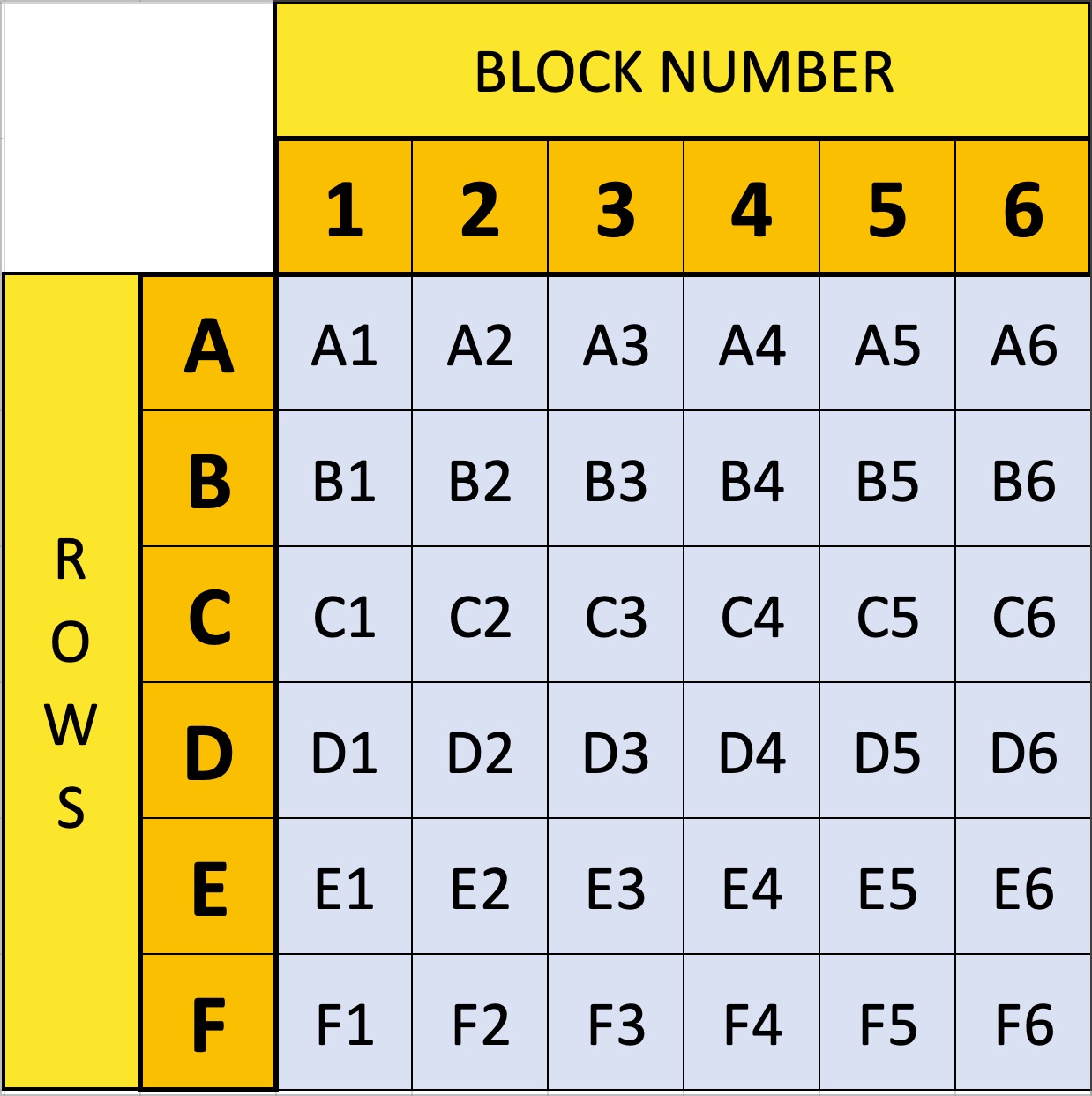
💡 Planning Tool: Use this Google Sheet Planner. Simply fill the cells with color to get a better visualization of what you need to check later in the generator.
Note: Links are not clickable when viewing the model in the Bambu Handy app, so I’m also pasting the full link here:
How to use the Map:
- ROWS (A–F): Represent the Depth (Y-Axis).
- Row A is the UP side.
- Row F is the DOWN side.
- BLOCK NUMBERS (1–6): Represent the Width (X-Axis).
- 1 is Left.
- 6 is Right.
First, choose how you want to define the initial Crazy Grid layout. There are two modes:
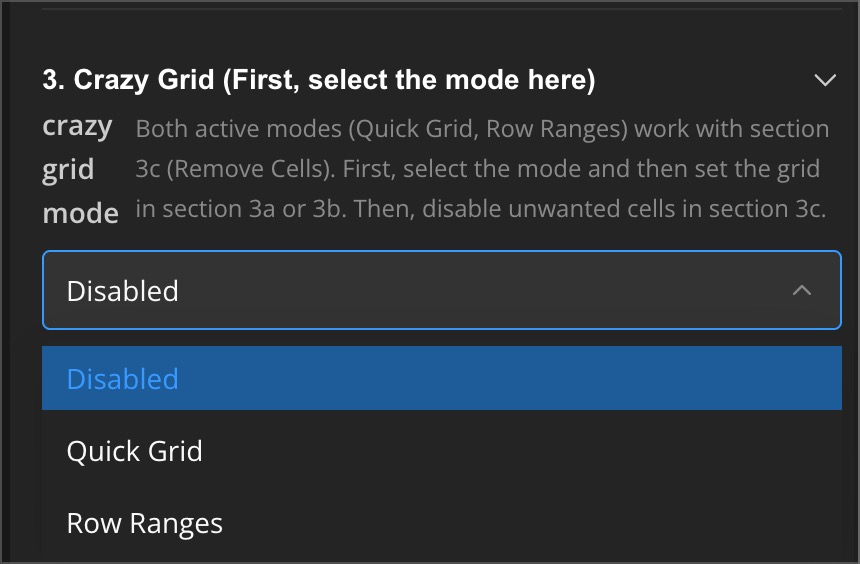
Both modes can be used together with Section 3c (Remove Cells). The idea is: pick a mode to create a base shape quickly, then use Remove Cells to fine-tune the final footprint.
Examples:
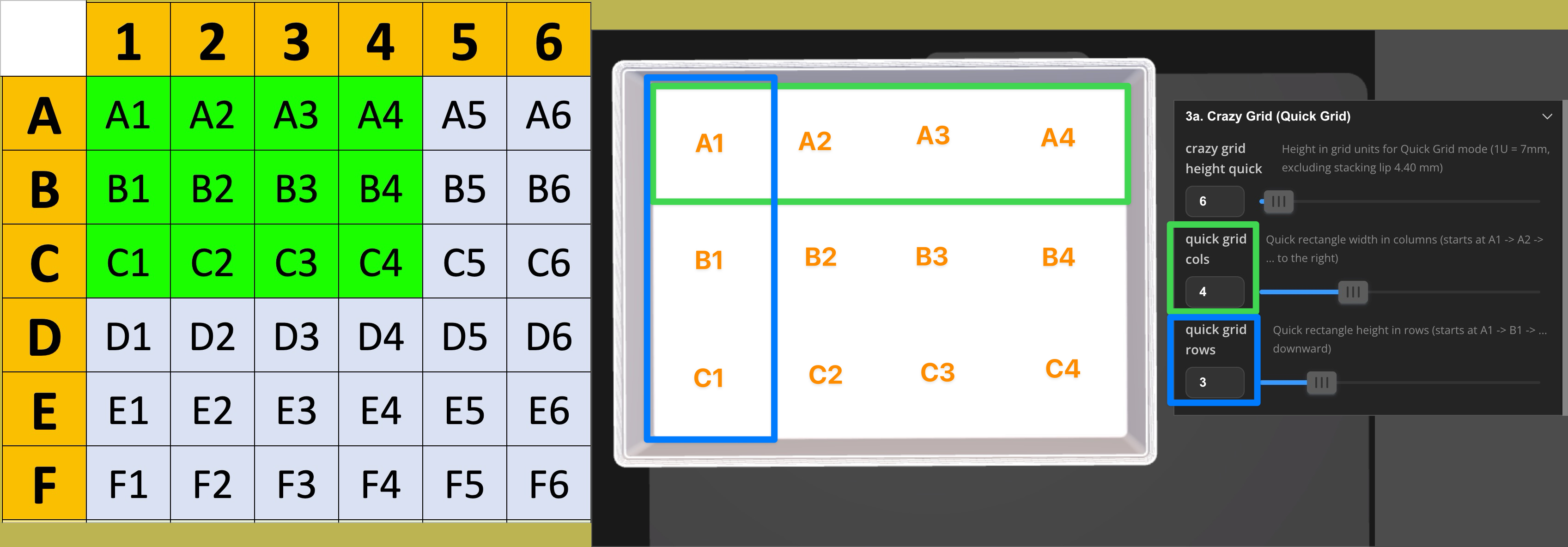
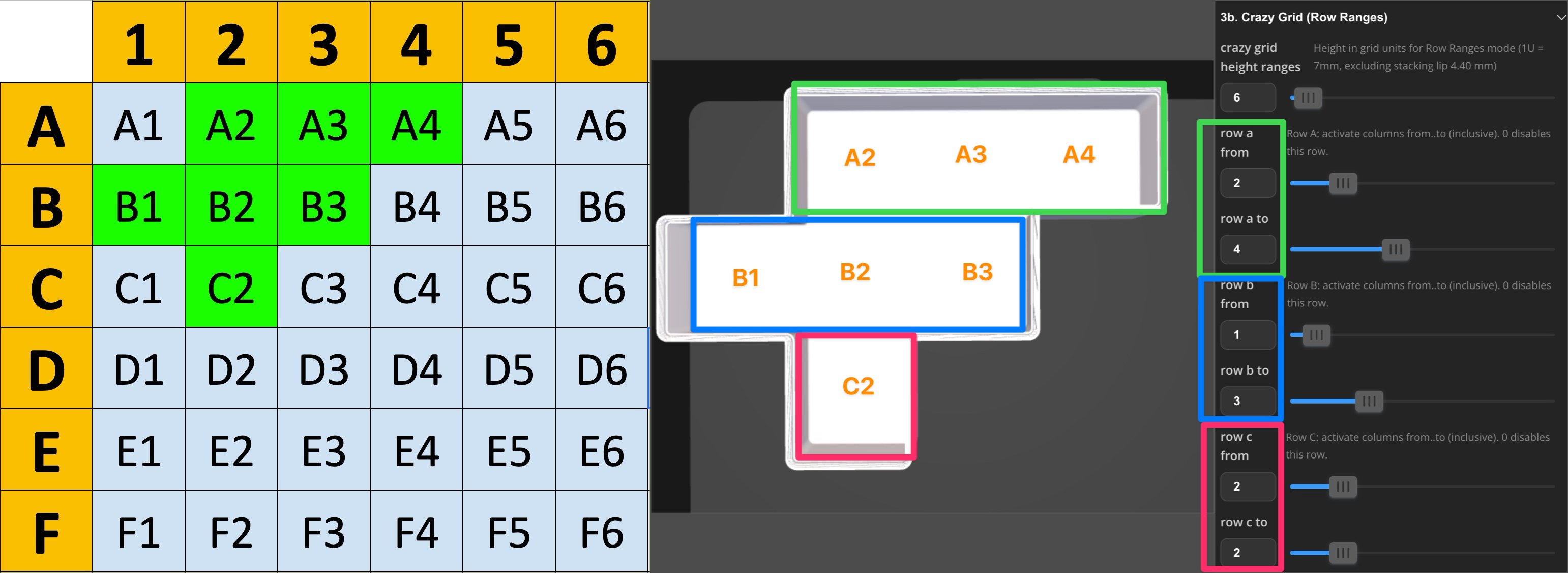
Simply look at the map and check the corresponding boxes.
Quick Grid example:
Row Ranges example:
Crazy Grid (Remove Cells)
This section is used to refine your shape by disabling specific cells. Simply select the cells you want to remove from the grid.
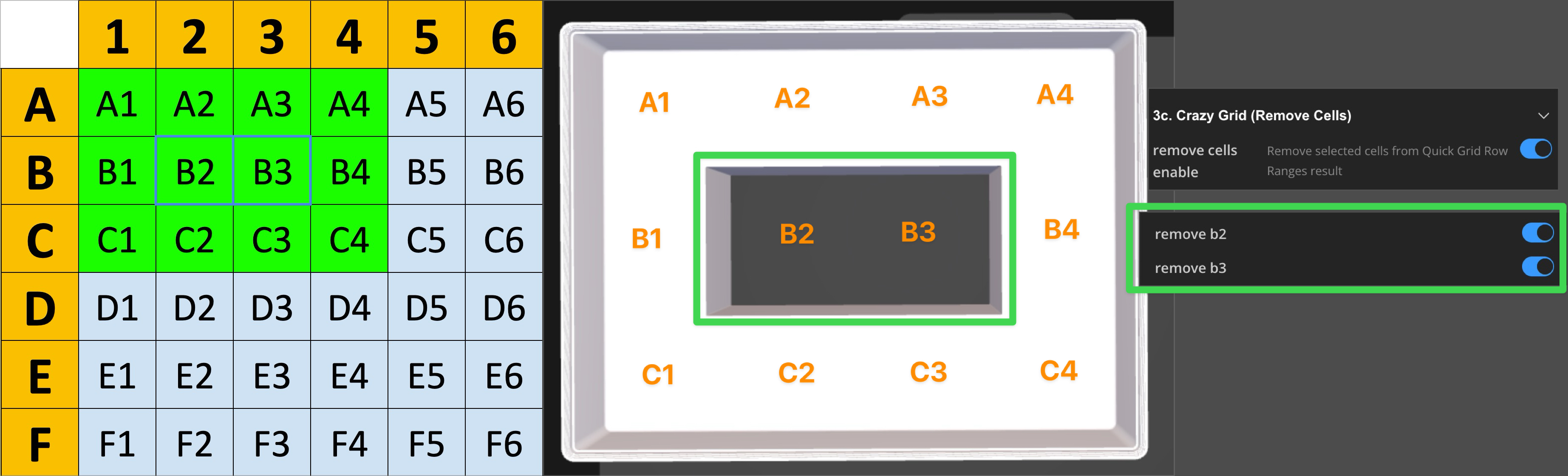
Dividers settings (Only work in Crazy Grid mode)
These settings control how all dividers are generated.
Div thickness
Sets the divider thickness. This only affects dividers, not the bin shell.
Div height mode
Controls how divider height is calculated:
- Default (height as bin height): dividers match the current bin height.
- Custom height (all dividers): one custom height is applied to every divider.
- Custom individual dividers: divider height is set per divider in the divider sections (consider this feature as beta as it may not work properly for very complex shapes)
Div custom height units
Global divider height in units (1 unit = 7 mm). Only works when Div height mode is set to Custom height (all dividers).
Dividers - Simple (Only work in Crazy Grid mode)
I split dividers into Simple and Advanced to keep the generator easier to use. Most people only need basic splits, so Simple dividers focus on the essentials. You can mix Simple and Advanced dividers in the same bin.
All settings from Dividers settings (Global) apply to both Simple and Advanced dividers.
This section lets you configure up to 10 Simple dividers (Divider 1 to Divider 10). More dividers are available in Extras section at the very bottom
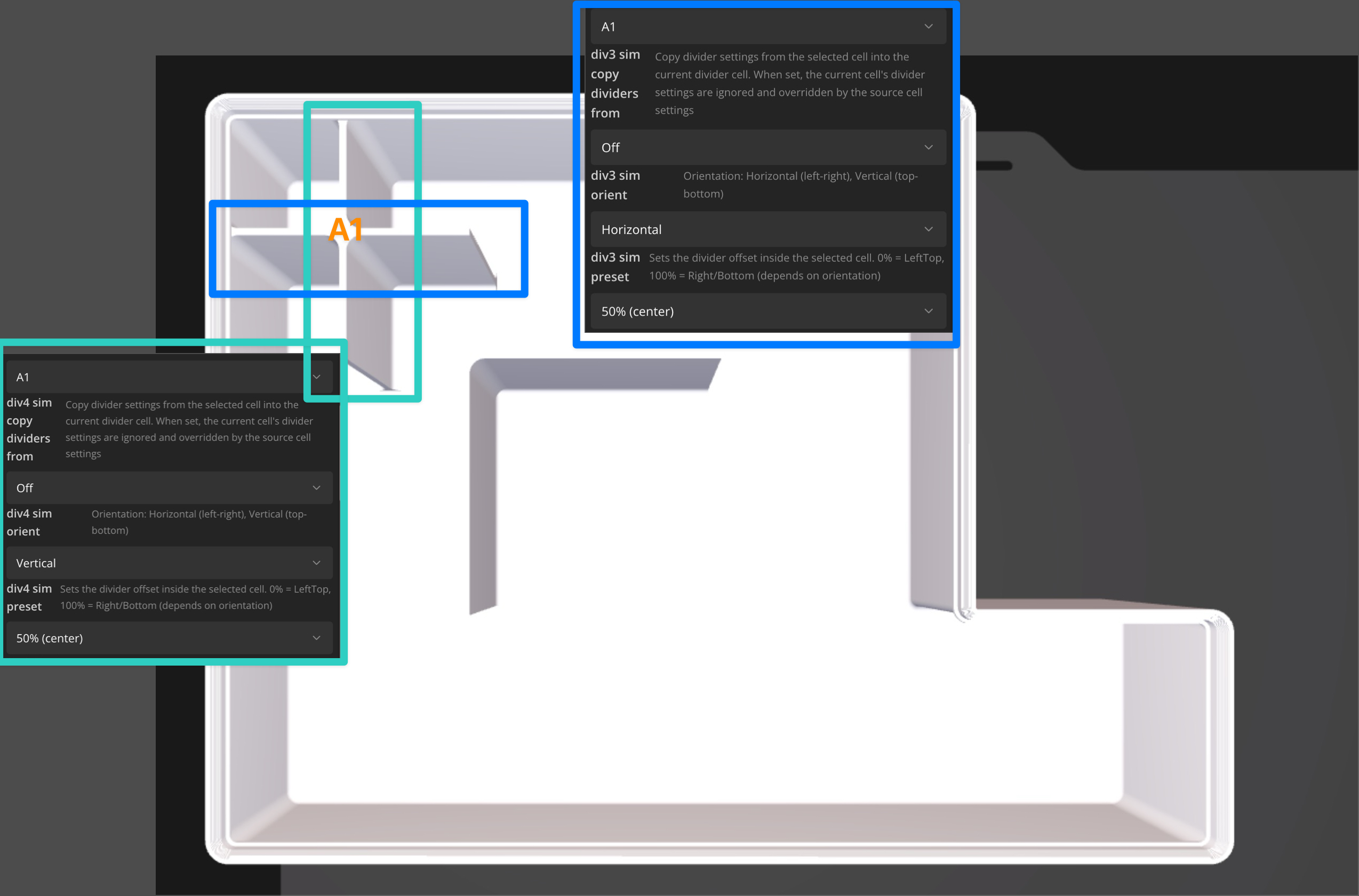
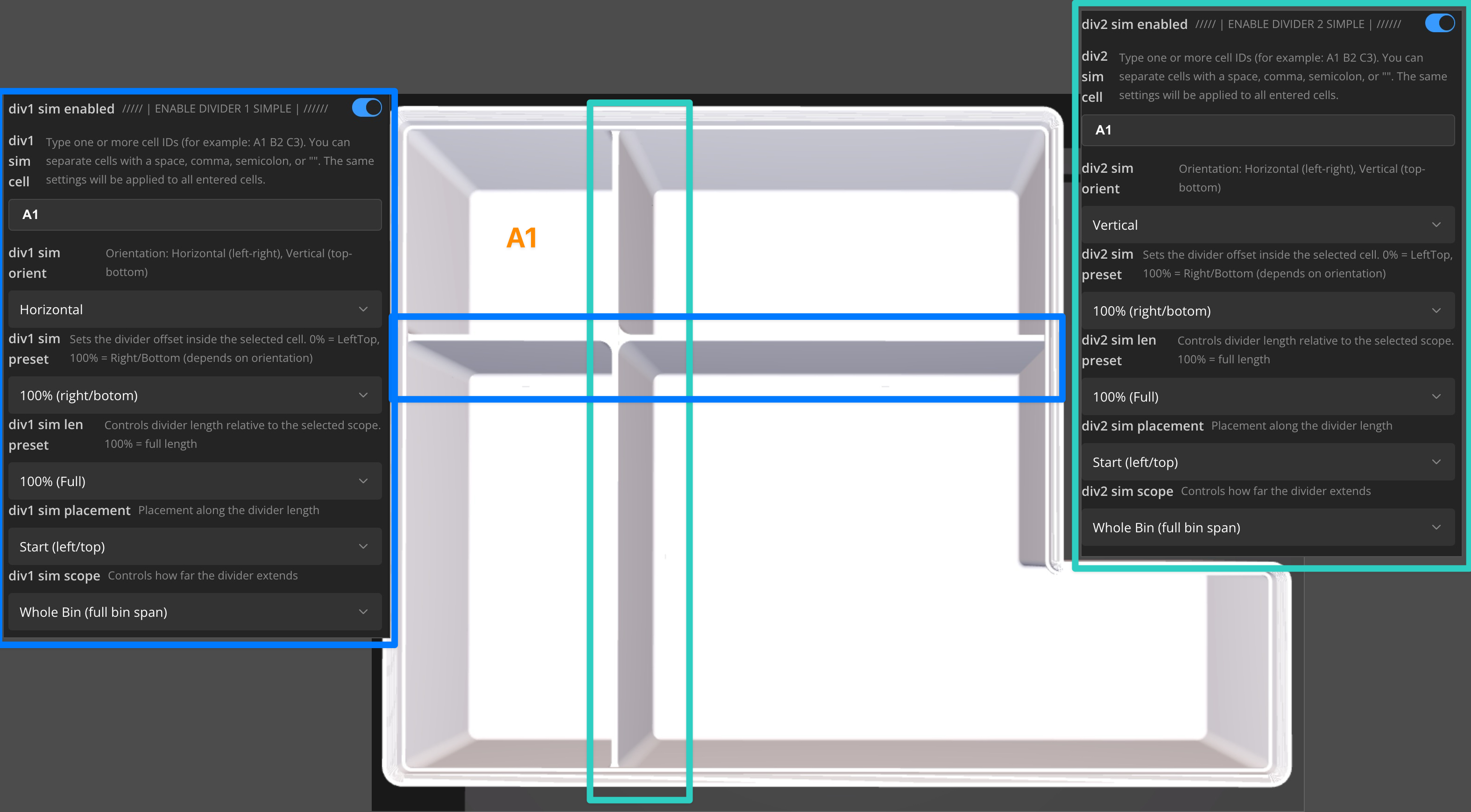
How to use (example: Divider 1)
cg dividers sim enabled
Enable extra simple dividers for Crazy Grid Mode.
div1 sim enabled
Turns Divider 1 on or off.
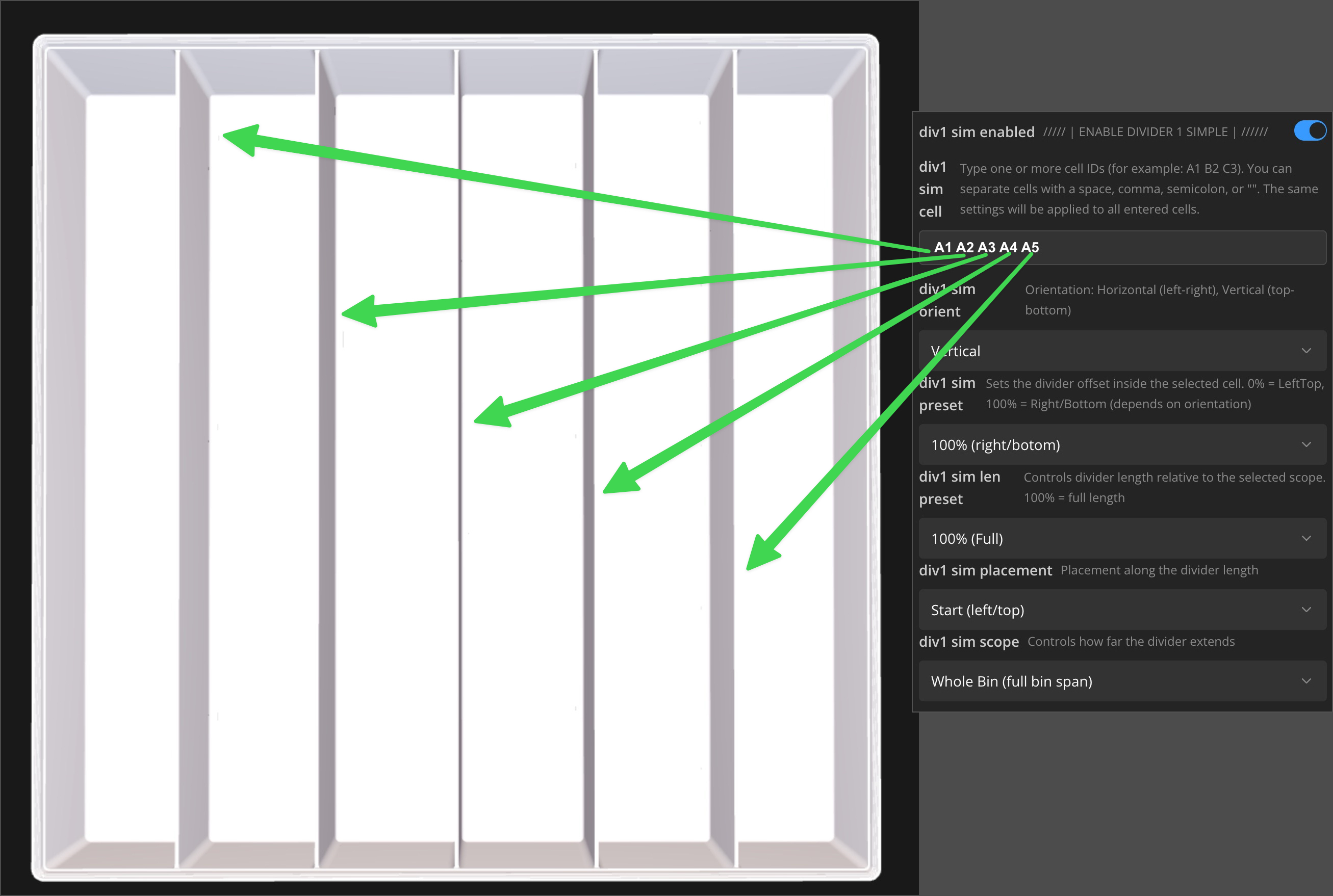
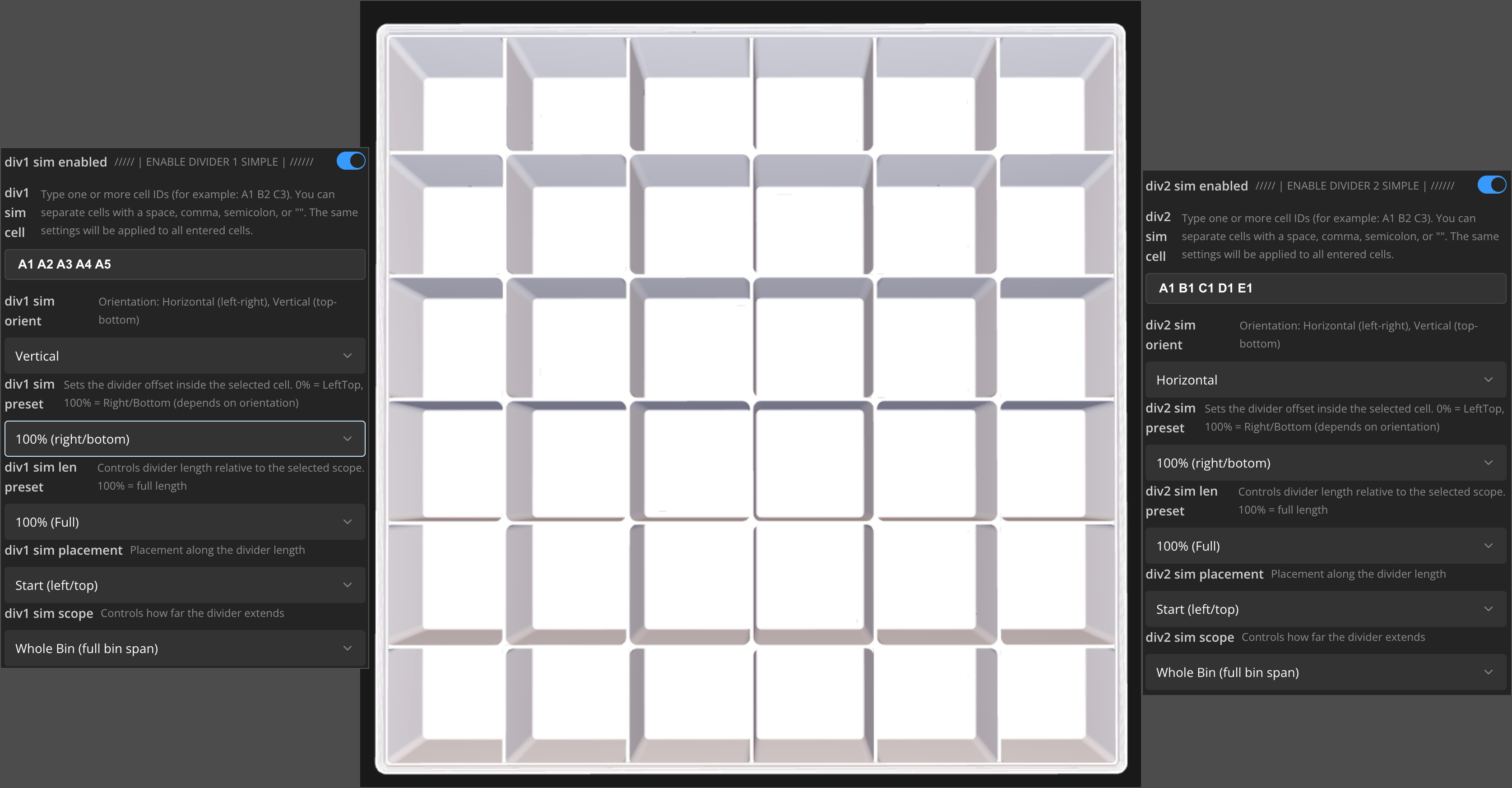
div1 sim cell
//Update: Divider cell selection has changed. You can now type multiple cell IDs at once, and the same settings will be applied to all of them. See the example at the very bottom of this section.
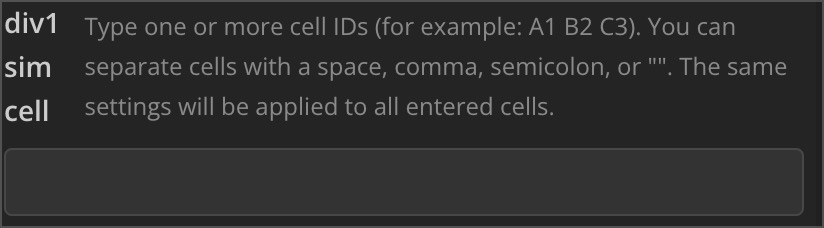
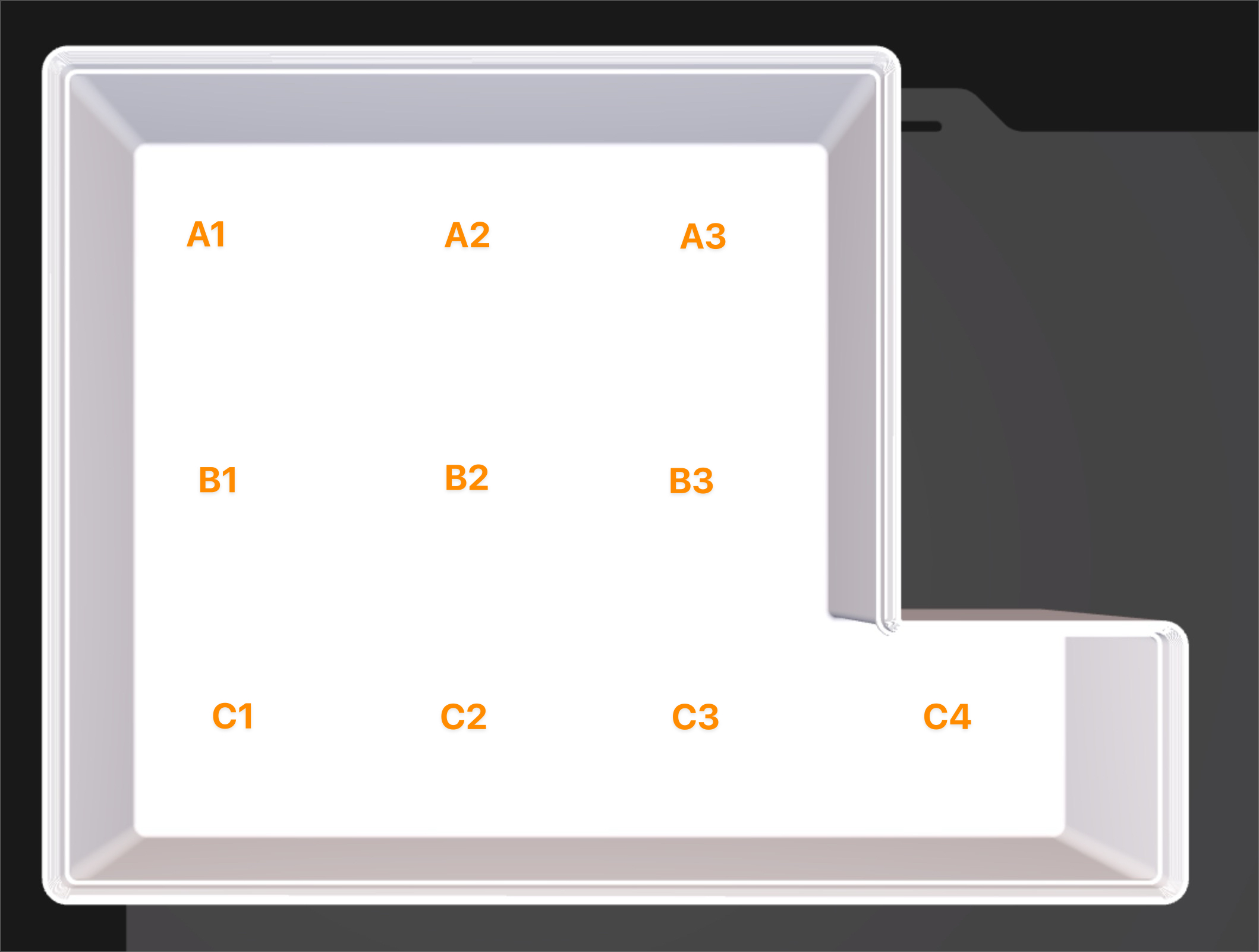
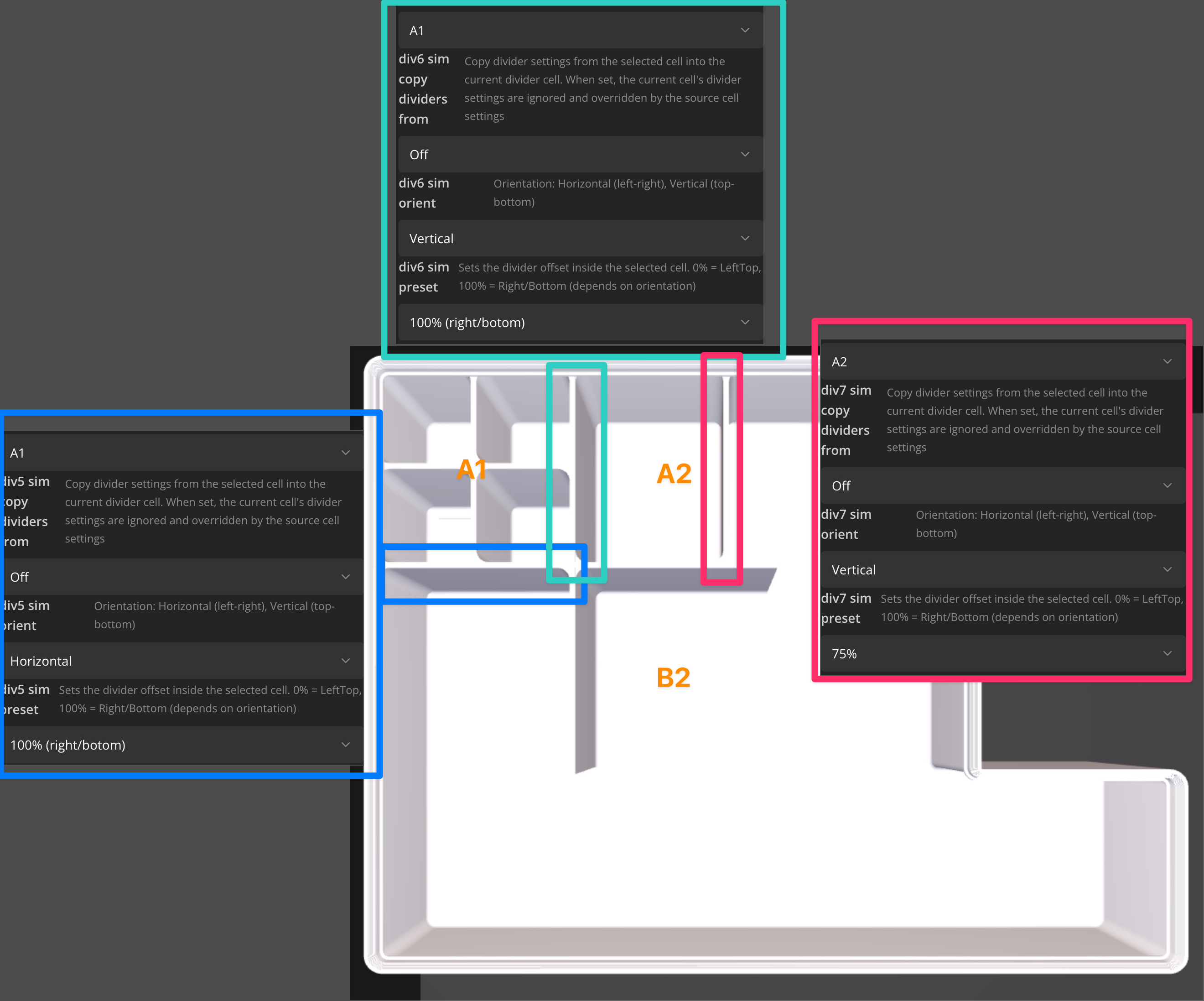
div1 sim copy dividers from
//Update: This option was removed. You can now type multiple cells in div cell, and the same settings will be applied to all entered cells.
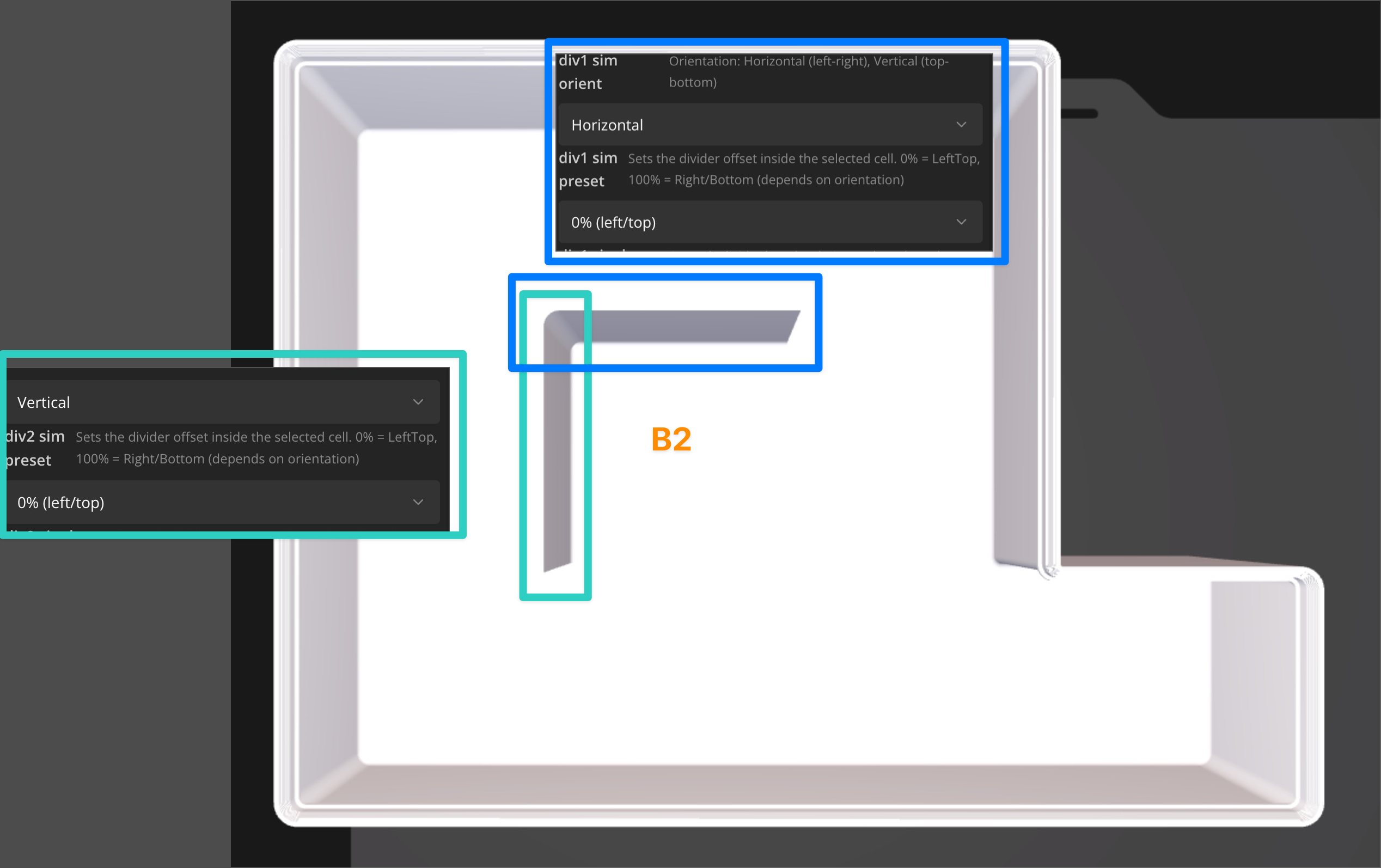
div1 sim orient
Choose divider orientation:
• Horizontal (left-right)
• Vertical (top-bottom)
div1 sim preset
Sets the divider offset inside the selected cell.
• For Horizontal, it moves the divider top to bottom
• For Vertical, it moves the divider left to right
Presets: 0%, 25%, 33%, 50%, 66%, 75%, 100%
0% is always left/top, 100% is always right/bottom (depends on orientation).
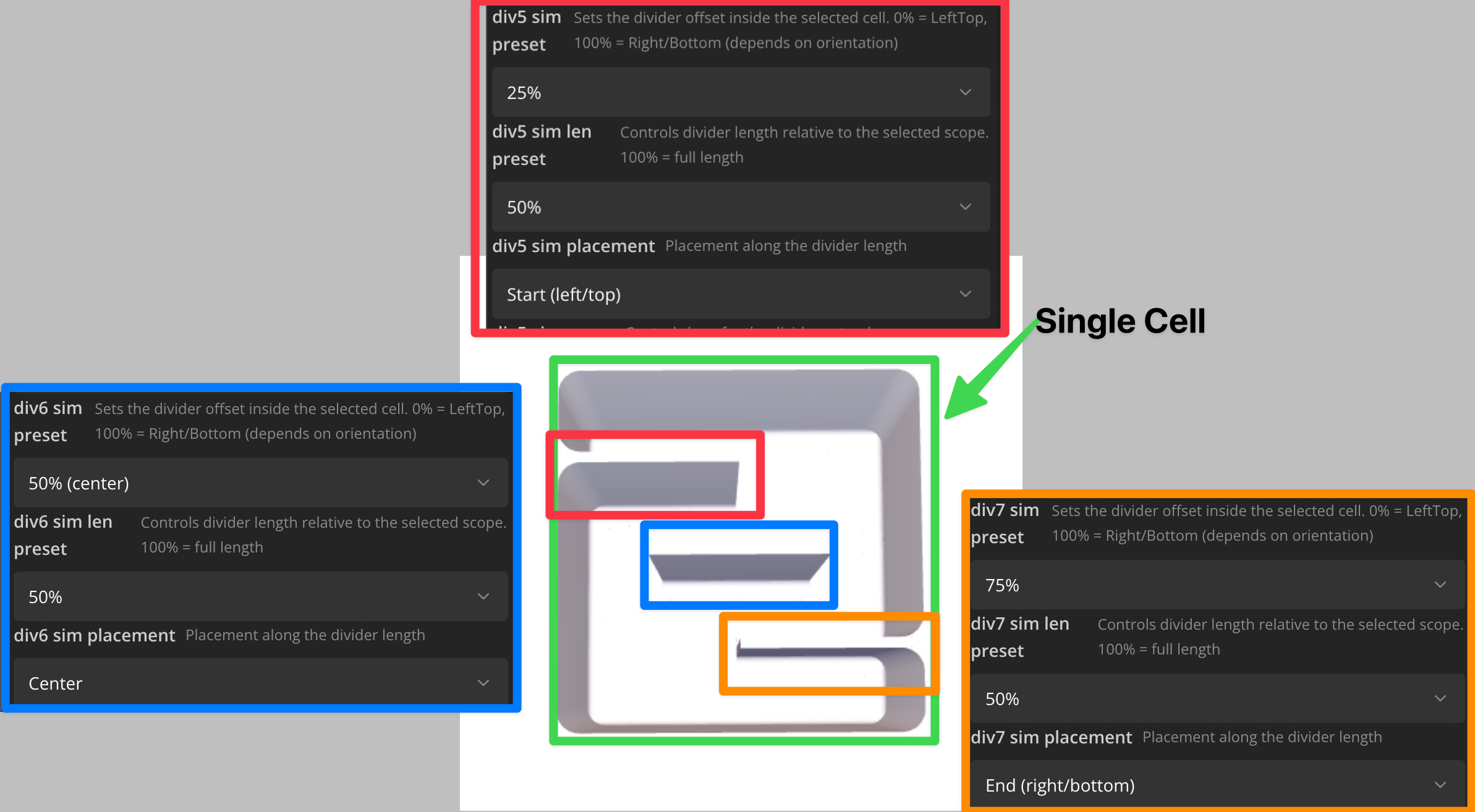
len preset
Controls divider length relative to the selected scope. Presets: 100% (Full), 50%, 33%, 25%.
placement
Placement along the divider length. This matters only when len preset is below 100%.
Options: Start (left/top), Quarter 2 (25% only), Center, Quarter 3 (25% only), End (right/bottom).
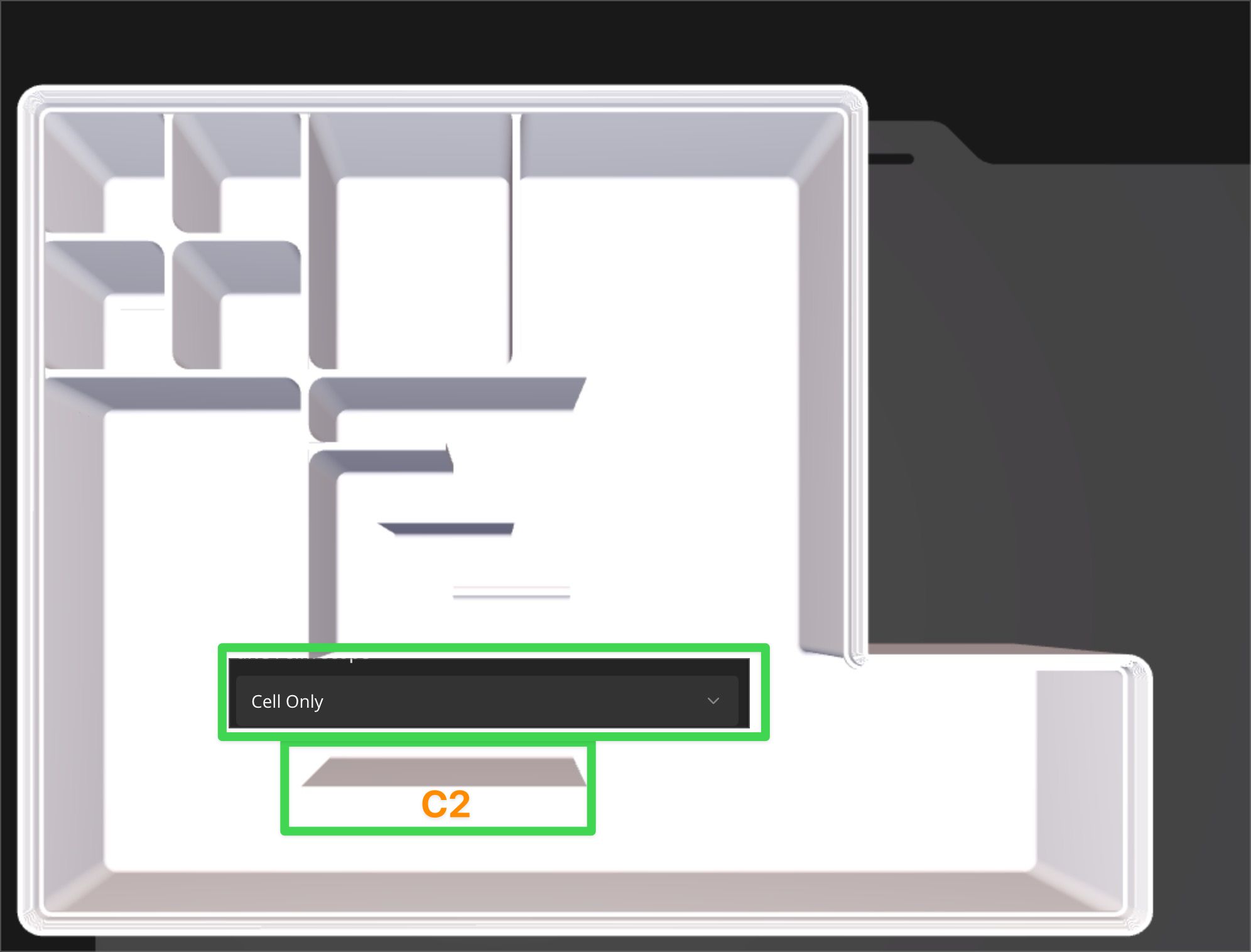
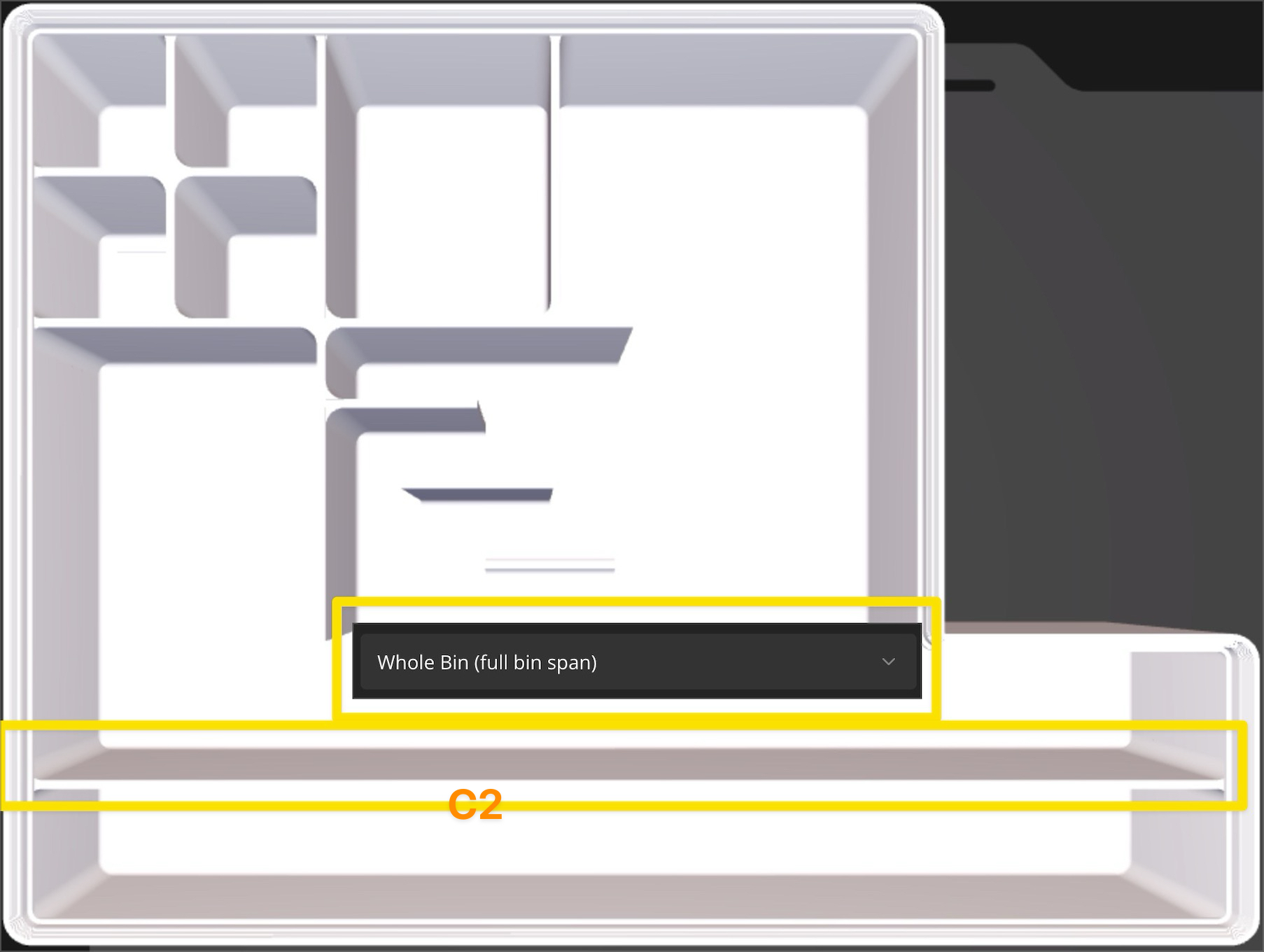
div1 sim scope
Controls how far the divider extends:
• Cell Only: divider stays inside the selected cell
• Whole Bin (full bin span): divider runs through the entire bin in both directions
Important: If Whole Bin (full bin span) is selected, div1 sim len preset and div1 sim placement are ignored.
Example: Multiple cell IDs at once
In dividers advanced the options are the same but in addition we can enter the exact values we want for some values, all values are always counted from the left or top edge of the selected cell
Remove bin wall (Only work in Crazy Grid mode)
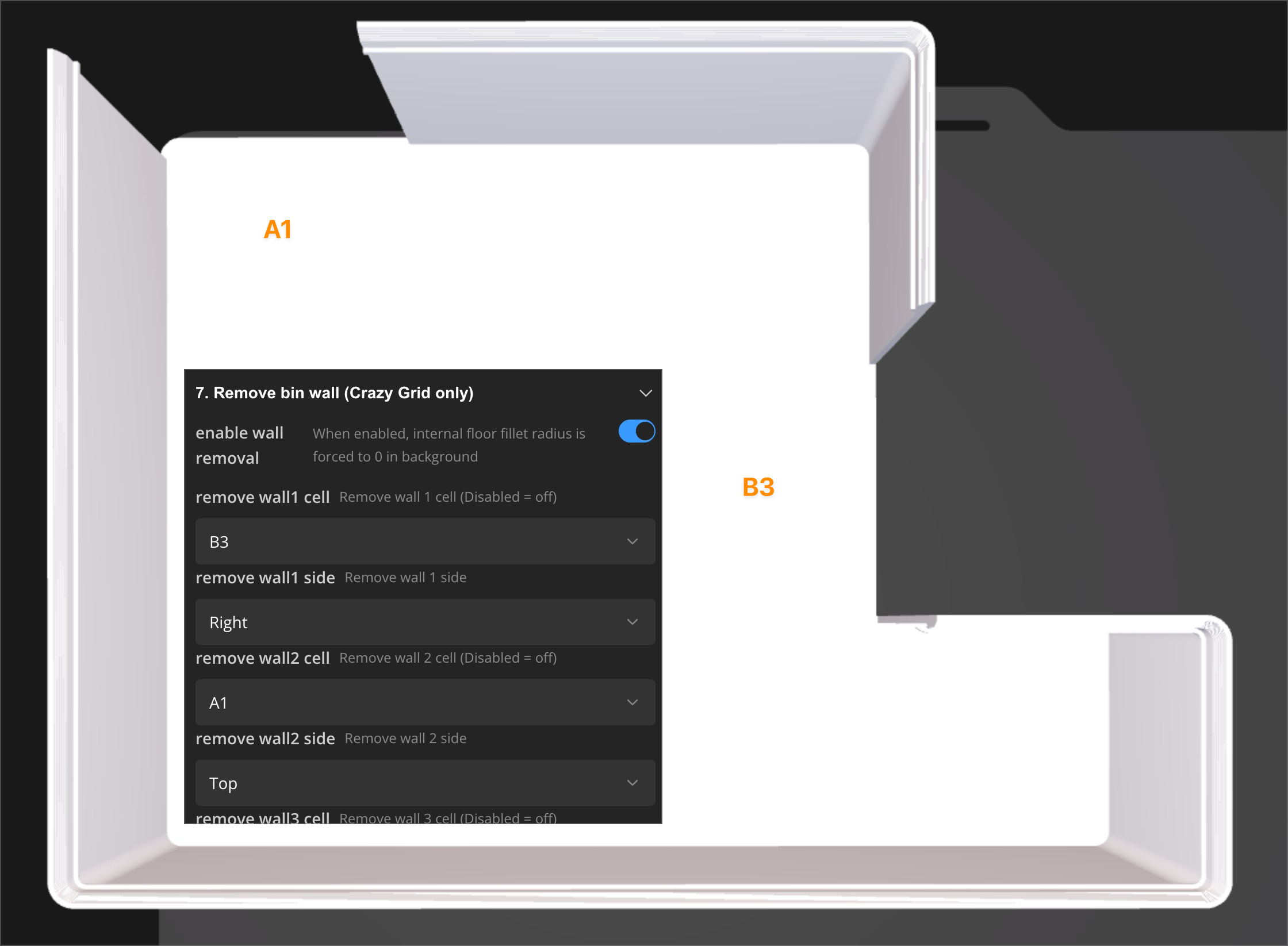
This section lets you remove specific outer bin walls on selected Crazy Grid cells.
enable wall removal
Enables wall removal mode. When enabled, the internal floor fillet radius is forced to 0 in the background to avoid geometry issues.
emove wall cell
Select the cell where you want to remove a wall. Set it to Disabled to turn this slot off.
remove wall side
Select which wall side to remove for that cell.
Example
Labels (Only work in Crazy Grid mode)
You can configure up to 10 labels in this section. More labels are available in the Extras section at the very bottom.
labels enabled - Global enable for label strips in Crazy Grid mode.
label width mm - Label depth from inner wall side into the selected cell (mm).
labels text merge adjacent - Merge adjacent labels on the same side for text placement.
label text size mm - Text size for label text. If set to Auto, the text will scale to fit the width of the selected label.
Set your dividers first. Otherwise, labels may end up floating in the air.
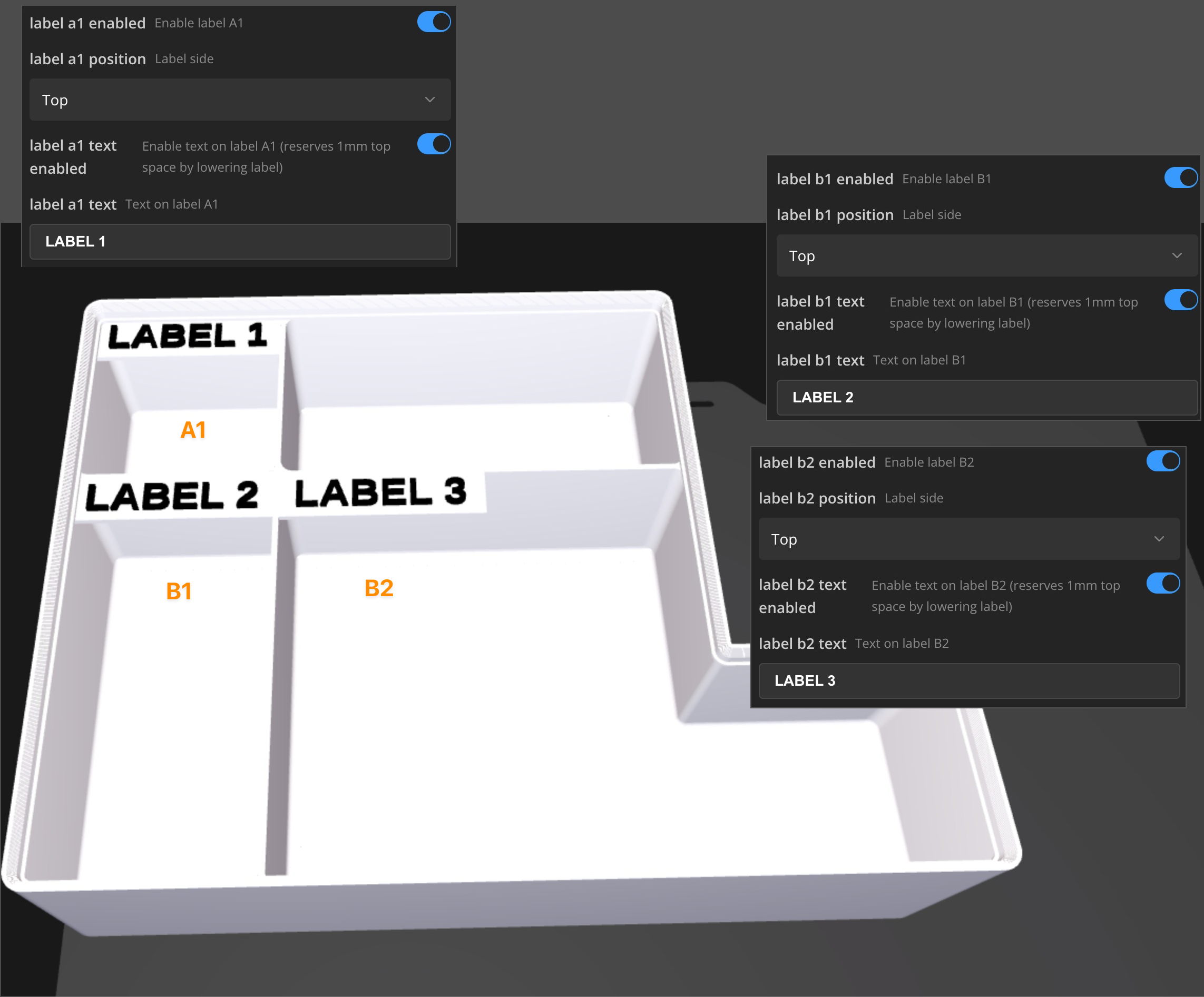
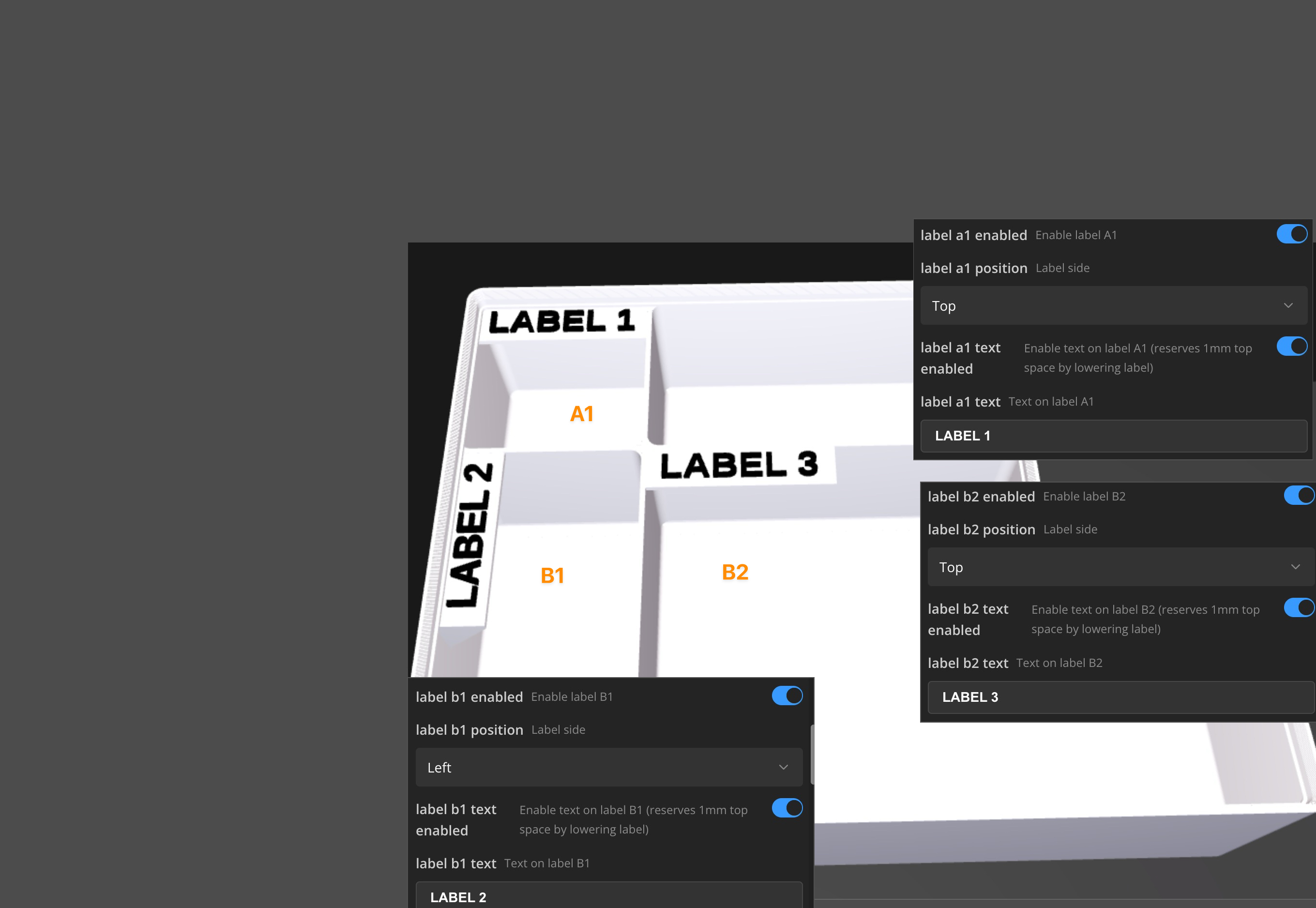
Labels are configured per Crazy Grid cell. Each cell has its own label toggle and settings.
For each cell label you can:
- Enable or disable the label
- Choose the label side (Top, Bottom, Left, Right)
- Enable text and enter custom text
Examples
Spacerless Extensions
Extension mode
This tool eliminates "dead space". Why it matters: If you have a 12mm gap between your standard bin and the drawer wall, simply add 12mm to the corresponding extension slider. The bin will widen to fill the gap perfectly, maintaining the Gridfinity base standard.
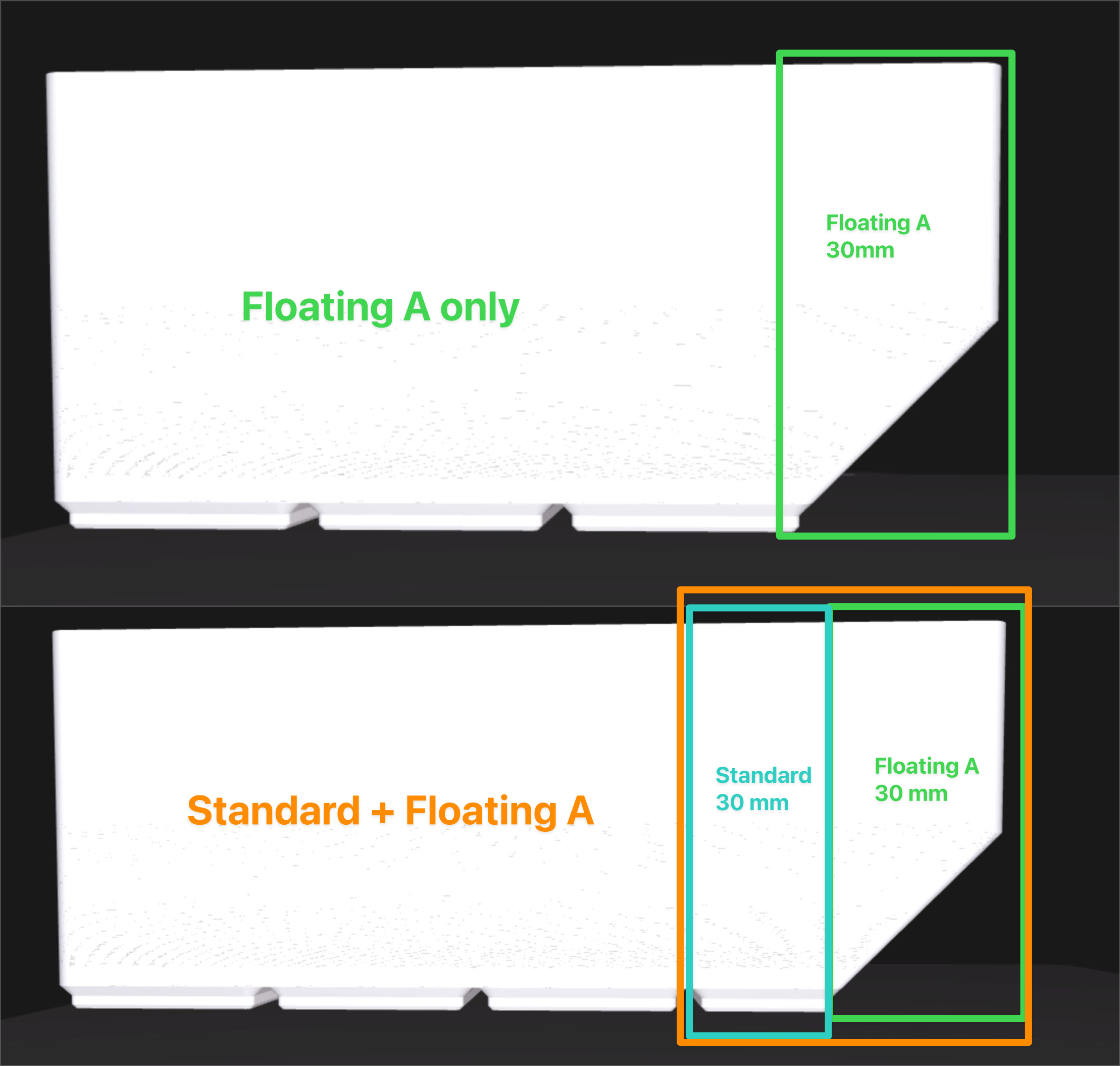
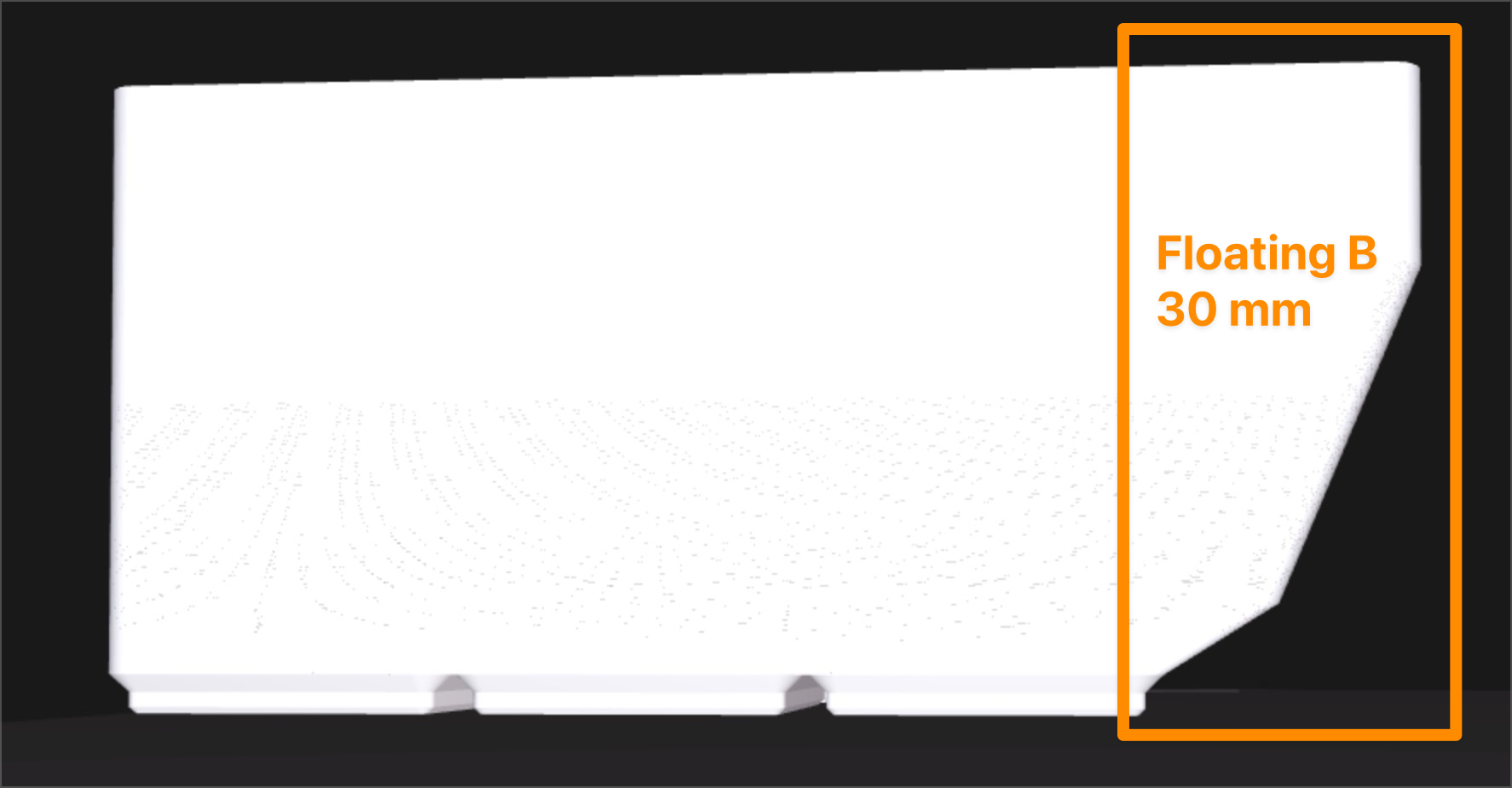
There are three extension types: Standard (Straight), Floating A (Rounded / Angled / Corner), and Floating B (Dual-Angle / Compound).
They can be used individually or combined. When you select a combined mode (Standard + Floating), the extension values from both types are summed.
In combined modes, you first set the Standard (Straight) extension size, then configure the Floating extension in the next section.
Extension - Standard (Straight)
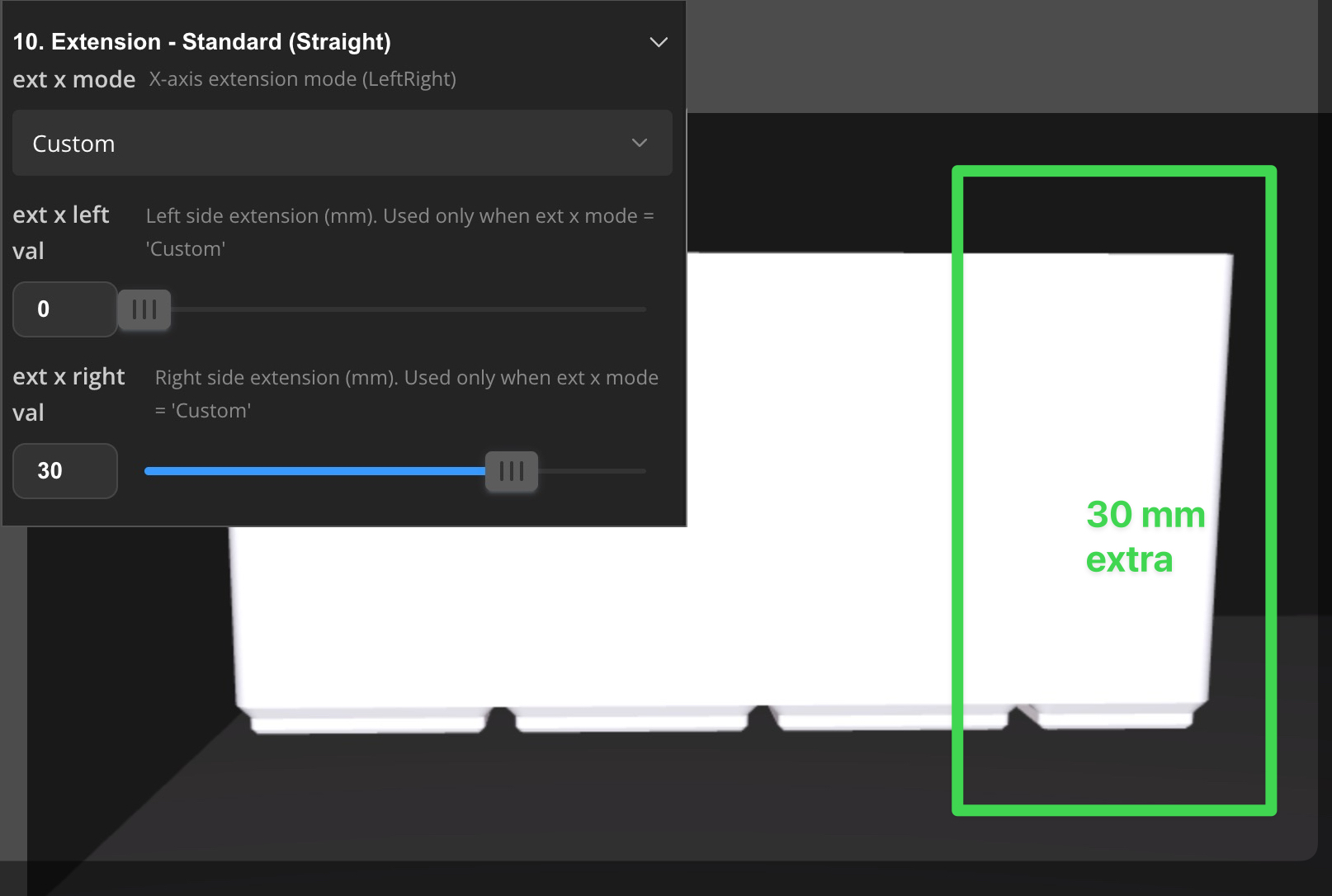
Standard extensions add extra millimeters to the bin footprint.
You can set extensions in two ways:
Custom: choose different values for each side (Left and Right, Up and Down).
Symmetric: enter one total value and it will be split evenly between both sides (Left + Right, Up + Down).
Example:
Extension - Floating Add-On A (Rounded / Angled / Corner)
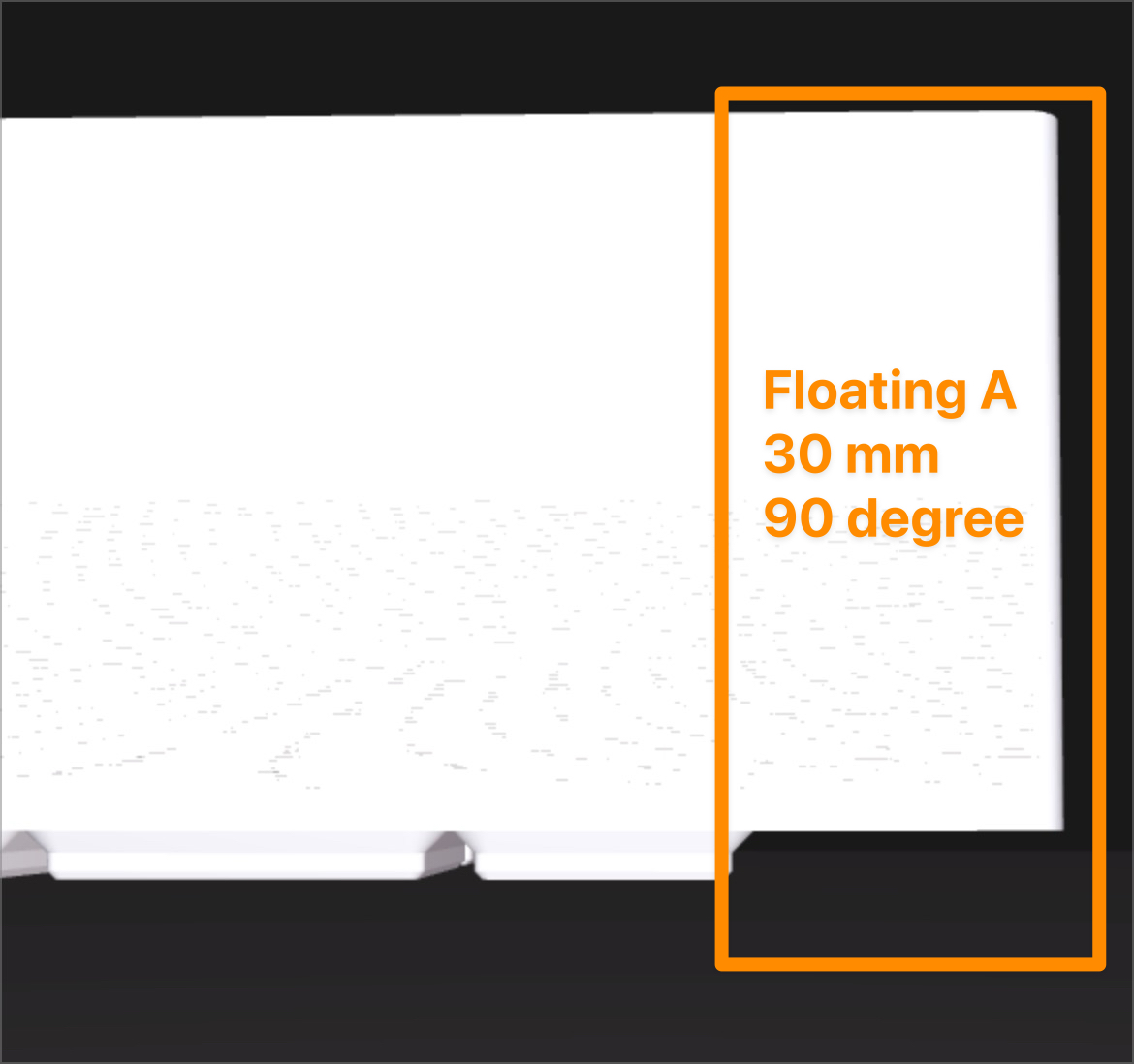
Floating Add-On A lets you add a rounded or angled extension profile. You set the extension amount in millimeters per side (Left, Right, Up, Down).
This section only works when the extension mode is:
Standard + Floating A, or
Floating A only
In combined modes, Floating A values are added on top of the Standard extension values.
You can also choose the extension style (for example angled vs rounded) and adjust parameters like the angle or radius.
Note: Some Floating A profiles may require supports when printing.
Extension - Floating Add-On B (Dual-Angle / Compound)
Floating Add-On B works the same way as Floating Add-On A, but it lets you create a more complex profile using two angles (dual-angle).
Magnets
This section adds magnet holes on the bottom of the bin.
enable magnets - Enable magnet holes on the bottom.
magnet diameter - Magnet hole diameter (mm).
magnet depth - Magnet hole depth (mm).
magnet corners only - Only generate magnet holes in the 4 corners of the bin. This option does not work in Crazy Grid mode.
Finger Scoops
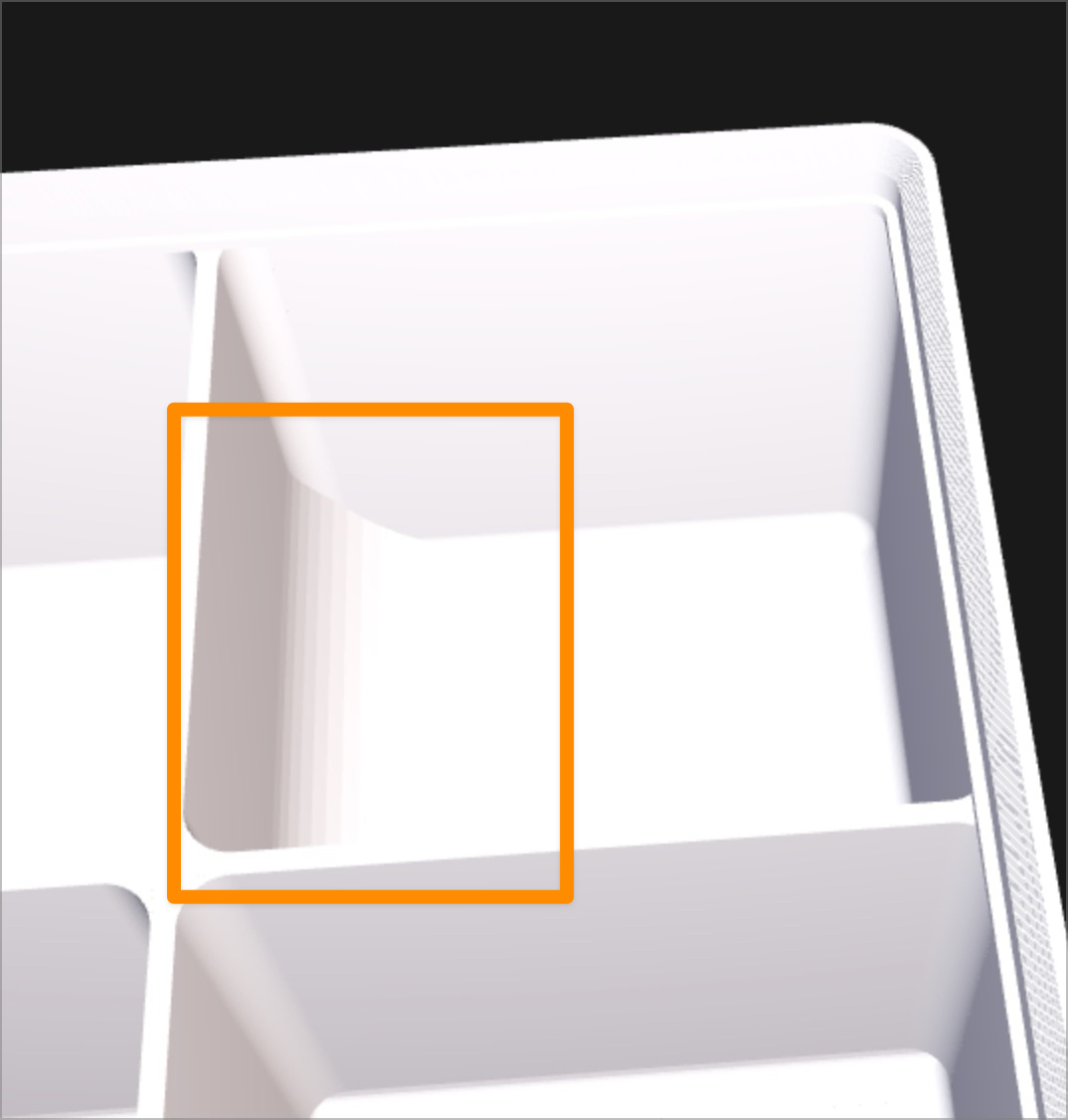
Finger scoops create a rounded cutout on the selected outer wall to make it easier to grab parts.
Set the scoop radius for each side: Up, Down, Left, Right.
You can set the scoop size using the sliders.
Value 0 disables the scoop on that side.
In Crazy Grid mode, scoops are placed per cell. You choose the scoop radius and side then select the cell where the scoop should be applied.
⚙️ Printing Recommendations
- Layer height: 0.20 mm.
- Walls: Min 2 (3 recommended for stiffness).
- Infill: 10-15%
- Support: No supports needed in most cases. Some Extension profiles may require supports.
- Material: PLA, PETG.
- Brim: If you print a very small extension, I recommend adding brim
- Slicer tip: If you print with dividers and have internal fillets enabled, I recommend using the Arachne wall generator for better results.
📦 Complete Your Drawer
Don't forget to generate the matching Spacerless Baseplate to ensure your new custom bins fit perfectly without sliding around!
Update 12.01.2026
- Extended Size: Added support for Crazy Grid bins up to 10x10! Perfect for Prusa XL, Voron, K1 Max, and other large-format printers.
- New UI Section: Added a separate section “Crazy Grid - XL Printer Support”. This keeps the interface clean and simple for standard printer users
Update 13.01.2026
Extensions settings were significantly expanded and are now much more advanced, allowing you to fit the bin to almost any drawer geometry with fully customizable options.
Examples: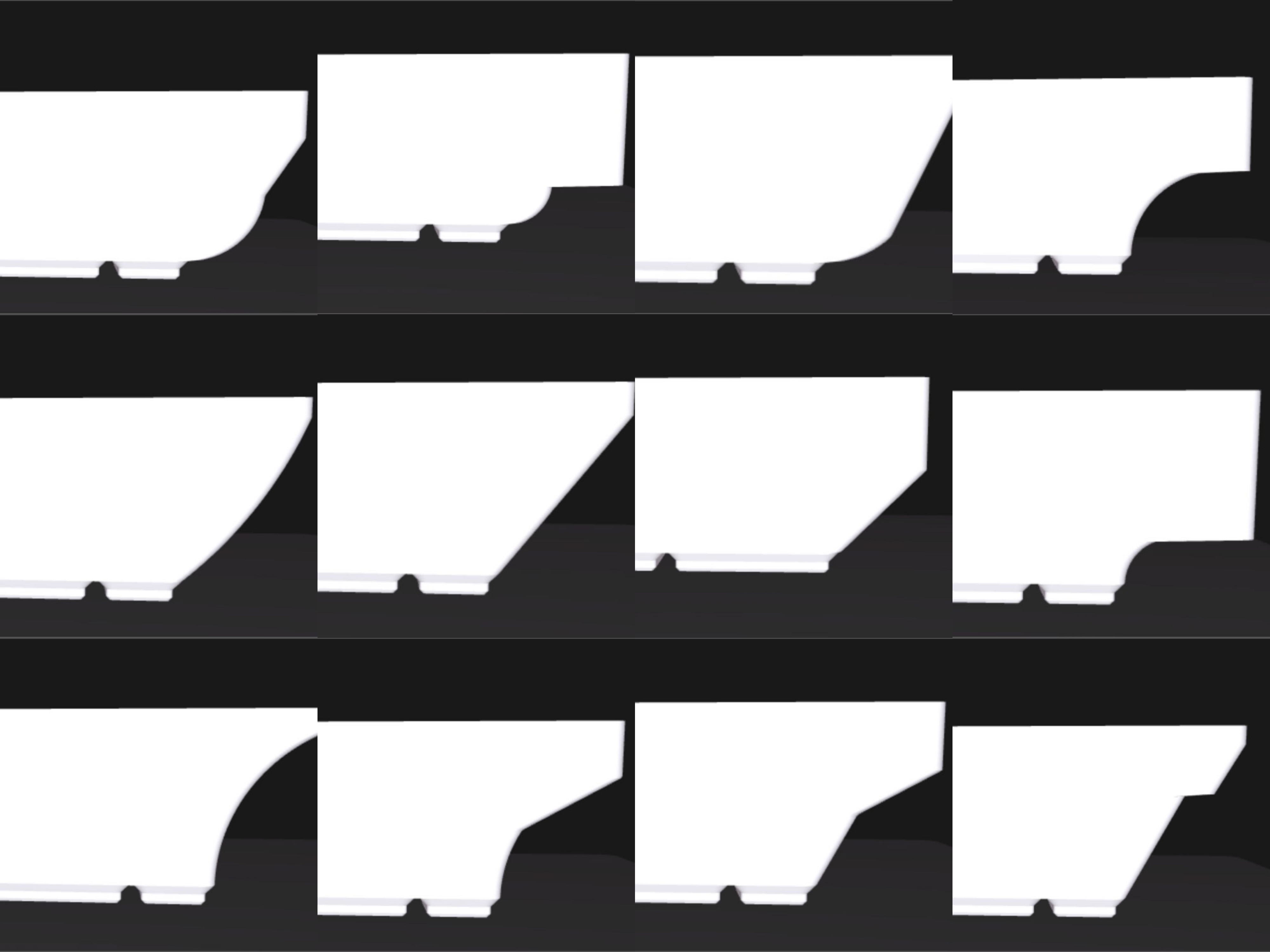
Update 14.01.2026
- Fixed occasional wall thickness generation in extension Floating A/B, improved Floating B transition smoothness.
Update 06.02.2026
New features added:
- Dividers with full configuration options
- Labels with custom text
- Custom scoop for Crazy Grid
- Remove wall option (ability to remove selected walls)
Update 11.02.2026
- The Crazy Grid workflow was redesigned to be easier and faster
- Divider cell selection was simplified
Labels are now configured per cell using predefined toggles and settings for each Crazy Grid cell
Update 17.02.2026
- Fixed an issue where labels might not display
☕ Support & Feedback
- If you find any bugs or have suggestions for improvements, please let me know. Your feedback helps shape future updates.
- If this generator saved you time or helped you build a better setup:
• leaving a Boost on MakerWorld is always appreciated
• optional support via Buy Me a Coffee helps me keep improving it and shipping regular updates - Thank you so much for all the comments and photos - I really appreciate it.
Spacerless - Gridfinity Bin Generator

Publicado em 11 de jan de 2026