Você está no 3DFinder
Buscamos em Thingiverse, MakerWorld e Printables ao mesmo tempo para te dar o melhor de cada uma.
Descrição
🆕 What’s New in V3 – Now Even More Customizable - 07/29/25
Now even more customizable than ever!
V3 introduces a new "Optional Customizations" section that gives you greater control over every part of the design.
Here’s what’s new:
- Adjustable font sizes – You can now change the size of the song title, artist name, and timestamps to better match your layout.
- Text positioning – Move any text forward or backward to fine-tune the balance and spacing.
- Fully responsive layout – The play buttons, progress bar, and timestamps will automatically adjust to match the size of the base you choose.
- Greater flexibility – Whether you’re making a compact tag or an extended plaque, everything will scale and align accordingly.
This version is designed to give you more creative freedom while keeping the layout clean and printable. Perfect for advanced customizations and one-of-a-kind gifts!
⚠️ Make sure to open the version labeled "OPENSCAD" for the fully customizable file using Parametric Model Maker⚠️
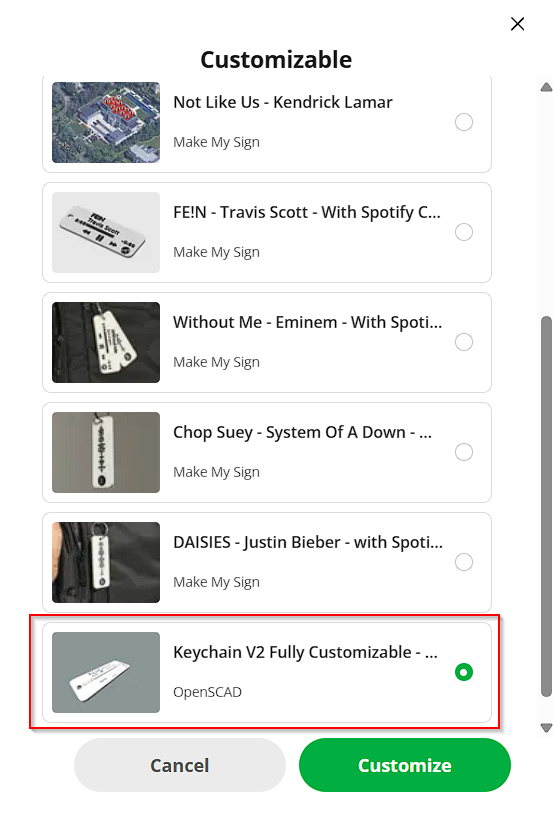
Spotify Keychain V3 – Fully Customizable (No Canva Needed)
This is a 3D printable keychain tag that lets you carry your favorite song with you in a sleek, minimal iPhone-style layout.
With just a few clicks, you can fully personalize your tag right inside MakerLab—no external tools required.
🔧 What You Can Customize:
- Song title – Write the name of any track you love
- Artist name – Personalize it with any artist, band or even your own name
- Timestamp – Set a custom start and end time (e.g., 1:12 to 2:45)
- Progress bar – Adjust the position of the progress to reflect your favorite part of the song
- Tag length – Make the tag longer or shorter to match your desired size
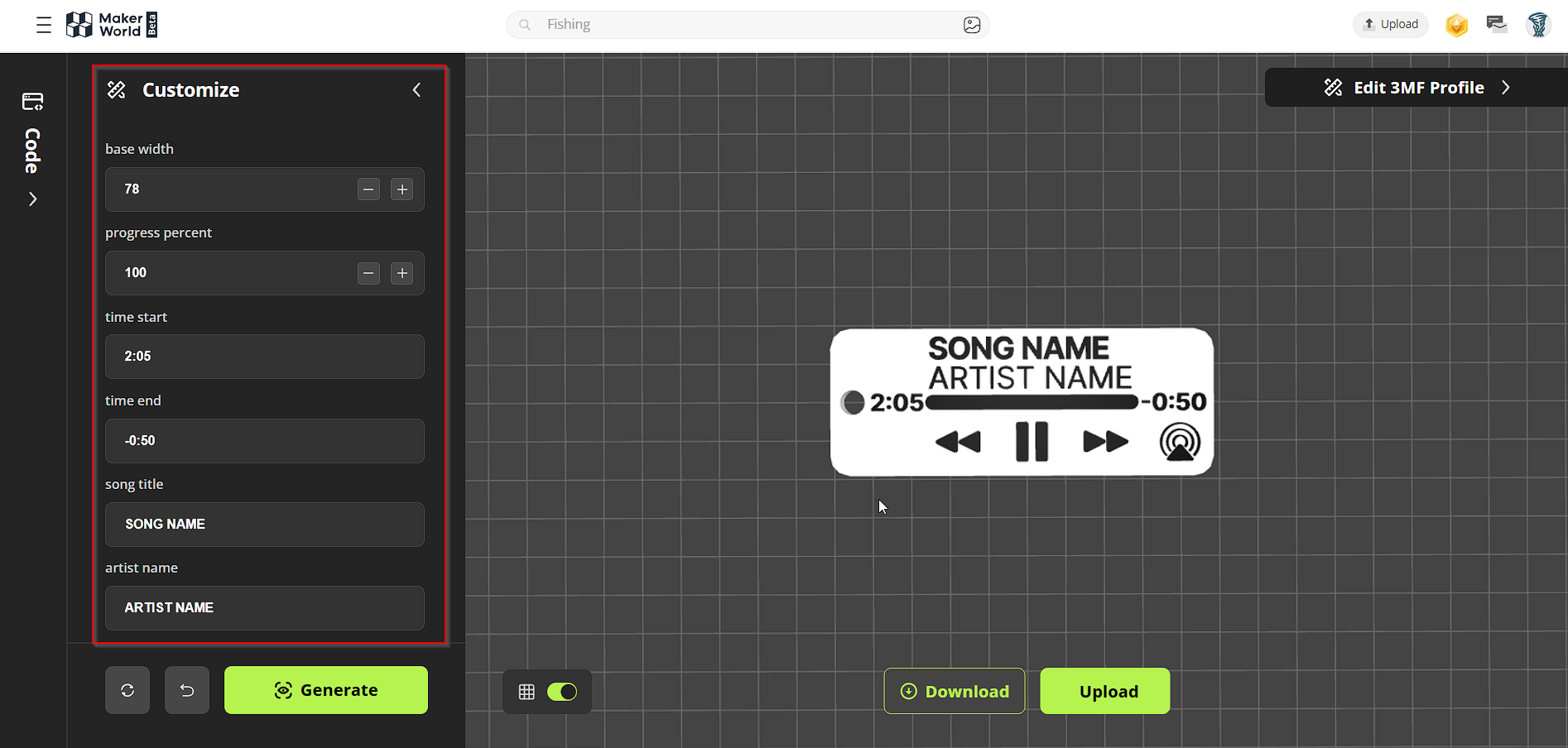
⚠️ Optional Customization Note
The "Optional Features" section allows you to modify advanced layout elements such as font sizes, text positions, button spacing, etc.
These options are available in case you want full control over the design, but please note:
We do not recommend changing these settings unless necessary.
The default sizes and positions have been fine-tuned to ensure optimal print quality and alignment.If you're unsure, it's best to stick with the standard layout to avoid any distortion or printing issues.
🖨️ Printing Instructions:
- After customizing, export the design as a .3MF file
- Open the file in Bambu Studio
- Recommended print settings: 0.12 mm layer height (High Quality)
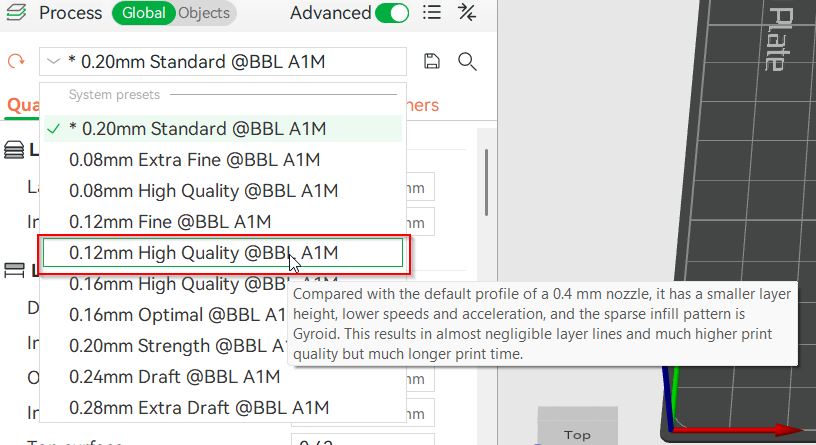
Note: This is Version 2 of the Spotify Keychain project.
In this version, you no longer need Canva or any file conversions. Everything is built directly into MakerLab for a faster and cleaner workflow.
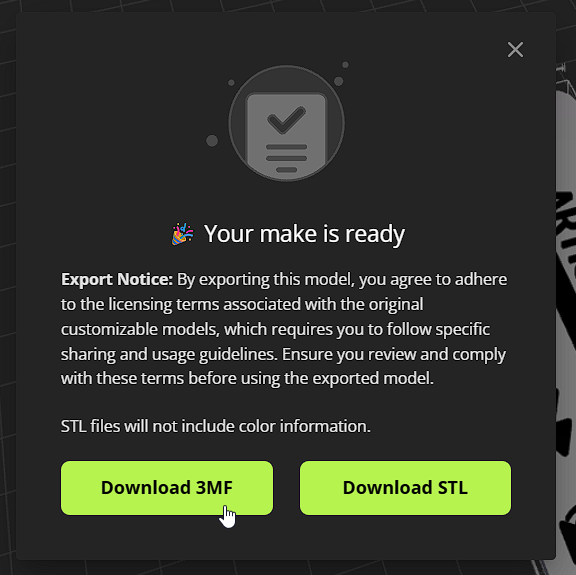
Once you're happy with the results, just click download, Select your printer, and download the 3mf file. :)
Embed a Spotify Code on the Back (Updated Workflow)
Want to make your keychain scannable? Follow these updated and detailed steps to embed a fully functional Spotify Code directly into the back of your tag using Bambu Studio:
🧾 Step-by-step Instructions:
- Generate the Spotify Code:
- Go to [https://www.spotifycodes.com/#create](https://www.spotifycodes.com/#create)
- Paste the link to your song
- Set the background color to white
- Set the bar color to black (or any print color you prefer)
- Download the generated image
- Convert the Code into a 3D Model:
- Go to [https://makerworld.com/en/makerlab/imageToKeychain?from=makerlab](https://makerworld.com/en/makerlab/imageToKeychain?from=makerlab)
- Upload the image
- Uncheck “Keep background”
- Set thickness to 0 (it will auto-adjust to 0.1, which is correct)
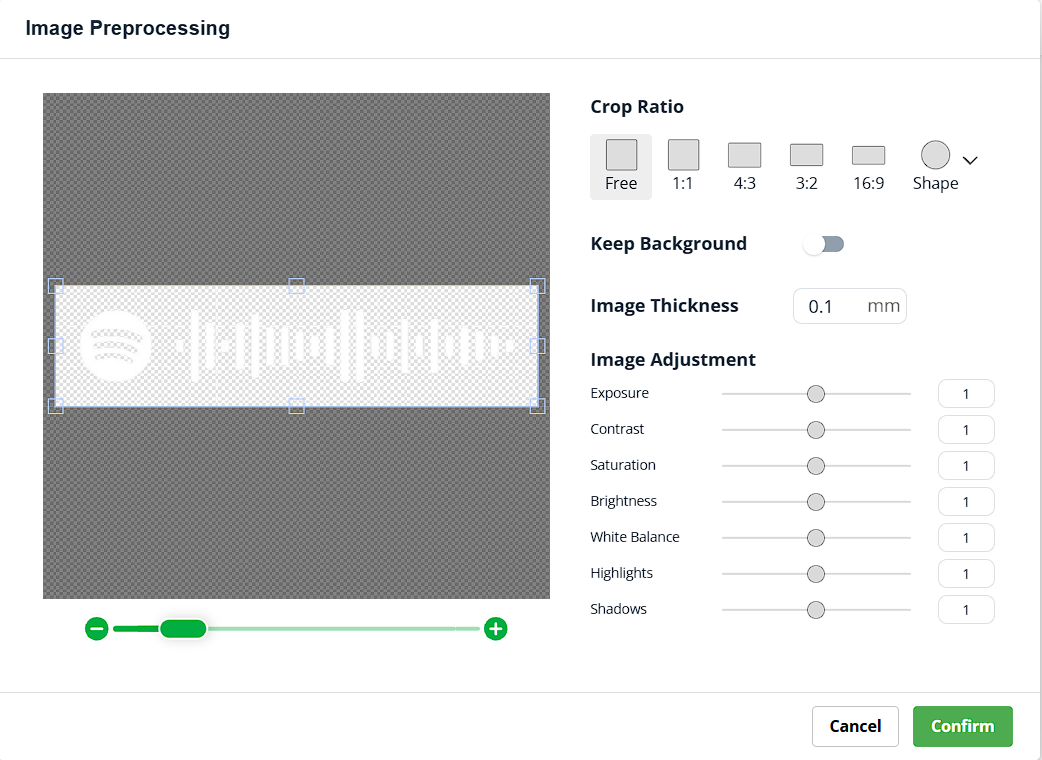
- Click confirm twice
Once processed, download the result as a .3MF file
- Open the Keychain Base Model in Bambu Studio:
- Open your previously customized Spotify keychain in Bambu Studio
- Click once on the model to select it
Then go to the top bar and click “Add”

- Select the Spotify code .3MF file you just downloaded and open it
- Adjust the Imported Spotify Code:
- With the code selected, open the Rotate Option
Set Rotation Z = 90° (absolute coordinates)
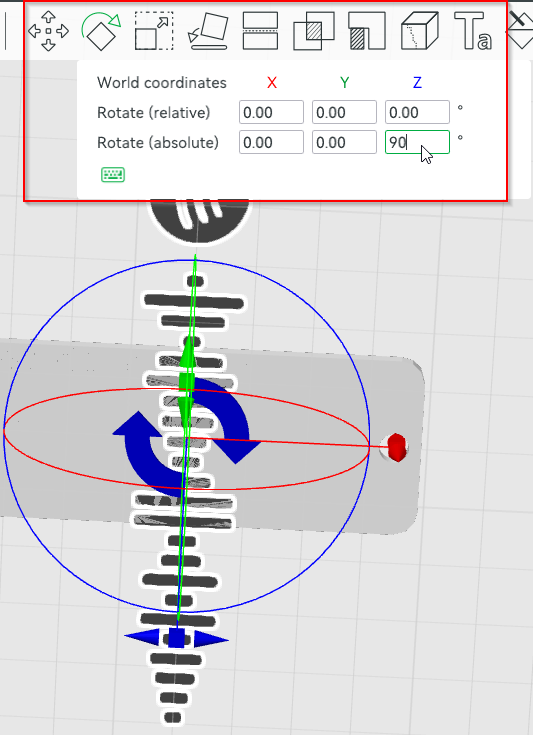
- right-click and apply Mirror > along Y-axis
- Set the scale to 64%
- Place the Code in the Cutout Slot:
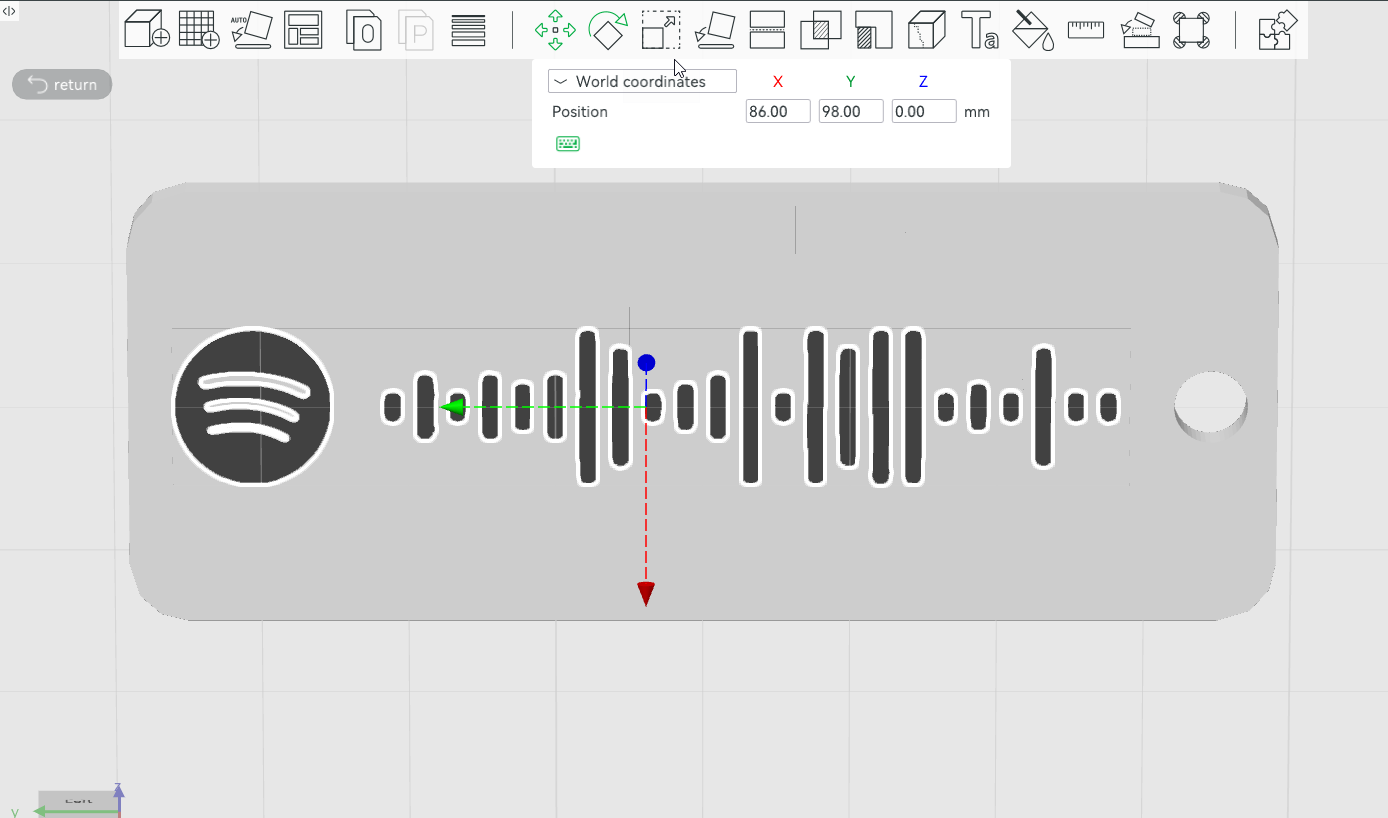
- The back of the keychain includes a small rectangular recessed slot specifically designed to fit the code
- This cutout is only 0.1 mm deep, and may be difficult to see due to SCAD-to-BambuLab compatibility issues
- However, if you position the code using these approximate world coordinates, it should align perfectly:
Click on move, then:- X = 86
- Y = 98
- Merge the Parts:
- Select all parts (Ctrl + A)
- Right-click on the base keychain
- Click “Merge” to unify the geometry
- Final Steps:
- Slice the model as usual
- Slice the model as usual
OPTIONAL: Canva Method (Not recommended)
Step 1: Open and Edit the Canva Template
- Click on Customize to open the template in Make My Sign and create a copy.
- Then go to this Canva link:
[https://www.canva.com/design/DAGtwI9mPJc/ct0ygDch0KoYSY9r4YubtA/view?mode=preview](https://www.canva.com/design/DAGtwI9mPJc/ct0ygDch0KoYSY9r4YubtA/view?mode=preview) - Click Use template (you’ll need to log in or create a Canva account).
- Once inside the editor, change the song title and artist name.
Avoid changing fonts, positions, or sizes—these are optimized for printing. - Optional: If you want to include the album cover, use a simple, single-color image. Otherwise, delete the photo frame from the design.
Step 2: Export the Image and Convert It to a Keychain
- When you're done editing, click Share > Download, choose PNG, and click Download.
- Go to MakerWorld Image to Keychain
- Click Create from blank, then upload the image you downloaded from Canva.
- Once it previews, uncheck “Keep Background”.
- If you included the album cover, only tweak the Saturation and Highlights sliders.
- If not, just click Confirm without changing anything.
- Confirm two more times when prompted, and then click Download to get your keychain image as a 3D file.
Step 3: Export to Make My Sign and Prepare for Printing
- Click the downward arrow on the MakerWorld page and choose Export to Make My Sign.
- Select the same template you opened in Step 1 and click Import.
- Once imported, change the Width to 27mm.
- Center your design in the frame.
- Click Download > Download 3MF.
Step 4: Print Your Keychain
- Open the 3MF file in Bambu Studio.
- Recommended setting: 0.12mm layer height (High Quality).
- Adjust the filament color and any other print settings as desired.
- You're all set! Enjoy your custom music plaque, and thanks for the support!
Customizable Player Keychain with Spotify Code

Publicado em 21 de jul de 2025