Você está no 3DFinder
Buscamos em Thingiverse, MakerWorld e Printables ao mesmo tempo para te dar o melhor de cada uma.
Descrição
Create crisp, two-colour labels for your Multiboard drawers in seconds, right inside the MakerWorld Customizer.
📏 Supported Sizes
| Name | Drawer Fit | Width | Height | Thickness |
|---|---|---|---|---|
| Small | 1 × 1 × 1 drawers | 28 mm | 12 mm | 0.4 mm base + 0.4 mm text/icon |
| Large | All larger drawers (4 × 1 × 1 shown) | 78 mm | 12 mm | 0.4 mm base + 0.4 mm text/icon |
Large drawer example: [https://thangs.com/designer/Multiboard/3d-model/4x1x1-Deep%20-%20Multibin%20Simple%20Drawer-1128811](https://thangs.com/designer/Multiboard/3d-model/4x1x1-Deep%20-%20Multibin%20Simple%20Drawer-1128811)
Small drawer example: [https://thangs.com/designer/Multiboard/3d-model/1x1x1-Deep%20-%20Multibin%20Simple%20Drawer-1128787](https://thangs.com/designer/Multiboard/3d-model/1x1x1-Deep%20-%20Multibin%20Simple%20Drawer-1128787)
🛠️ How the Customizer is organized
1️⃣ Label Settings
- Size – pick Small (28 mm) for 1×1 drawers, Large (78 mm) for everything else.
- Font – Roboto, Arial, Liberation Sans, Times New Roman or Courier New.
- Label Text – the characters you want on the tag (e.g. “M3”, “USB-C”, “BAT”).
- Text Size Override – leave at 0 for auto-fit (two perimeters). Use a value only if you need the text bigger/smaller.
2️⃣ Icon Settings
- Icon Type – choose from checkmark, circle, square, ruler, pen, pencil, marker, etc.
- Arrow Direction – appears only when arrow is selected.
- Icon Position – left, right or both sides.
- Icon Size Override – 0 = auto size (two perimeters). Adjust for custom thickness.
3️⃣ Icon Positioning
- Offset Method – Center-based (move both icons together) or Separate.
- Left Icon Offset – shift the left icon horizontally.
- Right Icon Offset – shift the right icon horizontally.
4️⃣ Advanced Settings
Quick-print defaults:
- Base layers: 0.4 mm (two × 0.2 mm)
- Text/Icon layers: 0.4 mm (two × 0.2 mm)
Change these only if you want a thicker tag or deeper emboss.
🎨 Two-Colour Printing Guide (Bambu Studio)
- Generate and download the STL/3MF from MakerWorld (it’s a single mesh).
- Load into Bambu Studio and set the model’s primary colour (background).
In the layer preview, drag the vertical slider down one layer (there are only 4).
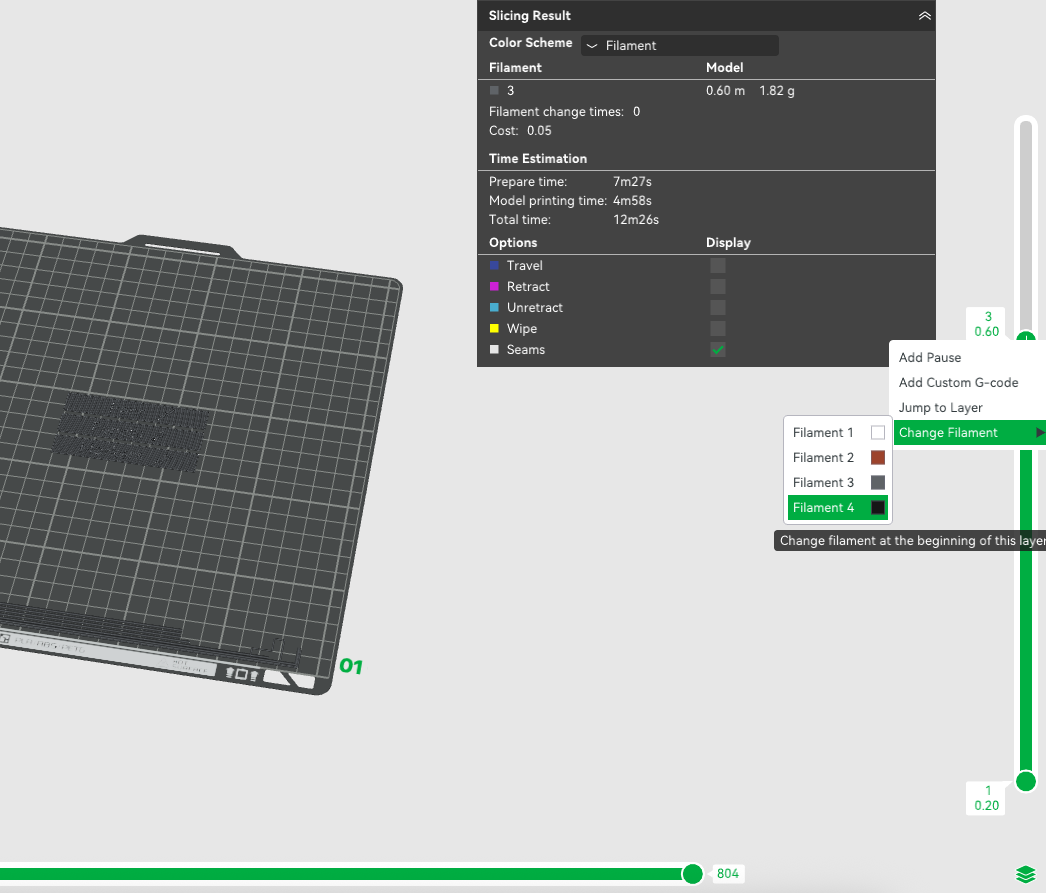
- Right Click “+” → Change Filament and pick your second filament for the text/icons.
Slice (Important Slice again so it would look like the following picture) & print – the printer will pause automatically after layer 3 for the color swap.
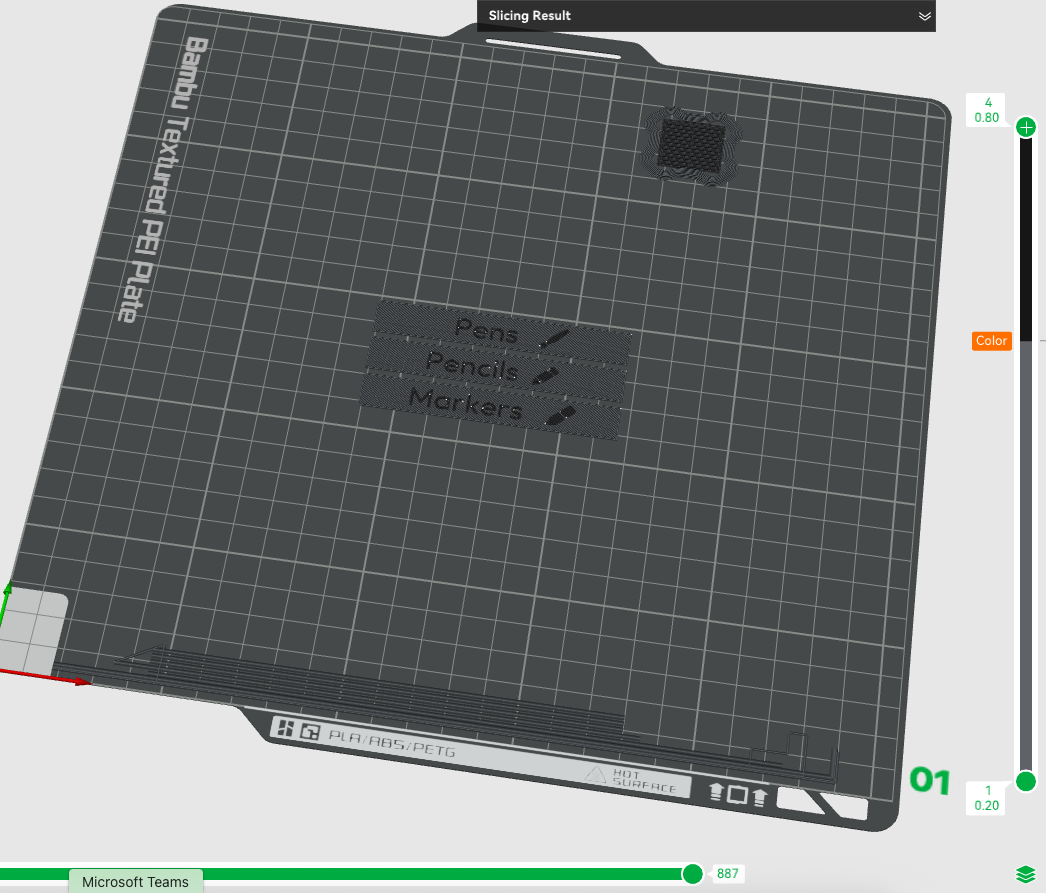
(On other slicers, insert a filament-change at Z = 0.4 mm.)
💡 Why this remix?
Inspired by the original full-featured generator by Multiboard
[https://thangs.com/designer/Multiboard/3d-model/Multiboard%20Label%20Generator-1135329](https://thangs.com/designer/Multiboard/3d-model/Multiboard%20Label%20Generator-1135329)
I created a lightweight, quick-label version that focuses on the most common needs – two standard sizes, basic icons, and super-fast prints you can churn out in minutes. Kudos to the Multiboard team for the idea!
Hardware & consumables I use
(Affiliate links—using them won’t change your price but helps me keep designing, thank you!)
📝 Print Settings (recommended)
- Layer height: 0.20 mm
- Nozzle: 0.4 mm
- Infill: 15 % (Grid or Gyroid) – or 0 % since it’s only 0.4 mm thick
- Material: PLA
- Supports: none
- Build plate adhesion: skirt or none
🔄 Change Log
- v1.0 – initial MakerWorld release (Small & Large, basic icons, two-colour ready)
Im working on a .4mm height embedded text label generator next. If this post gets enough support, I will release that other version once its finished. Please support me by rating and boosting if you enjoyed this model and found it usefull. - V2.0 - Checkout the Flush version of this here: [https://makerworld.com/en/models/1568211-multiboard-simple-drawer-label-generator-flush#profileId-1648875](https://makerworld.com/en/models/1568211-multiboard-simple-drawer-label-generator-flush#profileId-1648875)
Have fun labelling your drawers – and share your makes!